
Installing Visual Studio Code on macOS
Visual Studio Code is available for macOS through a downloadable disk image. VS Code supports Intel-based Macs and Macs with Apple silicon.
Install VS Code on macOS
-
Download Visual Studio Code for macOS.
-
Open the downloaded
.dmgfile. -
Drag
Visual Studio Code.appto the Applications folder. -
Open VS Code from the Applications folder by double-clicking the icon.
-
To keep VS Code in the Dock, Control-click the icon in the Dock, then select Options > Keep in Dock.
The Download Visual Studio Code page also lists Universal, Intel chip, and Apple silicon builds.
Launch VS Code from the command line
To run VS Code from the terminal by typing code, add VS Code to the $PATH environment variable.
Configure PATH with VS Code
-
Launch VS Code.
-
Open the Command Palette (Cmd+Shift+P), type
shell command, and run Shell Command: Install 'code' and optionally 'copilot' commands in PATH.
-
When prompted to also install GitHub Copilot CLI, select an option:
- Yes: start installation in the Install GitHub Copilot CLI integrated terminal and continue adding
codeto PATH. - No: add only
codeto PATH.
Pressing Escape dismisses the prompt without installing either command.
- Yes: start installation in the Install GitHub Copilot CLI integrated terminal and continue adding
-
If you select Yes, follow the installation instructions in the terminal, including any instructions to update your shell profile or PATH. If Copilot CLI is already installed, the existing installation is reused.
Copilot CLI installation runs separately from adding
codeto PATH. The success message forcodedoes not confirm that Copilot CLI installation is complete. Check the installation terminal for the result. -
Restart the terminal for the new
$PATHvalue to take effect.Run
code .in any folder to start editing files in that folder.
If you install Copilot CLI, run copilot to start a session from the terminal.
In Insiders, the command uses code-insiders instead of code. If AI features are hidden or your organization disables Copilot CLI installation, the command keeps its original Shell Command: Install 'code' command in PATH label and does not offer to install Copilot CLI.
If an old code alias remains in .bash_profile or an equivalent shell profile from an earlier VS Code version, remove it and run the Shell Command installation command again.
Manually configure PATH
To manually add VS Code to your path, run the command for your shell.
Zsh:
cat << EOF >> ~/.zprofile
# Add Visual Studio Code (code)
export PATH="\$PATH:/Applications/Visual Studio Code.app/Contents/Resources/app/bin"
EOF
Bash:
cat << EOF >> ~/.bash_profile
# Add Visual Studio Code (code)
export PATH="\$PATH:/Applications/Visual Studio Code.app/Contents/Resources/app/bin"
EOF
The leading backslash in \$PATH prevents $PATH from expanding during concatenation. Remove the backslash when running the export command directly in a terminal.
Start a new terminal to pick up your changes. Run code . in any folder to start editing files in that folder.
Updates
VS Code ships weekly releases and supports auto-update when a new release is available. When VS Code prompts you for an update, accept the prompt to install the new version.
Disable auto-update if you prefer to update VS Code on your own schedule.
Touch Bar support
VS Code adds these Touch Bar actions on supported Macs:
- Editor history navigation.
- The Debug toolbar for controlling the debugger.
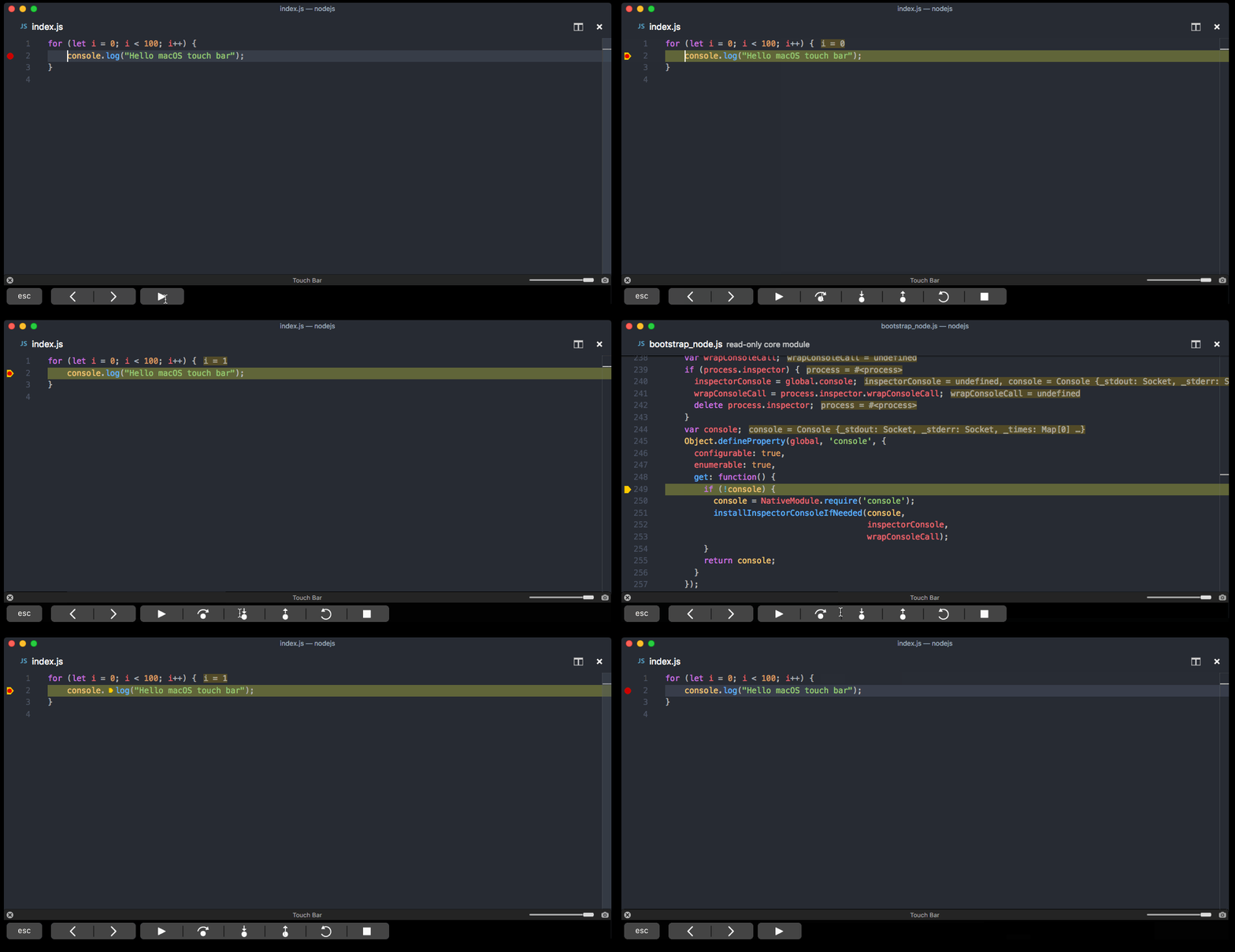
After installation
After you install VS Code, finish setup for your development workflow:
- Install additional components, including Git, Node.js, TypeScript, language runtimes, and command-line tools.
- Install extensions from the Visual Studio Marketplace to add themes, formatters, debuggers, and language support.
- Set up GitHub Copilot to use AI features in VS Code.
- Start the VS Code tutorial for a hands-on tour of the user interface and key features.
Common questions
Why does Visual Studio Code ask for access to my calendar?
On macOS Mojave, dialogs might say "Visual Studio Code would like to access your calendar, contacts, or photos." These dialogs come from macOS privacy protections and are not specific to VS Code. Select Don't Allow because VS Code does not need access to those folders.
VS Code fails to update
If VS Code doesn't update after restart, macOS might have set it under quarantine. Follow the steps in issue #7426 to resolve the issue.
Does VS Code run on Apple silicon machines?
Yes. VS Code supports macOS Arm64 builds that run on Macs with Apple silicon. Install the Universal build, which includes both Intel and Apple silicon builds, or install one of the platform-specific builds.