
Optimize AI credit usage in VS Code
Each GitHub Copilot plan includes a monthly allowance of AI credits. Different actions consume credits at different rates, based on the model and the number of tokens processed. This guide covers practical ways to get the most out of your AI credits in Visual Studio Code.
Choose models based on evidence
The lowest-cost model does not always produce the lowest-cost result. A model that needs retries or creates rework can cost more than a capable model that completes the task reliably. The inverse is also true: not every task requires a complex, reasoning model, and routing simple or repetitive tasks to a lighter model avoids paying for capability you don't need.
Start from the AI model comparison table and best practices for model selection for general guidance, then use representative tasks from your own work to compare credit usage against response quality:
- Define the expected result and how you will assess its quality.
- Run each task more than once because model output is nondeterministic.
- Compare task completion, output quality, reliability, duration, and credit consumption.
- Choose the lowest-cost model that consistently meets your requirements, and reevaluate as models change.
For a low-maintenance default, use auto model selection to let VS Code route each request to an efficient model based on task complexity, model health, and availability. For repeatable workflows, configure a preferred model in a custom agent.
The model picker in chat shows cost details in the hover menu, including cost per token type and a generic cost tier label (Low, Medium, High). Use the Agent Debug Logs to compare token usage, tool calls, errors, and duration across test runs.
For more information, see choosing and configuring language models.
Plan and delegate before you implement
Jumping straight into code generation can waste credits if the approach is wrong. Separate planning, implementation, and review so that each phase uses an appropriate model:
- Use the Plan agent with a capable reasoning model to research the task and create a structured implementation plan.
- Review and refine the plan before the agent writes code.
- Divide the approved plan into well-scoped implementation tasks.
- Delegate those tasks to custom agents running as subagents. Configure each worker with a cost-effective model, focused instructions, and only the tools it needs.
- Have the primary agent evaluate the results and resolve work that requires broader context or stronger reasoning.
This coordinator-and-worker pattern keeps the primary agent focused on planning and evaluation while lower-cost models perform bounded tasks. Delegation itself uses tokens, so keep small tasks in the primary session when isolation and a cheaper model would not offset the orchestration overhead.
For more information, see plan first, then implement.
Use thinking effort defaults
Thinking effort controls how much reasoning a model applies to each request. Higher effort levels produce more thinking tokens, which increases both latency and credit consumption. VS Code sets default effort levels based on evaluations and has adaptive reasoning enabled, where the model dynamically decides how much to think based on the complexity of each request.
For most tasks, the defaults are sufficient. Only increase thinking effort for genuinely complex problems like architectural planning or multi-step debugging.
For more information, see configure thinking effort.
Start new chats for new tasks
As a conversation grows, it accumulates context from previous messages, tool outputs, and file contents. When you switch to an unrelated task in the same session, the model still processes all that irrelevant history, which consumes tokens without improving results.
Start a new agent session (⌘N (Windows, Linux Ctrl+N)) when you change topics. This gives the model a clean context window focused on the current task.
Fork conversations
When you want to explore an alternative approach or ask a side question, fork the conversation instead of re-prompting from scratch. Forking creates a new session that inherits the existing conversation history, so you don't need to re-establish context.
- Type
/forkin the chat input to fork the entire session up to the current message. - Hover over a previous message and select Fork Conversation to fork from a specific checkpoint.
Keep the tool catalog focused
Large tool catalogs increase the input context and make tool selection more complex. Tool calls also add their output to the context window. Expose only the tools relevant to the current task:
- Use the Configure Tools button in the chat input field to select individual tools or MCP servers for the current request. Search the tools picker and add another tool when the task needs it.
- In custom agents, use the
toolsproperty to give each agent a narrow, task-specific tool set.
For organizations with a large internal tool catalog, consider providing a curated command-line interface for common workflows. The agent can invoke the commands through the terminal tool without loading every operation as a separate MCP tool. This approach requires your organization to maintain and secure the command-line interface.
For more information, see use tools with agents.
Batch repetitive operations
Repeated submit, poll, and retrieve tool calls add intermediate results to the model context. For deterministic or bulk workflows, use a script or command-line tool to run the loop outside the agent conversation and return only the final result.
For example, instead of asking the agent to issue and inspect many similar database queries one at a time, use a reviewed script that runs the query batch and produces a concise summary. Run the script with the terminal tool, then give the summary to the model for analysis. Benchmark the scripted and interactive versions of your workflow because the savings depend on the tools, results, and task.
Ground the agent before broad exploration
Relevant context helps an agent avoid failed searches, unnecessary tool calls, and incorrect changes. Before broad exploration:
- Make sure the workspace semantic index is available, and use
#codebasewhen you want to explicitly ground a request in the indexed codebase. - Provide the relevant files, errors, constraints, and success criteria in the prompt.
- Use symbol-aware search and focused MCP or command-line tools for authoritative project and organization data.
- Add stable project conventions to custom instructions so the agent does not rediscover them in every session.
Grounding should narrow the search space, not preload every available source. Include the smallest set of authoritative context that lets the agent complete the task.
Exclude files from chat context
Large generated files, build outputs, or irrelevant directories can increase token usage without adding value. Exclude these files to keep agent context focused:
- Use a
.gitignorefile to exclude files from the workspace index and from agent text search and grep. - Use the files.exclude setting to hide files from VS Code entirely, which also excludes them from the index and agent search tools.
- Use the search.exclude setting to exclude files from agent text search and grep while keeping them visible in the Explorer, for example log files you want to open manually but not include in search results.
Search match snippets count toward the context window even when the agent doesn't open the matched file. Excluding noisy paths reduces irrelevant tokens in search results.
For more information and example configurations, see improve agent search with exclusion settings.
Manage context with compaction
When a conversation grows long, use /compact to summarize older parts of the conversation and reclaim context window space. You can optionally add instructions to guide the summary, for example /compact focus on the API design decisions.
For more information, see context compaction.
Monitor your usage
You can monitor your AI credit usage in VS Code for a specific chat request, the cumulative usage for a session, and your overall monthly consumption. This helps you understand which requests are more expensive, spot expensive conversations, and manage your usage over time.
To view the cost for a single request, hover over the chat response to see the credit consumption for that turn. This helps you understand which requests are more expensive and adjust your prompts or model selection accordingly.
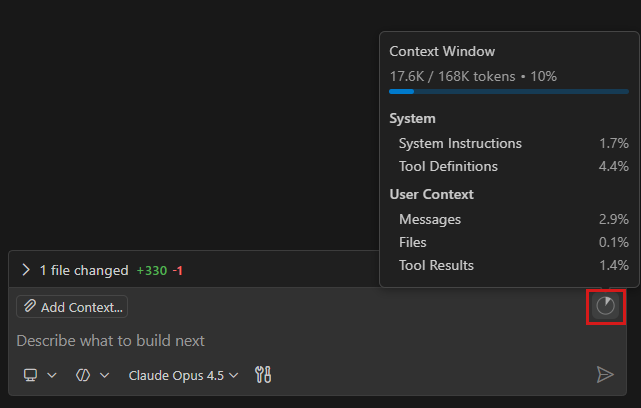
To view the cumulative cost and token breakdown for the entire session, hover over or select the context window control in the chat input. The session info popover shows the total cost in credits and the cumulative context window token usage for the whole session, complementing the per-turn credit consumption already shown for individual requests.
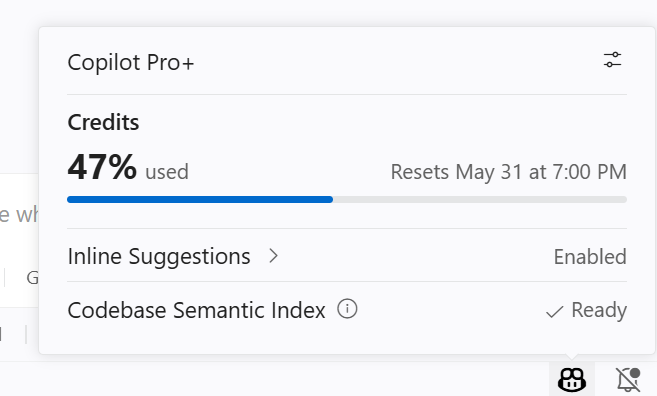
To view your overall monthly consumption, open the Copilot status dashboard from the VS Code Status Bar. The dashboard shows the percentage of your monthly allowance you have used for AI credits (and inline suggestions for the Copilot Free plan).
Visit the GitHub Copilot documentation for more information about monitoring usage and entitlements.
You can also run the /chronicle:cost-tips command in any chat session to get personalized recommendations for optimizing your AI credit usage based on your recent activity. Learn more about session insights and the chronicle command.
Inspect token usage and caching
Use the Agent Debug Logs to understand what is consuming credits in a session:
- The Summary view shows aggregate token usage for the session, including total tool calls and overall duration.
- The Cache Explorer view shows prompt cache hit rates and how many input tokens were reused. Prompt caching lets model providers reuse the prefix of a request that matches a previous one, which reduces latency and token costs.
Use these measurements as an optimization loop:
- Run a representative task and record its quality, reliability, credits, tokens, duration, tool calls, and errors.
- Change one variable, such as the model, available tools, delegation strategy, or grounding source.
- Repeat the task and compare the results.
- Keep the configuration that meets your quality threshold at the lowest cost.