
Understand context in AI agents
Context is the information available to an AI agent and its language model while they work on your request. It can include conversation history, files from your workspace, tool outputs, custom instructions, and references you add to your prompt.
The language model reasons over this information to decide what to say or do next. The agent can use tools to gather more context, take actions, and evaluate the results. This article explains how VS Code assembles and discovers context, and how to work within context window limits.
Why context matters
A prompt with relevant files, clear instructions, and focused history produces better results than a vague prompt with no context. The language model can only reason over information included in its current context.
You don't need to identify every relevant file before you start. During the agent loop, the agent can search your workspace, read files, run commands, and add the results to the context for its next step. Explicit references are useful when you already know which information the agent should consider.
Conversation history is scoped to a chat and isn't automatically shared with other chats or sessions. Context can be passed explicitly, such as in a delegated task or a handoff. Persistent sources, such as custom instructions or agent memory, can also provide information across conversations.
How VS Code assembles context
Each time the agent sends a request to the language model, VS Code assembles a prompt from multiple sources:
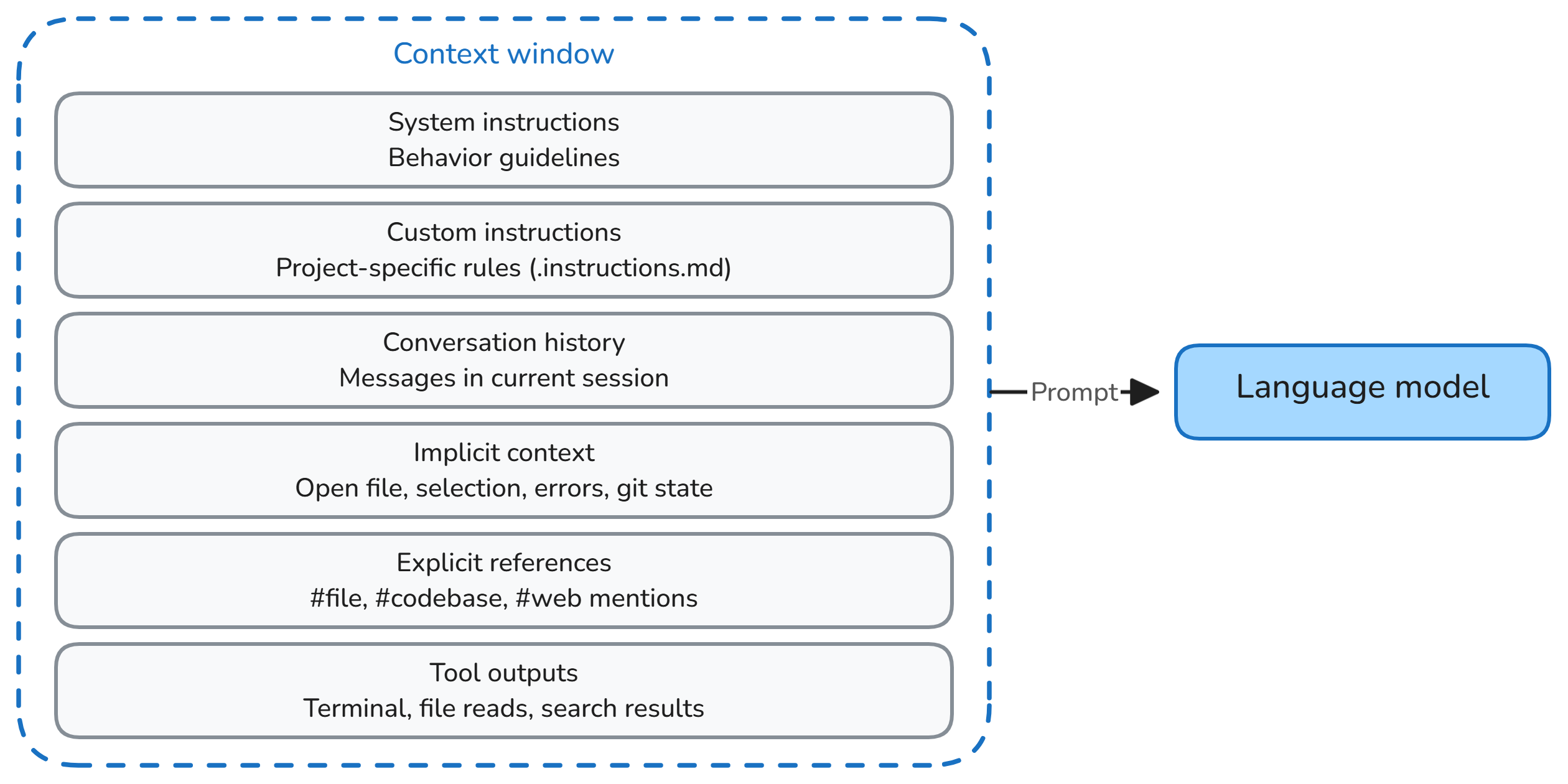
- System instructions: built-in guidelines that define the agent's behavior.
- Customizations: AI customizations you set up, including custom agents, skills, and custom instructions.
- User message: the current request or follow-up message you send to the agent.
- Conversation history: the messages exchanged so far in the current chat.
- Implicit context: editor information, such as the active file or selection, when the interface, harness, and context settings include it.
- Explicit references: files, editor context, web content, and other sources you reference with
#-mentions. - Tool outputs: results from file reads, terminal commands, codebase search results, and other tool calls during agent sessions.
The context changes as the agent works. For example, the output of a code search can lead the agent to read a file, and that file can then inform the next model request. Information that isn't included in a request is unavailable to the model, but the agent can use tools to discover and add more information.
Workspace indexing
VS Code uses a semantic index to find code by meaning rather than only by exact keywords. The index helps the agent locate relevant snippets quickly, especially in a large codebase. It doesn't add your entire workspace to every model request.
VS Code builds and maintains the index automatically. If a semantic index isn't available yet, the agent can still find context by using text search, file search, and language intelligence.
Learn more about workspace indexing.
Implicit context
VS Code can use your editor activity to provide context to a request or suggest an attachment. This behavior depends on the interface, harness, and context settings:
- In the Chat view, the active file, notebook, or selected text can provide editor context.
- With the Local harness and the default context settings, Ask includes active editor context. Agent suggests the active file as an attachment, while selected text is included.
- Agent Host sessions, such as Copilot, can also receive active editor context automatically. The Local harness behavior doesn't apply to every agent.
- In the Agents window, implicit editor context is off by default. Add the files or project context that the request needs.
A suggested attachment isn't the same as an explicitly attached file. When a source is important, add it to the request instead of assuming that an open editor supplies the full file. The agent can also gather more context through its tools.
Explicit context
Add explicit context when you want to ensure that the agent considers a specific file, folder, symbol, image, web page, or other source. Type # in the chat input to choose a context item, or select Add Context (+ icon) in the chat input field.
Explicit context guides the agent toward relevant information but still counts toward the context window. Add only the sources that help the agent complete the current task. Learn more about adding context to chat.
Providing focused context up front might reduce the searches and file reads the agent needs, which can lower AI credit use. Avoid adding unrelated or large sources because they also consume context window tokens. Learn more about optimizing AI credit usage.
Context window and compaction
The context window is the maximum amount of information a language model can process in one request. The user message, conversation history, instructions, referenced files, and tool outputs all use space in this window.
When a conversation approaches the limit, VS Code automatically compacts older parts of the conversation into a summary. Compaction makes room for new information, but details from earlier messages might be summarized or omitted. You can also enter /compact in the chat input to compact the conversation manually.
To start with fresh conversation history while keeping the same workspace and code changes, create another chat in the session, where supported. Start a new session for an unrelated task or a different project. Neither action removes saved files, applicable custom instructions, or persistent memory. If an instruction should apply across conversations, store it in custom instructions. Learn more about managing conversation context.
Context isolation with subagents
An agent can delegate a focused task to a subagent that works in its own context and returns a result. This keeps intermediate work separate from the main conversation. Compaction, by contrast, summarizes content already in that conversation.
Context isolation is not code isolation. It doesn't by itself create a separate worktree or sandbox. An agent's access to files and tools depends on the execution environment and permission controls.
Learn how to delegate work to subagents.
Working effectively with context
- Describe the goal and constraints. Explain the outcome you want and any requirements the agent should follow.
- Let the agent discover context. The agent can search your workspace and read related files as it works. You don't need to attach the entire codebase.
- Reference important sources. Explicitly add files, symbols, errors, or documentation that the agent must consider.
- Keep each conversation focused. Use a new chat for related work that doesn't need the current history, or a separate session for an unrelated task.
How context improves a response
Consider asking an agent to explain how authentication works in your project.
Without relevant workspace context:
How does authentication work?
The model has no way to know which project you mean and gives a generic answer about authentication patterns.
After attaching src/auth.ts to the request as context:
Explain the authentication flow and identify where tokens are validated.
The referenced file gives the agent a starting point. The agent can then search for related code and explain the implementation with specific functions and configuration values.