
Manage extensions in enterprise environments
As an IT admin, you can configure extension installation and enablement in Visual Studio Code, host a private marketplace, and preinstall extensions for your development teams.
Configure allowed extensions
Support for allowed extensions is available starting from VS Code version 1.96.
Use the application-wide extensions.allowed setting to control which extensions VS Code permits users to install and enable. You can allow or block extensions by publisher, extension ID, version, and platform.
By default, all extensions are allowed. With an allowlist, extensions that do not match an allow rule are blocked. If you block an extension or version that is already installed, VS Code disables it.
For locally supplied VSIX packages, these rules use identifiers declared in the package. They do not verify the package's origin, prevent changes to local extension files, or limit an extension's runtime permissions.
Allow or block by publisher
Use the publisher ID to allow or block all extensions from a publisher. A key without a period (.) is treated as a publisher ID.
"extensions.allowed": {
    "microsoft": true,
    "github": true
}
Use microsoft as the publisher ID to refer to all extensions published by Microsoft, even though they might have different publisher IDs.
Allow or block by extension
Use the full extension ID (<publisher>.<extension>) to allow or block a specific extension. A key with a period is treated as an extension ID.
"extensions.allowed": {
    "esbenp.prettier-vscode": true,
    "ms-azuretools.vscode-containers": false
}
Allow specific versions or platforms
Pin an extension to one or more approved versions. Version ranges are not supported, so you must list each version individually. To further restrict by platform, append @<platform> to the version.
"extensions.allowed": {
    "dbaeumer.vscode-eslint": ["3.0.0"],
    "figma.figma-vscode-extension": ["3.0.0", "4.2.3", "4.1.2"],
    "rust-lang.rust-analyzer": ["5.0.0@win32-x64", "5.0.0@darwin-x64"]
}
Allow only stable versions
Use "stable" as the value to allow all stable versions of an extension or all extensions from a publisher, while blocking pre-release versions.
"extensions.allowed": {
    "github.vscode-pull-request-github": "stable",
    "redhat": "stable"
}
Precedence and rules
- The more specific selector takes precedence. For example,
"microsoft": trueand"microsoft.cplusplus": falseallows all Microsoft extensions except the C++ extension. - Duplicate key values are not supported. Including both
"microsoft": trueand"microsoft": falseresults in an invalid configuration. - Wildcards are not supported in extension or publisher IDs, except for
"*"to allow or block all extensions. For example,"*": falseblocks all extensions.
Deploy with organization policy
Organizations can centrally manage allowed extensions by using the AllowedExtensions policy. Through device management solutions, admins can deploy and enforce the policy across all managed devices. This overrides any user-configured
extensions.allowed
setting on individual devices.
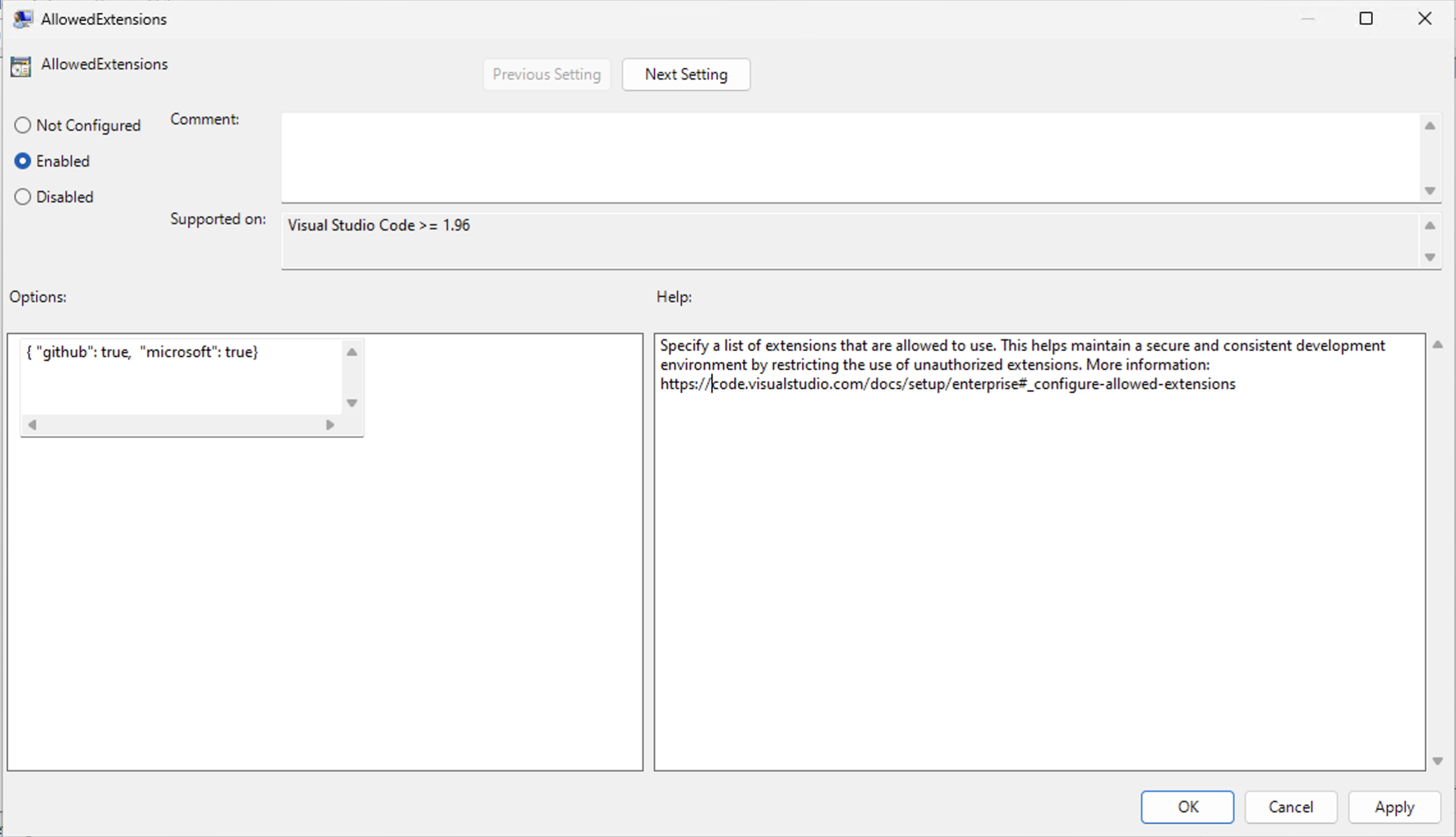
If there's a syntax error in the policy value, the extensions.allowed setting is not applied. Check the Window log in VS Code for errors (press ⇧⌘P (Windows, Linux Ctrl+Shift+P) and enter Show Window Log).
Preinstall extensions
You can set up VS Code with a set of preinstalled extensions (bootstrap). This functionality is useful in cases where you prepare a machine image, virtual machine, or cloud workstation where VS Code is preinstalled and specific extensions are immediately available for users.
Support for preinstalling extensions is currently only available on Windows.
Follow these steps to bootstrap extensions:
-
Create a folder
bootstrap\extensionsin the VS Code installation directory. -
Download the VSIX files for the extensions that you want to preinstall and place them in the
bootstrap\extensionsfolder. -
When a user launches VS Code for the first time, all extensions in the
bootstrap\extensionsfolder are installed silently in the background.
Users can still uninstall extensions that were preinstalled. Restarting VS Code after uninstalling an extension will not reinstall the extension.
Host a private extension marketplace
Use a private marketplace to host and distribute extensions within your organization. It integrates with the VS Code extensions experience, giving users discovery and automatic updates of private extensions.
Key features of the private marketplace:
- Self-hosting: Host internal extensions on your own infrastructure, such as Azure or Kubernetes.
- Upstreaming: Automatically include public extensions from the Visual Studio Marketplace, even in environments with restricted internet connectivity. Allow or deny select extensions by setting up an allow list.
- Rehosting: Download and host public extensions on your own infrastructure, including in air-gapped environments.
- Simple deployment: Deploy as a stateless Docker container, no external database required.
- Flexible storage: Publish and manage extensions using any file system or Azure Artifacts.
- Centralized rollout: Deploy the private marketplace to your team using group policy on Windows and macOS.
- Integrated installation and updates: Search for and install extensions directly from VS Code, with automatic updates for new versions.
- Cross-platform support: Compatible with VS Code desktop on Windows, macOS, and Linux.
Connecting from VS Code Server or VS Code for the Web is not supported.
Private marketplace is currently available to GitHub Enterprise customers. VS Code users must sign in with a GitHub Enterprise or Copilot Enterprise/Business account to access the private marketplace.
Get started with the deployment and feature guide, which includes deployment instructions, scripts, and development environment configuration. For questions or assistance, contact private marketplace support.
Related resources
- Extension Marketplace - Learn about installing and managing extensions in VS Code.
- Extension runtime security - Learn about extension security in VS Code.
- Enterprise policies - Reference for all enterprise policies in VS Code.