
Sandbox Copilot agent sessions
Copilot sessions can run terminal commands and start language or tool servers on your machine or a connected remote machine. Agent sandboxing confines these processes to the file system and network access that you configure on the machine where they run.
Use this article to understand the security boundary, turn on sandboxing, grant the minimum required access, manage certificate trust, inspect the effective policy for a session, and troubleshoot sandbox failures.
The settings and behavior below apply to Copilot harness sessions that use the default tools in the shared runtime.
For Local harness sessions and custom terminal tools: The settings and behavior differ from those described here. See Local harness sessions and custom terminal tools for compatibility details.
Understand the sandbox boundary
Sandboxing and approvals provide separate layers of protection:
Sandboxing applies to terminal commands and their child processes. When configured, it also applies to MCP and language servers started or managed for the session. Built-in tools that don't start operating system processes use their own permission checks.
Sandboxing is not a virtual machine or user-account boundary, and it does not replace endpoint security. A sandboxed process still runs on the execution host under your account. Network access, extra paths, credentials, developer tool access, and permission to run outside the sandbox all weaken isolation. Grant only the access that a task requires.
Depending on the operation and platform, restrictions use operating system protections or checks within the process that runs the agent. Sandboxing does not replace the isolation provided by cloud sessions or Dev Containers. Per-server MCP sandboxing is a separate feature with its own configuration and platform support.
For the security model and threats that sandboxing helps mitigate, see Trust and safety.
Turning on sandboxing does not block outbound network access by default.
chat.agent.sandbox.network.allowNetwork
defaults to true. Configured allowed and denied network domains still restrict destinations. Configure network access separately if you need to restrict outbound connections.
Check platform availability
Check the operating system where commands run against the following prerequisites. For remote sessions, install dependencies and operating system updates on the remote machine, not the machine where you connect to the session.
| Platform | Prerequisite |
|---|---|
| macOS | macOS 15 or later with the built-in Seatbelt facility. No additional sandbox packages. |
| glibc-based Linux and WSL2 | bubblewrap 0.5.0 or later, slirp4netns, util-linux 2.35 or later, and compatible iptables tools. See install missing sandbox dependencies. |
| Windows | Windows 11 with BaseContainer and the required OS capabilities. See the update baselines below. |
| Alpine Linux and other musl-based distributions | Sandboxed shell execution is not supported by this runtime. Use a supported glibc-based Linux environment. |
WSL version 1 is not supported because it does not provide the Linux kernel features that bubblewrap requires.
On Windows, the documented update baselines are:
- Windows 11 25H2: KB5124010, build 26200.9550 or later.
- Windows 11 26H1: KB5124006, build 28000.3086 or later.
Windows support is Experimental. The separate per-server MCP sandboxing feature is not available on Windows.
Turn on sandboxing where commands run
The
chat.agent.sandbox.enabled
setting controls sandboxing on all supported platforms. It accepts off or on and defaults to off.
Configure sandboxing on the machine where the session runs commands. For a remote session, the remote machine's platform determines the sandbox implementation and prerequisites. Settings are resolved on that machine, and all configured paths refer to its file system.
Sandbox device policies don't enforce these controls for Copilot harness sessions. Administrators should use Copilot managed settings to require sandboxing.
- Meet the platform prerequisites on the execution host.
- Set
chat.agent.sandbox.enabled
to
onin the settings for that host. - Start a new Copilot harness session.
- Inspect the effective sandbox policy to verify the session's restrictions.
To enable sandboxing in your settings JSON:
{
  "chat.agent.sandbox.enabled": "on"
}
If an operating system dependency is unavailable, the command does not silently run without the sandbox. Follow the notification to install the missing dependency.
Control sandboxing for the current session
Open Permissions and select Sandboxing for terminal to change sandboxing for the current session. This control does not update User or Workspace settings, change other sessions, or set the default for new sessions.
A new session inherits the effective configuration of its execution host. An explicit session selection persists when you restore the session unless an organization-managed restriction overrides it.
When an organization-managed policy enables sandboxing, sandbox.allowBypass controls this choice. If it is true, you can turn sandboxing off for the current session. If it is false or omitted, sandboxing stays on and the control is locked. Changing the session toggle does not change the managed policy or affect other sessions.
Sandboxing is independent of the selected permission level. For example, the sandbox continues to restrict processes when you select Allow all.
Use sandboxing across windows and machines
Copilot sessions are available in both the Agents window and an editor window. They use the built-in shell from the shared runtime by default. You do not need to change terminal implementations to use sandboxing.
For a remote session, use the session toggle to change the current session's sandbox state. Defaults for new sessions come from the remote machine's sandbox configuration, not from the machine where you connect to the session.
Sandbox settings
The following settings configure sandboxing for Copilot harness sessions that use the default tools. Shared setting names do not imply that other harnesses use the same behavior.
| Setting | Default | Purpose |
|---|---|---|
| chat.agent.sandbox.enabled | off |
Enable sandboxing on all supported platforms. |
| chat.agent.sandbox.network.allowNetwork | true |
Permit outbound network access, subject to configured hostname restrictions. |
| chat.agent.sandbox.network.allowLocalNetwork | false |
Permit access to hosts on the local network. |
| chat.agent.sandbox.network.allowedDomains | [] |
Configure allowed network destinations. |
| chat.agent.sandbox.network.deniedDomains | [] |
Configure blocked network destinations. |
| chat.agent.sandbox.fileSystem.userConfiguredPaths | Empty path lists | Customize read and write, read-only, and denied paths. |
| chat.agent.sandbox.fileSystem.allowDevToolAccess | true |
Grant access to common developer tools, configuration, and caches. |
| chat.agent.sandbox.mcpServers | true |
Run locally launched MCP servers in the sandbox when sandboxing is enabled. |
| chat.agent.sandbox.lspServers | true |
Run language servers in the sandbox when sandboxing is enabled. |
| chat.agent.sandbox.credentials.authenticategit | true |
Use your credentials for HTTPS Git operations inside the sandbox. |
| chat.agent.sandbox.credentials.authenticategh | true |
Use your GitHub account for gh commands inside the sandbox. |
| chat.agent.sandbox.allowUnsandboxedCommands | true |
Permit requests to run outside the sandbox after confirmation. |
Inspect the effective sandbox policy
In a Copilot harness session, run /sandbox policy to verify whether sandboxing is active or investigate why a process is blocked. This command isn't available in Local harness sessions.
- Enter
/sandbox policyin the chat input and submit it. The report opens automatically in the editor as a Markdown preview. Select Open Sandbox Policy in the response to reopen it.
The generated sandbox-policy.md report describes the execution host, whether sandboxing is enabled, the operating system's sandbox implementation, and the effective file system and network policy. You can also run the command when sandboxing is off. In that case, the report indicates that sandbox restrictions are not active.
The command does not start a model turn or change your sandbox settings.
Run /sandbox policy again after a change to refresh the report. The command updates the same report for the session, so earlier links also open the latest generated report. To check the defaults for new sessions, start a new session before running the command.
Configure file system access
The sandbox automatically grants read and write access to the current working directory. Use chat.agent.sandbox.fileSystem.userConfiguredPaths to customize path permissions on all supported platforms:
For a path listed in more than one property, deniedPaths takes precedence over readonlyPaths, which takes precedence over readwritePaths. Paths refer to the machine where the agent runs commands, including for remote sessions.
The following example grants read and write access to a build output folder, read access to shared source, and prevents access to sensitive data:
{
    "chat.agent.sandbox.fileSystem.userConfiguredPaths": {
        "readwritePaths": ["/path/to/build-output"],
        "readonlyPaths": ["/path/to/shared-source"],
        "deniedPaths": ["/path/to/sensitive-data"]
    }
}
The arrays default to empty.
The
chat.agent.sandbox.fileSystem.allowDevToolAccess
setting defaults to true. It grants read access to tool directories on PATH, toolchain directories, developer-tool configuration and caches, including registry tokens, and read and write access to shared build caches. Set it to false to remove these automatic developer-tool grants, and add narrower paths if necessary.
Use /sandbox policy to inspect the effective permissions, including runtime defaults and organization-managed restrictions.
Configure managed servers and credentials
When sandboxing is on, these settings control the servers and credentials available to the session:
-
chat.agent.sandbox.mcpServers
defaults to
trueand applies sandboxing to MCP servers started or managed for the session. -
chat.agent.sandbox.lspServers
defaults to
trueand applies sandboxing to language servers started or managed for the session. -
chat.agent.sandbox.credentials.authenticategit
defaults to
trueand provides Git authentication to sandboxed processes. -
chat.agent.sandbox.credentials.authenticategh
defaults to
trueand provides GitHub CLI authentication to sandboxed processes.
These server controls apply to processes managed by the Agent Host, the process that runs the session. They don't cover servers you start independently. Turning off MCP or language server sandboxing leaves the corresponding managed server processes outside the sandbox.
Turn off credential access that a task does not need. A process with credentials can act with the permissions of the associated account.
Configure network access
File system and network isolation are separate controls:
-
chat.agent.sandbox.network.allowNetwork
defaults to
trueand permits outbound network access. Set it tofalseto block outbound access, including for the integrated browser. -
chat.agent.sandbox.network.allowLocalNetwork
defaults to
falseand controls access to hosts on the local network. - chat.agent.sandbox.network.allowedDomains and chat.agent.sandbox.network.deniedDomains restrict destinations when outbound access is enabled.
Allow local network access only when the task must connect to a service on the execution host or private network. Use /sandbox policy to inspect the effective network policy for the current session.
To enable outbound access subject to domain filtering:
{
    "chat.agent.sandbox.network.allowNetwork": true,
    "chat.agent.sandbox.network.allowedDomains": [
        "api.github.com"
    ],
    "chat.agent.sandbox.network.deniedDomains": [
        "example.com"
    ]
}
On Windows, a proxy, hostname restrictions, or credential masking requires
chat.agent.sandbox.network.allowLocalNetwork
to be true. The sandbox uses host loopback to reach a local listener. If local-network access is disabled in that configuration, the sandboxed command does not launch. Enable this setting only when you accept the additional local-network access.
A process can perform actions on an allowed network destination, not only read data. Network access can also expose credentials or workspace content. Grant only the destinations that the task requires.
Your organization can enforce network restrictions that you cannot relax with a local setting. See Copilot managed sandbox settings.
Control approval and fallback behavior
If a command is blocked, check the applicable file system or network restriction first. Grant only the access needed for the task rather than turning off the sandbox.
If a command cannot run inside the sandbox, the agent can ask for confirmation to run it outside the sandbox. The chat.agent.sandbox.allowUnsandboxedCommands setting controls this fallback:
true(default): the agent can request permission to run outside the sandbox. Where offered, you can approve one operation or the current session. Approve only if you trust the command to run without the sandbox's file system and network restrictions.false: Allow Outside Sandbox is not offered, and requests to run outside the sandbox fail instead of prompting for approval. Commands that comply with the sandbox policy can still run.
The agent requests approval when a sandboxed command fails or sandbox restrictions would block it. Rejecting the confirmation prevents the command from running outside the sandbox.
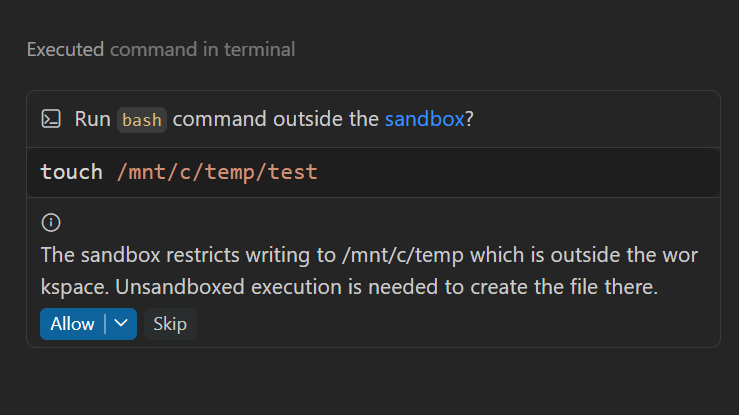
Approval to run outside the sandbox removes file system and network restrictions for that operation. If you approve a session-wide bypass, subsequent terminal commands in that session also run without those restrictions until you turn sandboxing back on.
Troubleshoot agent sandboxing
If chat reports Sandboxing might not work as expected, or sandboxed tools fail to start or connect, check dependencies and operating system requirements in the environment where the session runs commands. Certificate errors can require a separate check even when all dependencies are installed.
Install missing sandbox dependencies
Install dependencies and operating system updates in the environment where the agent runs. VS Code can connect to that environment remotely, so it might run on a different machine than the agent.
Follow the installation steps for the agent's operating system. A remote workspace does not always mean the agent runs remotely. If the agent runs locally, install locally.
Install packages and operating system updates where the agent runs:
- Local agent host: Install on the same machine as VS Code.
- WSL: Install inside the Linux distribution running the agent, not on Windows.
- Remote host, Dev Container, or Codespace: Install on that host or inside that environment.
On Debian and Ubuntu, update the package index:
sudo apt-get update
After the update succeeds, install the required packages:
sudo apt-get install bubblewrap slirp4netns util-linux iptables
On Fedora:
sudo dnf install bubblewrap slirp4netns util-linux iptables-nft
On Arch Linux, the following command also performs a system upgrade. Review the changes before approving:
sudo pacman -Syu bubblewrap slirp4netns util-linux iptables
On other glibc-based distributions, use the distribution's package manager or ask your administrator to install packages that provide:
bwrap0.5.0 or later andslirp4netns.unshareandnsenterfrom util-linux 2.35 or later.- All four firewall commands:
iptables,ip6tables,iptables-restore, andip6tables-restore, with a compatible firewall backend.
Linux also requires unprivileged user and network namespaces and read/write access to /dev/net/tun. The unshare command must support --map-current-user and --keep-caps. If the packages are installed but these facilities are blocked or unavailable, ask your administrator or container owner to fix the environment. Installing packages alone does not add support for Alpine Linux or other musl-based distributions.
On macOS, there are no additional sandbox packages to install. Open System Settings > General > Software Update and install applicable updates.
On Windows, there is no standalone sandbox package. Open Settings > Windows Update > Check for updates, install applicable updates, and restart Windows when prompted. Check the platform prerequisites for supported baselines.
Check Windows sandbox proxy access
On Windows, a sandbox proxy requires
chat.agent.sandbox.network.allowLocalNetwork
to be true so sandboxed tools can reach the proxy's local listener. If local-network access is blocked, commands that require the proxy cannot launch.
Open Settings, search for @id:chat.agent.sandbox.network.allowLocalNetwork, and turn on the setting only if you accept the additional access to the local network. If your organization manages this setting, contact your administrator. See configure network access for the security implications.
Trust the sandbox CA certificate on Windows and macOS
If chat reports Sandbox trusted CA is not installed, tools that rely on the operating system's certificate store might fail with certificate, HTTPS, or authentication errors.
Copilot's sandbox credential proxy lets tools authenticate to approved services without exposing real authentication tokens to sandboxed processes. Some tools need the proxy's certificate authority (CA) certificate installed in the operating system's trust store to connect successfully.
Installation is optional and improves tool compatibility. It is not a general requirement for using VS Code or running sandboxed commands.
Why certificate trust is needed
When credential masking is enabled, Copilot supplies sandboxed tools with placeholder credentials instead of real tokens. For approved credential destinations, the local proxy replaces these placeholders with real credentials.
Because HTTPS encrypts request headers, credential substitution requires the proxy to establish separate encrypted connections with the tool and the destination. The proxy presents its own TLS certificate to the tool and independently verifies the destination's certificate before forwarding credentials.
The tool must trust the certificate presented by the proxy. Copilot supplies a per-process certificate bundle for tools that support it. Installing the CA into the operating system's trust store improves compatibility with tools that rely exclusively on OS trust.
Domain filtering alone does not require CA installation. The built-in local proxy can check destinations and tunnel HTTPS traffic without decrypting it.
What gets installed
Copilot generates a local, self-signed CA. It is not issued by a public certificate authority.
Installation adds only the public CA certificate to OS trust. It does not install an authentication token. The private key remains in Copilot's local storage and is not passed to sandboxed tools.
Installing the certificate does not, by itself, redirect or intercept other applications' traffic.
Manage certificate trust in VS Code
Sandbox certificate trust management is available for agent hosts running Windows or macOS.
VS Code shows a dismissible Sandbox trusted CA is not installed notice with an Install option when trust is missing and installation is supported.
You can also run Sandbox: Manage Trusted CA from the Command Palette to install, rotate, or remove trust for the last-focused chat's agent host. Each operation asks for confirmation and identifies the target host.
- Install: Adds the public CA certificate to OS trust. Installation can require operating system authorization.
- Windows: Installation uses the machine's trusted root certificate store and requires administrator approval. Trust applies to all users on that machine. Installing only in the current user's store is not sufficient for sandboxed tools.
- macOS: Installation uses your login Keychain. macOS might ask for your login password to authorize the trust change.
- Rotate: Replaces the CA, which can be necessary when configured credential destinations change. Replacing a trusted CA also updates OS trust and can require operating system authorization.
- Remove: Removes OS trust but retains the locally stored certificate and private key. Tools that use Copilot's certificate bundle can continue to work.
Running sandboxed tools might need to restart after a certificate change.
If Install is unavailable, installation fails, or your organization manages certificate trust, contact your administrator or support. Removing the CA from OS trust can cause tools that depend on it to stop working.
On Linux, the runtime supplies a per-process CA bundle and does not install a system trust root.
Continuing without installation
Missing trust does not block chat startup or sending messages, and opening a chat never changes certificate trust.
Tools that support Copilot's certificate bundle can continue to work without OS installation. Tools that rely only on OS trust might report certificate-verification or authentication errors when using credential masking. These errors do not necessarily indicate an invalid account or token.
Do not disable TLS certificate verification to work around these errors.
Security considerations
Only approve installation for an agent host you trust. Installing a root CA changes which certificates applications trust, including applications outside the sandbox that use that store. On Windows, that trust applies to all users on the device. On macOS, it applies to the current user.
The Copilot CA is constrained to configured credential destinations and their DNS subdomains, and limited to TLS server authentication rather than code signing or client authentication.
The private key is stored unencrypted and protected by filesystem permissions. Other programs running as the same user can access it. Protect Copilot's local storage and follow your organization's certificate-management policies. Do not manually copy the agent's certificate files or private keys.
Remote environments
Certificate operations affect the machine running the agent host, which might differ from the machine displaying VS Code. Installing the CA locally does not automatically establish trust in a remote host, container, or WSL environment.
Before confirming an operation, check the target host shown by VS Code.
Local harness sessions and custom terminal tools
Local harness sessions and custom terminal tools have different sandbox behavior. The following compatibility settings don't configure the Copilot harness sandbox described in this article:
- The former chat.agent.sandbox.allowNetwork setting migrates to chat.agent.sandbox.network.allowNetwork .
- chat.agent.sandbox.retryWithAllowNetworkRequests is a deprecated setting for the Local harness terminal tool. It can offer a network-enabled retry inside that tool's sandbox and does not apply to the Copilot harness's default tools.
- chat.agent.sandbox.fileSystem.mac and chat.agent.sandbox.fileSystem.linux are deprecated platform-specific settings. The Copilot harness's default tools ignore them.
The Local harness sandboxes terminal commands on macOS and Linux only. Commands that run inside the sandbox are approved automatically, unless a command needs confirmation to run outside the sandbox or with unrestricted network access. Disabling chat.tools.terminal.enableAutoApprove turns off rule-based terminal auto-approval, but does not prevent automatic approval of sandboxed commands or approval through session-level permissions.
Domain allow and deny controls are available for compatible terminal tools. Their capabilities differ by implementation and platform. For Copilot harness sessions, use the effective sandbox policy report rather than inferring restrictions from another tool's behavior.
When your organization manages sandboxing
Managed sandbox enforcement is in Preview. When a policy sets sandbox.enabled to true, sandbox.allowBypass determines whether the session toggle is editable: true lets you turn sandboxing off for the current session, while false or an omitted value keeps sandboxing on and locks the toggle. A session choice does not change the managed policy or other sessions. Your organization can also restrict network access.
If a setting is locked or you need access that policy denies, contact your administrator. For policy details, see enterprise agent sandboxing.