
Custom agents in VS Code
Custom agents combine instructions, tools, and an optional language model into a reusable configuration for a specific role, such as planning or code review. Switch to a custom agent instead of repeating the same instructions and selecting tools for every conversation.
This article shows you how to create, use, and manage custom agents in VS Code, configure their files, and connect them with handoffs.
Not sure which customization to use? See the decision matrix to compare custom agents with prompt files, agent skills, and the other options.
When to use a custom agent
Create a custom agent when a recurring task needs its own instructions, tools, or model. For example:
- Restrict a code review agent to read-only tools and give it your team's review criteria.
- Give a planning agent your team's plan template and hand off to an implementation agent.
- Run a focused research agent as a subagent to keep its work out of the main conversation's context.
- Share the same workflow with your repository or organization.
Custom agents appear in the agent picker alongside the built-in agents. The tools and controls available to a custom agent depend on the selected agent harness.
When you select a custom agent, it applies to your requests until you switch agents. In the Copilot harness, the agent's instructions are added to your custom instructions and take precedence if they conflict. If the agent specifies a tools list, only those tools are available. Another agent can also run a custom agent as a subagent, or a handoff can switch the conversation to it.
Create a custom agent
Use the Agent Customizations editor (Preview) to create an agent in your workspace or at the user level.
Use the Session Target UI control to select the agent harness you intend to use, then open the editor from either surface:
-
Agents window: Select Agents in the Customizations panel in the left sidebar.
-
Chat view: Select Open Customizations in the Chat view title bar, or run Chat: Open Customizations from the Command Palette (⇧⌘P (Windows, Linux Ctrl+Shift+P)). Then select Agents.
The editor shows customizations for the selected harness. Follow these steps to create an agent file:
-
Select New Agent (plus icon) next to the Workspace or User group, depending on where you want to store the agent file.
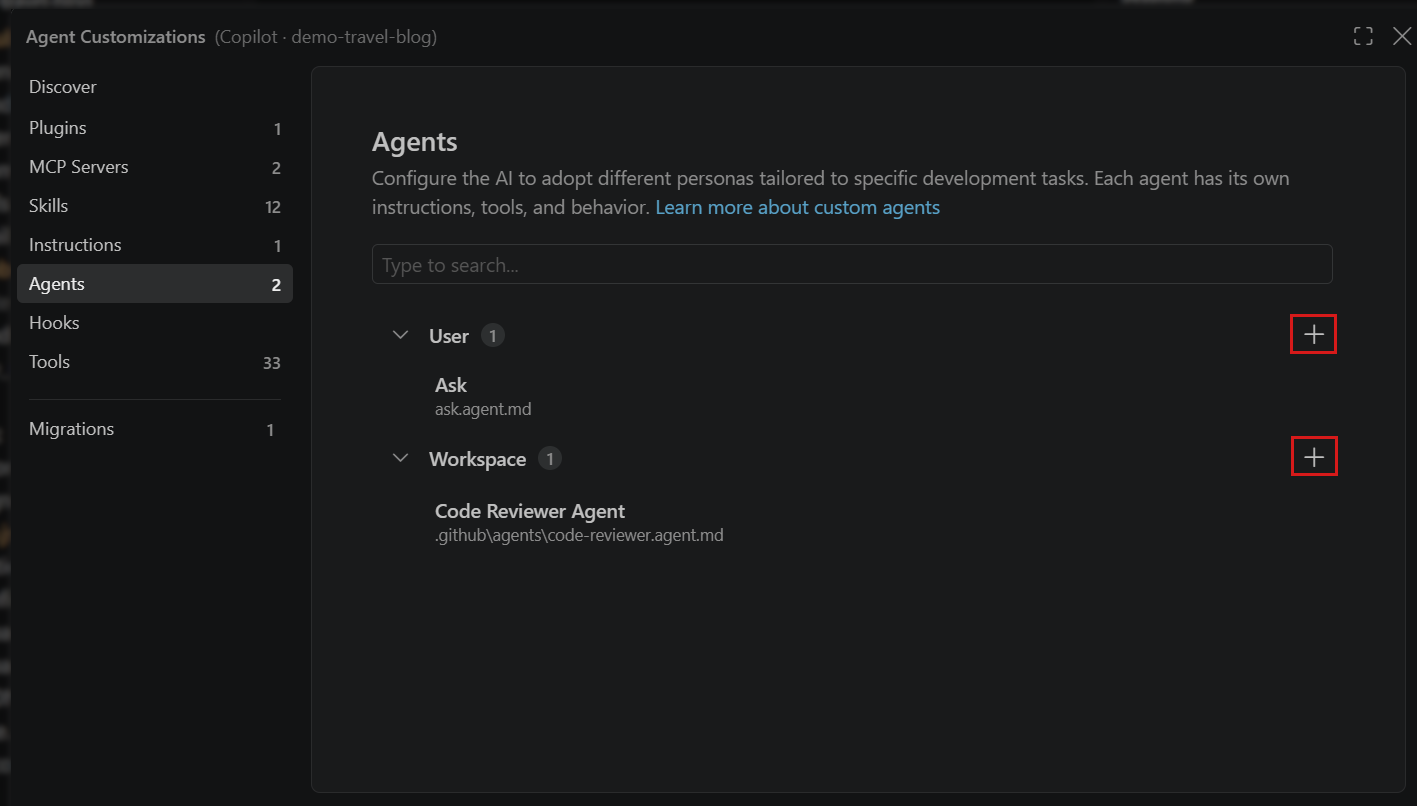
Alternatively, run the Chat: New Custom Agent command from the Command Palette (⇧⌘P (Windows, Linux Ctrl+Shift+P)).
-
Select the location and enter a file name for the custom agent. This is the default name that appears in the agents dropdown.
-
Provide the details in the newly created
.agent.mdfile, and then save it.- Fill in the YAML frontmatter to configure the agent's name, description, tools, and other options.
- Add instructions for the agent in the body of the file. Use the planning agent example as a starting point.
-
Select your custom agent in chat and try a prompt to check that it follows your instructions.
You can modify existing custom agents by opening them in the Agent Customizations editor.
You can let an agent generate a custom agent for you based on a description. For example, enter a prompt like "Create a workspace custom agent for code reviews."
Custom agent file structure
A custom agent file combines an optional FrontMatter header with Markdown instructions. The header configures the agent's name, description, tools, and other options. The Markdown body describes what the agent should do and what it should return.
For all supported fields and defaults, see the Custom agent file reference.
For example, save this planning agent as .github/agents/planner.agent.md. It uses read-only tools to research a task and return a plan:
---
name: Planner
description: Generate an implementation plan without changing code
tools: ['read', 'search']
---
Research the requested feature or refactoring task.
Do not edit files. Return a Markdown plan with these sections:
* Overview
* Requirements
* Implementation steps
* Tests to add or update
To try it, select Planner and describe a change you want to plan. Review its plan before starting implementation. You can later add a handoff to continue with an implementation agent in Local.
For more examples, see the community-contributed Awesome Copilot agents.
Use a custom agent
Select the intended harness from the Session Target UI control, then choose your custom agent from the Agent dropdown in chat. Enter a prompt for its role and review the response and tool calls. The custom agent remains selected until you switch agents.
If the agent doesn't appear, check that its file is in a supported location for the selected harness and that its visibility configuration permits user invocation.
Customize the agents dropdown list
To keep a custom agent available as a subagent without listing it in the Agent dropdown, set user-invocable: false in its YAML frontmatter:
user-invocable: false
This property controls picker visibility in both Local and Copilot. To show the agent again, set it to true or remove the property. Subagent invocation is controlled separately by disable-model-invocation.
Editing this property changes the agent definition, not a personal visibility preference. If you share the file in a repository, the change applies to everyone who uses that definition. It doesn't delete the agent file.
The Agent Customizations editor doesn't provide an eye-icon show or hide control for custom agents in either Local or Copilot. For agents contributed by an extension, manage the contributing extension instead. See How do I remove a custom agent?.
Custom agent file locations
You can define custom agents for a specific workspace or at the user level, where they are available across all your workspaces. Select the intended harness before you create an agent so the Agent Customizations editor stores it in a supported location.
To create a user-level custom agent, use the Agent Customizations editor or the Chat: New Custom Agent command. Store the file in a supported folder on the machine where the selected harness runs.
For Claude-specific fields and compatibility with Local, see the Claude agent format reference.
In a monorepo, enable chat.useCustomizationsInParentRepositories to discover custom agents from the parent repository root. Learn more about parent repository discovery.
Local harness locations and migration
The Local harness stores user-level custom agents in VS Code profile storage, separate from harness user folders such as ~/.copilot/agents and ~/.claude/agents. To reuse profile-based agents with another harness, move them to that harness's user folder.
The deprecated chat.agentFilesLocations and chat.modeFilesLocations settings add other locations for the Local harness only. To reuse agents from these locations with the Copilot harness, move them to supported locations.
If an agent has hooks in its frontmatter, review the agent-scoped hook conversion limitation. Plugin-provided agents can appear and run without their scoped hooks because conversion currently omits the hooks field. Retain the scoped definition and leave the affected hook migration incomplete; do not broaden it to repository-wide or plugin-wide execution as a workaround.
Handoffs
In the Local harness, handoffs connect agents into a workflow with suggested next steps. After a chat response completes, handoff buttons let you switch to another agent with the conversation context and a pre-filled prompt.
Use handoffs to review one stage of a task before starting the next. For example:
- Planning to implementation: Review a plan, then hand off to an implementation agent to start coding.
- Implementation to review: Complete implementation, then switch to a code review agent.
- Failing tests to passing tests: Review generated tests, then hand off to an agent that implements the changes needed to pass them.
For example, extend the Planner agent with a transition to the built-in Agent for implementation:
-
Add this
handoffsentry to the Planner file's existing YAML header, before its closing---delimiter:handoffs: - label: Implement Plan agent: agent prompt: Implement the plan outlined above. send: false -
In a Local harness session, select Planner and ask it to plan a change.
-
Review the completed plan, then select Implement Plan.
-
Review the pre-filled implementation prompt and send it when you're ready for code changes.
Set send: true to submit the handoff prompt automatically. For all properties, including selecting a model for the next step, see the handoff field reference.
Handoffs switch the active agent in your conversation. To delegate work without switching the main agent, use subagents.
Tool list priority
For how Local resolves tool lists from a custom agent and a prompt file, see Tool list priority in the file reference.
Share custom agents across teams
To share custom agents across your team, you can create a workspace-level custom agent (.github/agents folder). If you want to share custom agents across multiple workspaces within your organization, you can define them at the GitHub organization level.
VS Code automatically detects custom agents defined at the organization level to which your account has access. These agents appear in the Agents dropdown in chat alongside the built-in agents, and your personal and workspace custom agents.
Discovery of organization-level custom agents is enabled by default. To stop showing organization-level custom agents in chat, set
github.copilot.chat.organizationCustomAgents.enabled
to false.
Learn how you can create custom agents for your organization in the GitHub documentation.
Frequently asked questions
Are custom agents different from chat modes?
Custom agents were previously known as custom chat modes. The functionality remains the same, but the terminology has been updated to better reflect their purpose in customizing AI behavior for specific tasks.
If you have existing .chatmode.md files, rename them to .agent.md and place them in one of the supported custom agent locations.
How do I remove a custom agent?
To remove a custom agent you maintain, use either of these methods:
- Delete its file from the workspace or user-level location.
- Select Configure Custom Agents from the agents dropdown to open the Agent Customizations editor, hover over the custom agent, and select the trash icon.
Deleting a shared workspace agent also removes it for others when they receive the repository change. To keep the definition but remove it from the picker, see Customize the agents dropdown list.
You can't delete extension-provided agents from the Agent Customizations editor. Disable or uninstall the contributing extension to remove its agents. This also affects the extension's other features.
How do I know where a custom agent comes from?
The agents dropdown includes built-in agents and custom agents from user-level files, your workspace, organizations, extensions, and plugins.
To identify the source of a custom agent:
- Select Configure Custom Agents from the agents dropdown.
- Hover over the custom agent in the list. The source location is displayed in a tooltip.
Use the chat customization diagnostics view to see all loaded custom agents, prompt files, instruction files, and skills along with any errors. Right-click in the Chat view and select Diagnostics. Learn more about troubleshooting AI in VS Code.
Security considerations
Custom agents can restrict which tools are available, which gives you control over what the AI can do. For security-sensitive workflows, create agents with read-only tools to prevent unintended modifications. When sharing agents in a repository, review the tool list and instructions to ensure they follow the principle of least privilege.