
Agent plugins in VS Code
Agent plugins bundle related customizations into one installable setup. Use a plugin to adopt a shared workflow instead of assembling its skills, agents, and tool integrations individually. For example, a testing plugin can package a test-running skill, review agent, and reporting integration that are intended to work together.
This article shows you how to discover, install, configure, update, and troubleshoot plugins. To create or package a plugin, see the agent plugin authoring reference.
If you only need a project rule or a single skill, start with an individual customization. Choose a bundle when its components support a workflow you want to adopt together.
Enable or disable support for agent plugins with the chat.plugins.enabled setting.
What plugins provide
Plugins can provide the following customizations. The selected harness and plugin format determine which components are available.
Installed plugin customizations appear alongside your locally defined ones. For example, skills from a plugin show up in Configure Skills, and MCP servers appear in the MCP server list. Installing an automation template does not start an automation; review and configure it before turning it on.
Check the plugin's supported clients and components before installing. See Cross-tool compatibility for how portable and client-specific components differ.
Plugins can include hooks and MCP servers that run code on your machine. Review the plugin contents and publisher before installing, especially for plugins from community marketplaces.
Discover and install plugins
You can browse and install plugins from marketplaces or directly from a Git repository.
Manage plugins with slash commands
In a Copilot harness session, enter /plugin in the chat input to view completions for plugin and marketplace operations.
Marketplace plugins use the qualified identity <plugin>@<marketplace>. Use this identity when plugins in multiple marketplaces have the same name. Command completion suggests valid marketplace and plugin identities for each operation.
Plugins installed directly from a Git repository can be updated or uninstalled, but they can't be enabled or disabled. To stop using a directly installed plugin, uninstall it. Included and centrally managed marketplaces can't be removed.
The /plugin commands and the Agent Customizations editor currently use separate plugin inventories. Manage a plugin from the interface where you installed it.
Install a plugin from a marketplace
-
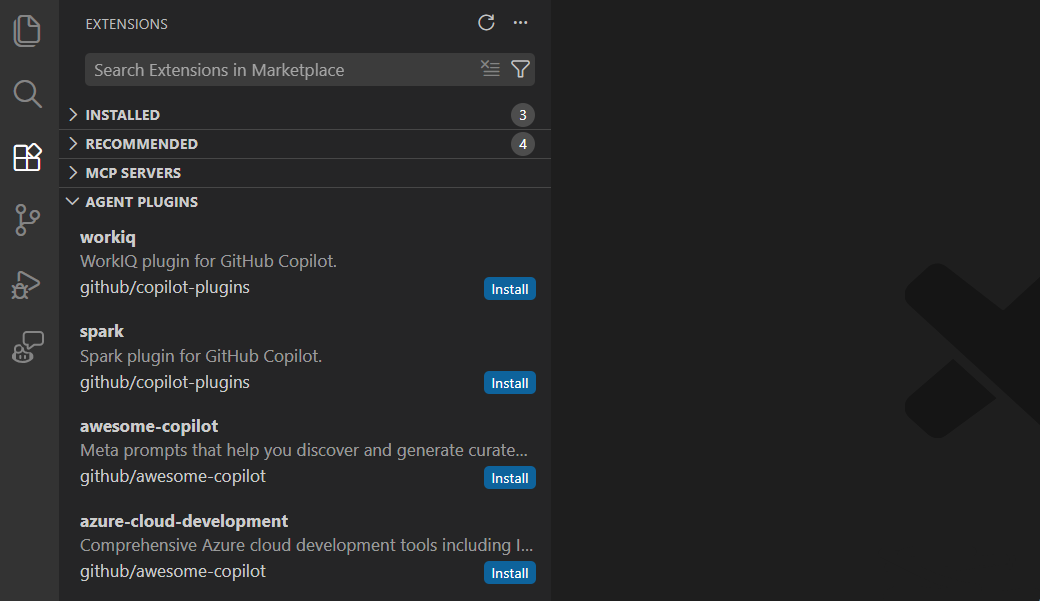
Open the Extensions view (⇧⌘X (Windows, Linux Ctrl+Shift+X)) and enter
@agentPluginsin the search field.Alternatively, select the More Actions (three dots) icon in the Extensions sidebar and choose Views > Agent Plugins.
-
Browse the list of available plugins from your configured marketplaces.
-
Select Install to install a plugin.
The first time you install a plugin from a new marketplace, VS Code shows a trust prompt. Review the marketplace source before confirming.
-
Open the Agent Customizations editor by running Chat: Open Customizations from the Command Palette, selecting Open Customizations in the Chat view title bar, or selecting Plugins in the Agents window.
-
Browse available plugins from your configured marketplaces:
- To use the unified Discover experience (Experimental), enable chat.customizations.marketplace.enabled and select Discover.
- Otherwise, select the Plugins tab and then select Browse Marketplace.
-
Select Install to install a plugin.
The first time you install a plugin from a new marketplace, VS Code shows a trust prompt. Review the marketplace source before confirming.
Install a plugin from source
You can install a plugin directly from a Git repository URL without adding a full marketplace first.
-
Run Chat: Install Plugin From Source from the Command Palette.
-
Alternatively, select Install Plugin from Source on the Plugins page of the Agent Customizations editor.
Enter a Git repository URL (for example, https://github.com/rwoll/markdown-review) and VS Code clones and installs the plugin.
Plugins installed by GitHub Copilot CLI
VS Code automatically discovers plugins that you install with the GitHub Copilot CLI to enable you to use them also in VS Code. Plugins from ~/.copilot/installed-plugins/ appear in the Agent Plugins - Installed view alongside plugins you installed from a marketplace or from source.
The CLI stores plugins under ~/.copilot/installed-plugins/<marketplace>/<plugin>/. Plugins installed directly from a Git URL (rather than from a marketplace) live under the _direct bucket, for example ~/.copilot/installed-plugins/_direct/github--moda-linter--copilot-plugin/.
View installed plugins
The Agent Plugins - Installed view in the Extensions view shows the plugins you have installed. From this view, you can enable, disable, or uninstall plugins.
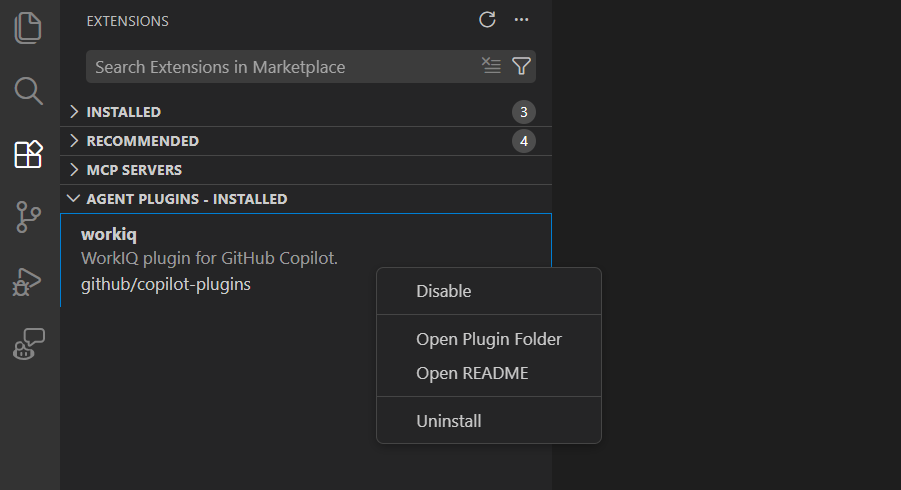
You can also manage installed plugins from the Chat view by selecting Open Customizations in the title bar, and then selecting Plugins.
Enable or disable plugins
You can enable or disable a plugin globally or for a specific workspace:
-
Use the context menu on a plugin in the Agent Plugins - Installed section of the Extensions view.
-
Use the Agent Customizations editor to toggle a plugin's enabled state.
The enable/disable state is stored separately from the plugin configuration, so it does not affect shared workspace settings.
When a plugin is disabled, its skills, agents, hooks, MCP servers, slash commands, and automation templates are no longer available. For example, skills from a disabled plugin do not appear in Chat: Configure Skills, and automation templates do not appear in Templates from Plugins. Disabled plugins appear with a dimmed style in the Agent Customizations editor and Extensions view.
Uninstall plugins
To remove a plugin, right-click it in the Agent Plugins - Installed view and select Uninstall. Plugins installed from an external source (such as npm, PyPI, or an external Git repository) are removed from disk. Plugins that are inlined in a marketplace repository remain on disk but are no longer active.
Configure plugin marketplaces
You can discover plugins from marketplaces such as copilot-plugins and awesome-copilot. To configure additional marketplaces, use chat.plugins.marketplaces (Experimental).
Marketplaces are Git repositories that contain plugin definitions. You can reference them in several formats:
- Shorthand:
owner/repofor public GitHub repositories. For example,anthropics/claude-code. Append#<ref>to select a branch, tag, or full 40-character commit SHA. - HTTPS git remote: a full URL ending in
.git. For example,https://github.com/anthropics/claude-code.git. - SCP-style git remote: SSH-style references. For example,
git@github.com:anthropics/claude-code.git. - file URI: a
file:///path to a marketplace repository already cloned on disk.
For reproducible installations, use a full 40-character commit SHA, such as owner/repo#<commit-sha>. VS Code installs plugins from that exact revision. Branch and tag references use the revision they resolve to when the marketplace is fetched.
Private repositories are also supported. If a public lookup fails, VS Code falls back to cloning the repository directly.
When a marketplace index declares a plugin at a relative path, VS Code verifies the repository, resolved revision, and path before installation. Sources with a missing revision, an invalid path, or an ambiguous path match are rejected.
Marketplace plugins can also reference external package sources such as npm or PyPI packages. For the full marketplace plugin schema, see the Claude Code plugin marketplace documentation.
// settings.json
"chat.plugins.marketplaces": [
    "anthropics/claude-code"
]
Enterprise admins can centrally control which plugins and marketplaces are available to developers. For more information, see Manage agent plugins and marketplaces.
Use local plugins
If you manually clone or download a plugin, you can register it with
chat.pluginLocations
(Experimental). This setting maps local plugin directory paths to an enabled or disabled state. Set the value to true to enable the plugin, or false to keep it registered but disabled.
// settings.json
"chat.pluginLocations": {
    "/path/to/my-plugin": true,
    "/path/to/another-plugin": false
}
Update plugins
VS Code checks for plugin updates when you run Extensions: Check for Extension Updates from the Command Palette, or automatically every 24 hours when extensions.autoUpdate is enabled.
Updating pulls down changes from cloned marketplace repositories and checks for new versions of externally sourced plugins.
Plugins sourced from npm or PyPI never update automatically. Instead, they show an Update button in the Extensions view. Selecting the button prompts you to confirm before running the install command. If an update is found during a background check, no action is taken until you explicitly select Update.
Workspace plugin recommendations
Projects can recommend plugins for team members by configuring plugin settings in the workspace settings (.claude/settings.json or .github/copilot/settings.json).
VS Code shows a notification the first time a chat message is sent. You can view the recommended plugins by opening the Extensions view and filtering by @agentPlugins @recommended.
Specify the following fields in the settings file to configure workspace plugin recommendations:
-
extraKnownMarketplaces: registers additional marketplaces for the project. These marketplaces appear when you search@agentPluginsin the Extensions view. -
enabledPlugins: lists plugins that should be enabled by default.
{
  "extraKnownMarketplaces": {
    "company-tools": {
      "source": {
        "source": "github",
        "repo": "your-org/plugin-marketplace"
      }
    }
  },
  "enabledPlugins": {
    "code-formatter@company-tools": true
  }
}
Cross-tool compatibility
Agent Plugins is an open standard for packaging skills and MCP servers across compatible clients, including GitHub Copilot in VS Code, GitHub Copilot CLI, and the GitHub Copilot app. Other components, such as custom agents, slash commands, rules, hooks, and automation templates, can be client-specific.
VS Code also supports existing Copilot, Claude, and legacy OpenPlugin formats. Support for a package format doesn't guarantee that every component works in every harness or client. Check the plugin's requirements. For file layouts and client-specific namespaces, see the plugin authoring compatibility reference.
Troubleshooting
Plugin does not appear after installation
- Confirm that agent plugins are enabled: check that
chat.plugins.enabled
is set to
true. - Verify the plugin's
namefield follows the naming rules for its format. Agent Plugins 1.0 names use lowercase letters, numbers, hyphens, and periods. Legacy Copilot plugin names use lowercase letters, numbers, and hyphens. Slashes and colons aren't supported. - Check that
plugin.jsonis in a recognized location.
Skills from a plugin do not load
- Open the
SKILL.mdfile and check thenamefield in the YAML frontmatter. The name must be plain kebab-case without namespace prefixes (for example,test-runner, notmyorg/test-runner). Invalid names cause the skill to be silently skipped. - Make sure the skill directory name matches the
namefield in theSKILL.mdfrontmatter.
Plugin version does not update
- Run Extensions: Check for Extension Updates from the Command Palette to trigger an update check.
- If you maintain the plugin, review its versioning and update requirements.
Plugin installation fails after retry
Retry the installation. VS Code validates marketplace repository caches and replaces incomplete or invalid caches automatically.
If installation still fails, review the error for an invalid repository, revision, or plugin path. If the source is valid and retry continues to fail, run Help: Report Issue. Don't delete or modify the internal plugin cache manually.
Author a plugin
Use the agent plugin authoring reference to create a package or inspect its configuration:
-
Package structure: Manifest fields, supported formats, and plugin environment variables.
-
Automation templates: Package prompts and schedules.
-
MCP servers: Server configuration, paths, and interaction with other servers.