Open a HyperFrames project, understand the workspace, make a safe edit, and finish a version.
Studio is the visual editor for the same HTML project your agent and the CLI
use. Any HyperFrames project opens here without an import or conversion. Open any project folder, then run:
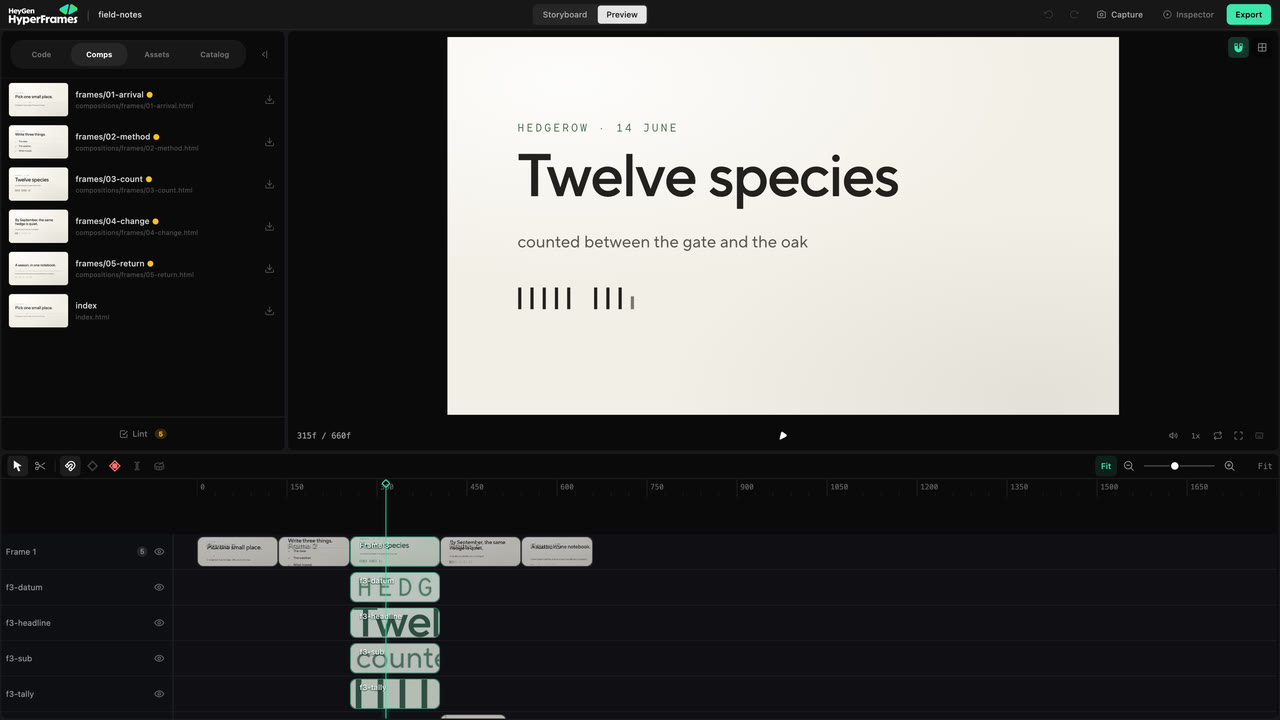
Preview keeps project files, the live frame, the Inspector, and time-based editing in one workspace.
Preview shows the built project. The live frame is in the middle, the
timeline is below, project tools are on the left, and the Inspector is on the
right. Drag any panel tab to move it, and use Window in the header to
reopen a closed panel or reset the layout. Studio remembers your layout for
each project.
Code, Compositions, Assets, and Catalog expose the project source,
compositions, media, and reusable visuals. Design, Layers,
Variables, and Renders control the selected work.
You do not need to learn every panel. Choose the surface that matches the
problem in front of you.
Host apps can compose the same rulers, safe margins, grid, and snap toolbar that
Studio uses over their own preview iframe. The provider owns the iframe geometry
and shared preferences, so the host supplies its current iframe element and chooses the
parts to render:
Pause where the problem is visible. Click the element on the canvas, or choose
it in Layers when several elements overlap. Then change only the property
you meant to change.
The canvas selects the visible element; Design exposes the properties Studio can edit safely.
Use the canvas to move, resize, rotate, or crop a supported element. Use
Design for text, layout, style, media, motion, 3D, or color controls that
apply to the selection. Play through the surrounding moment before accepting
the change; a correct still frame can still create a collision in motion.
Auto-keyframe starts enabled. Turn it off before a normal layout correction that should stay
constant. Leave it on only when the change at the current playhead time should become animation.
For the complete visible-edit workflow, continue to Edit the
frame.
Drag a clip to move it earlier or later. Drag an edge to change its duration.
Use the razor only when one supported clip must become two.
Timing changes stay visible beside the frame and neighboring tracks.
Move the playhead through the surrounding cut after every timing change. Use
the timeline guide when you need trimming, splitting,
beats, nested scenes, or multi-item editing.
Studio is best for a change you can point at. Ask the agent when the request
affects the story, several scenes, source research, or unfamiliar project code.Use Ask agent or Copy to Agent when Studio offers it, then add the human
intent that the copied context cannot know:
Make the opening feel faster, but keep the current narration and final scene.
The agent and Studio edit the same source. There is no export or conversion
between them.