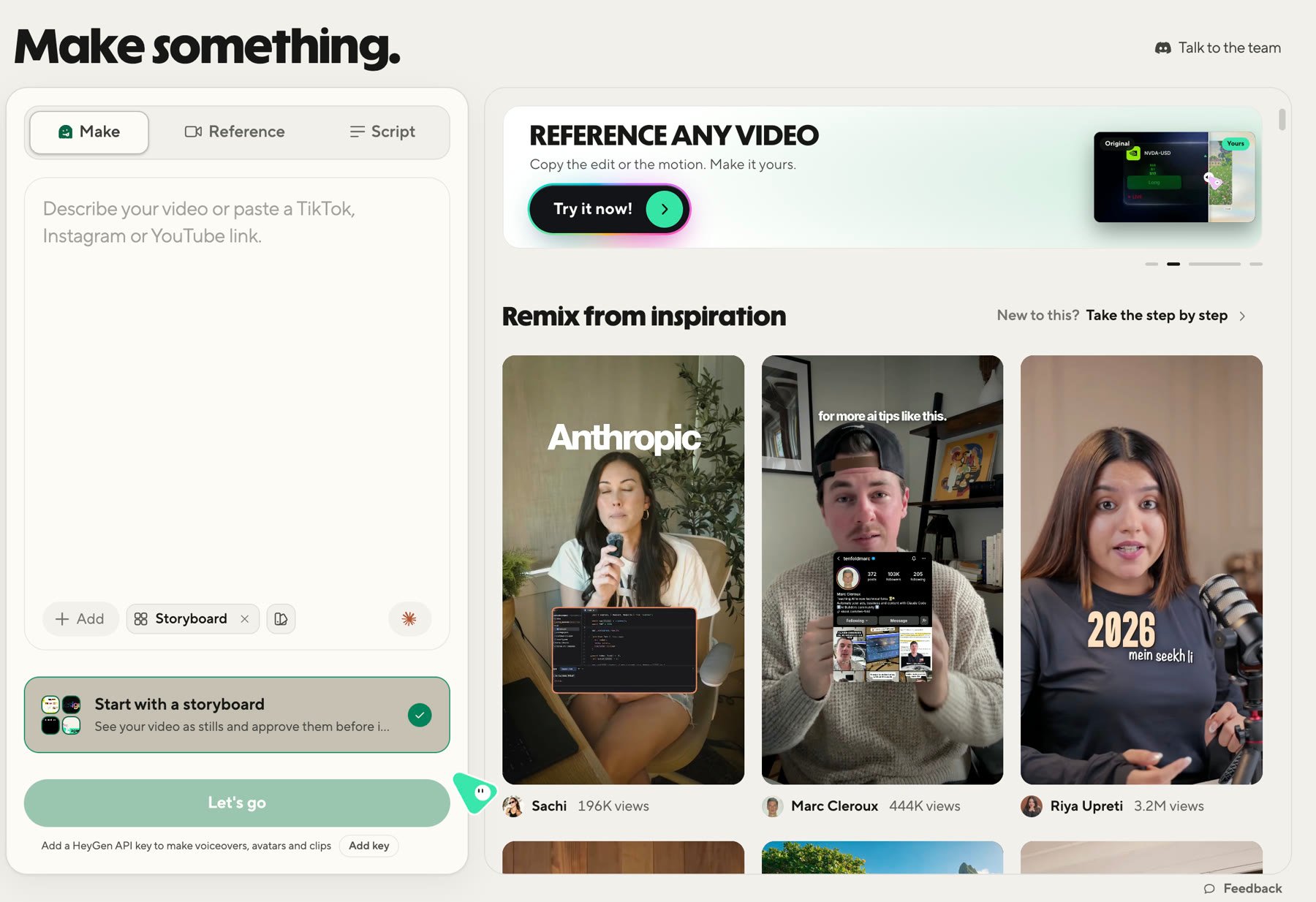
Download the HyperFrames Studio app for Mac or Linux, open it for the first time, and sign in with your HeyGen account.
The HyperFrames Studio app for Mac and Linux is the easiest way to make a video with HyperFrames. You describe the video, an
agent on your computer builds it, and you change it by typing, pointing at the picture, drawing, or commenting.
You do not need to write code. Framey, the small
green guide, points you to the next step along the way.
Free. You sign in with a free HeyGen account. HeyGen media (avatars, generated clips, HeyGen voices) uses
HeyGen credits only when you ask for it, and your own agent bills its own plan, or nothing with OpenCode.
Mac: Apple Silicon or Intel. Linux: 64-bit Intel and AMD, as a .deb or an AppImage.
Go to hyperframes.dev/studio and choose Download for macOS (in Safari or Firefox the button is Apple Silicon, with an Intel link next to it).
2
Install
Open the downloaded disk image and double-click Install HyperFrames. The installer copies the app into
Applications and shows Checking it is really from HeyGen, which can take a minute or two. When it says
HyperFrames is in Applications, choose Open HyperFrames.
If your Mac’s Applications folder is locked for your account, the installer puts the app in the Applications
folder inside your home folder instead. If it says The download looks damaged, choose Download again. If
it says the check took too long, nothing was installed: choose Try again.
1
Download
Go to hyperframes.dev/studio and choose Download next to Linux (.deb).
You get HyperFrames-amd64.deb for 64-bit Intel and AMD computers on Debian, Ubuntu and their
relatives.
2
Install it and open it
In a terminal, in the folder you downloaded it to:
sudo apt install ./HyperFrames-amd64*.deb
Then open HyperFrames from your app menu.
Prefer one portable file, or not on a Debian-based system? Choose Linux (AppImage) instead, then in the
folder you downloaded it to:
A short survey asks what you want to make and which agent you use. Every answer is optional, and Skip all
counts as an answer. What you pick decides where Build your video opens. The agent you name starts your first
chat if it is already set up.
On first launch, the app asks you to sign in the first time you click something after the survey.
Choose Continue with HeyGen. Your browser opens hyperframes.dev.
Sign in there within 10 minutes. The browser sends you back to the app, which shows You’re in! and carries
on with what you clicked.
If the sign-in runs out of time, choose Continue with HeyGen again. If you choose Not now, the app asks
again on your next click.
You can sign in or out at any time from Settings > Account.
The app updates itself. When a new version is ready, a round button appears in the bottom-right corner; click it and
the app restarts as soon as nothing is running, reopening the project you had open. To check by hand, use
Settings > Updates > Check for updates. If an update stalls, click the button again and choose Try
again, or Download it instead.
Projects: the hidden .hyperframes-studio folder in your home folder, or the folder you imported them from.
Each one is a normal HyperFrames project, so it also opens in the browser editor and the
command line.
Exported videos: your Downloads folder.
Settings and sign-in: ~/Library/Application Support/HyperFrames on a Mac, ~/.config/HyperFrames on Linux.