
Skip to main content


Database
Data recovery
Restore your development database to a checkpoint or roll your production database back to a point in time.
Mistakes happen: a bad schema change, deleted rows, or an Agent session that went sideways. Replit gives you a recovery path for each database.
Restore your development database
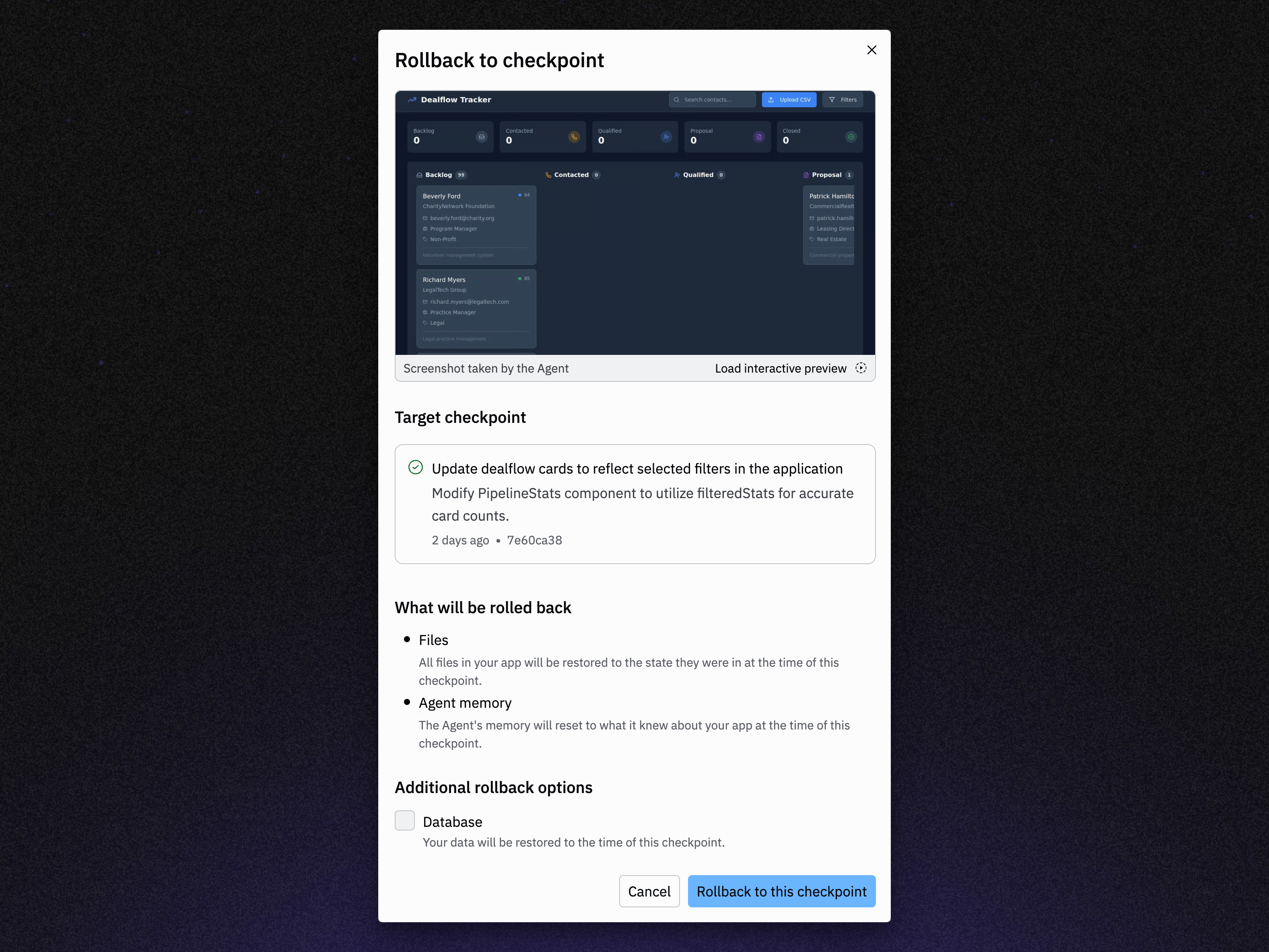
You can revert your app and development database to a previous state using the rollback feature. This restores your database to any checkpoint created by Agent.Make sure to select “Database” under “Additional rollback options” when
restoring to the state of a checkpoint. This restores your database to the
state it was at the time of the checkpoint.
Restore your production database
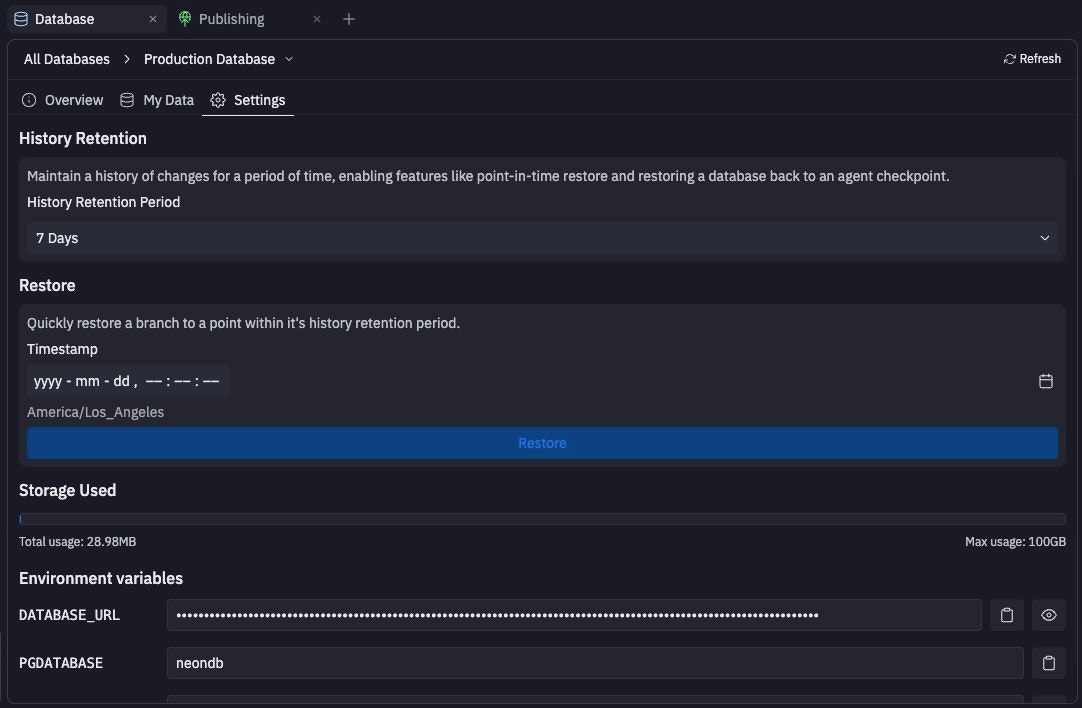
For production databases, you can restore to a specific moment using point-in-time restore.Schedule production database backups
Scheduled backups create one full restore point each day. Replit schedules the backup near midnight in your browser’s current time zone when you enable or update the schedule.- Open the Database tool and select the production database.
- Open Settings, then expand Scheduled backups under Advanced.
- To enable scheduled backups, select a retention period under Keep backups for.
Storage costs
Replit meters each production database storage category separately:Database storage costs are currently discounted by 100%.
The schedule uses your current UTC offset. A daylight-saving change can move
the backup time by one hour until you update the schedule. Time zones with
fractional offsets use the nearest hour.
Restore a scheduled backup
- Open Scheduled backups in the production database settings.
- Select View all backups.
- Select Restore for the restore point that you want.
- Enter
restore, then select Continue.
Troubleshooting publishing failures
If publishing fails due to database issues:- Check the publishing logs for specific error messages about database connectivity or schema conflicts
- Review recent schema changes for potential conflicts with existing application code
- Test your changes in a deployment preview before attempting to republish
Next steps
- Development and production: How your two databases work together.
- Checkpoints and rollbacks: Roll your whole app back.