
Skip to main content


Interface Guide
Interface Overview
Map of the ComfyUI workspace: workspace regions, feature components, settings, account and credits, and Cloud exclusives, with links to each guide page.
The visual interface is how most people drive the ComfyUI Server. Use this page as a map of the UI, then open the linked guides for each region and component.
Localization
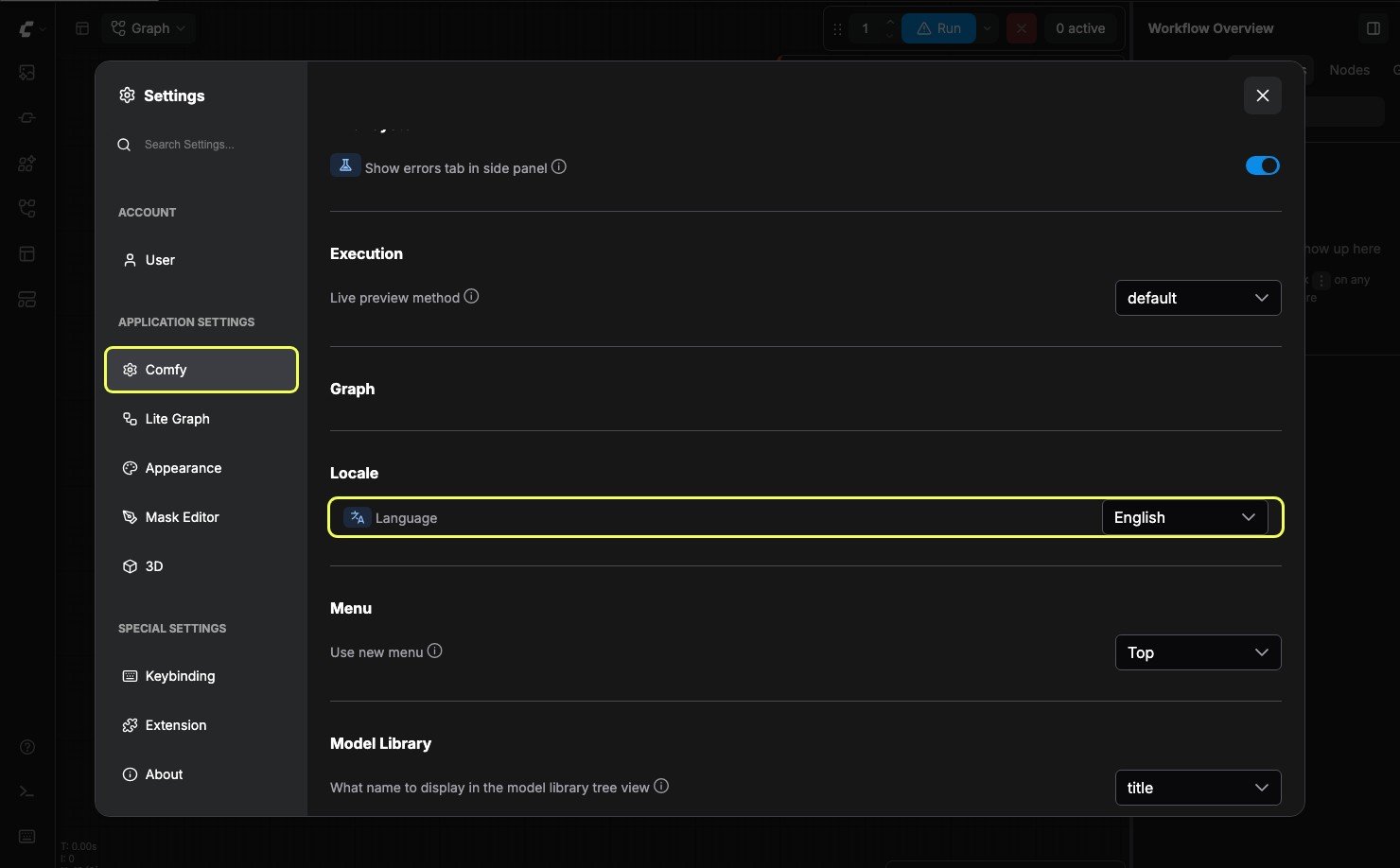
ComfyUI supports English, Chinese, Russian, French, Japanese, and Korean. Open Settings, then underComfy → Locale pick your language.
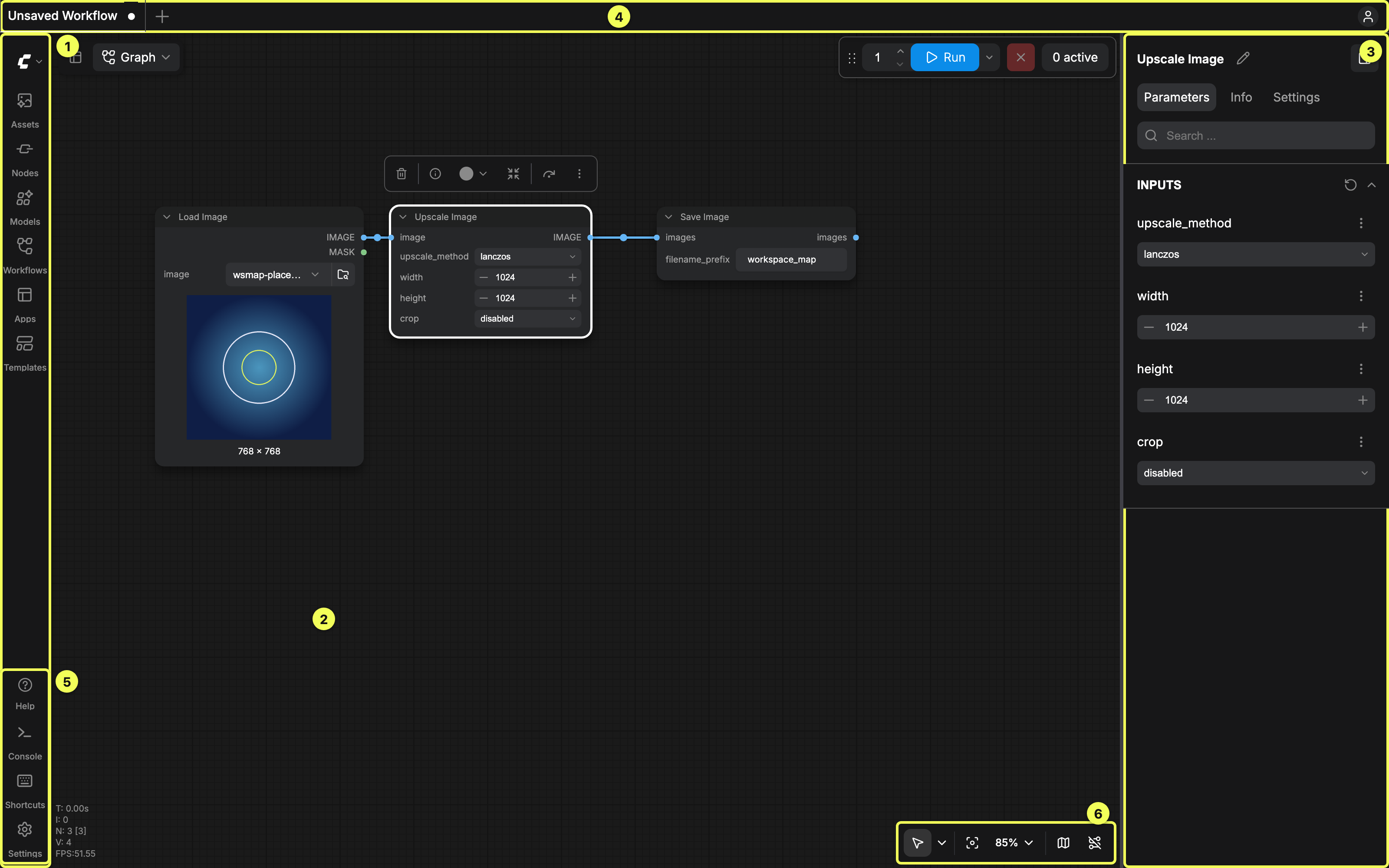
Workspace map
Left sidebar
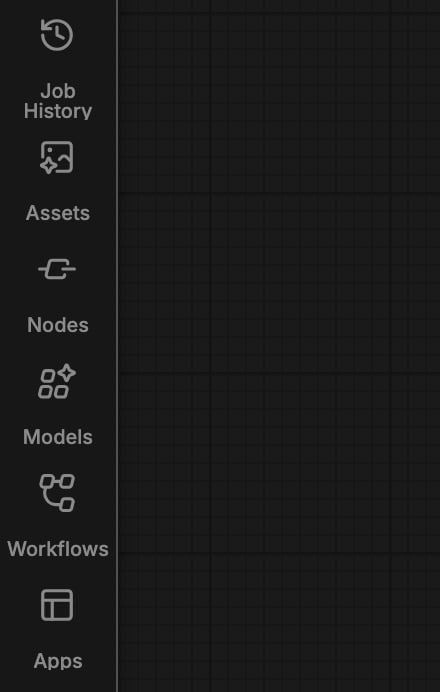
The left rail icons, top to bottom. Job History appears at the top only whenComfy.Queue.QPOV2 is enabled:
Assets
Generated and imported media: preview, reuse, download, delete
Node Library
Essentials grid and full node list, bookmarks, search
Model Library
Models detected under your models folder
Workflows
Locally saved workflows and recent files
Apps
Sidebar Apps entry; see also App Mode under Feature components
Job History
Queue / job history when QPOV2 is enabled
Right side panel
Right Side Panel
Parameters, Info (node docs), Settings, Errors
Canvas
Canvas Controls
Minimap, links, canvas info, zoom, fit, Focus Mode
Nodes 2.0
Node chrome, headers, and selection behavior
Run bar
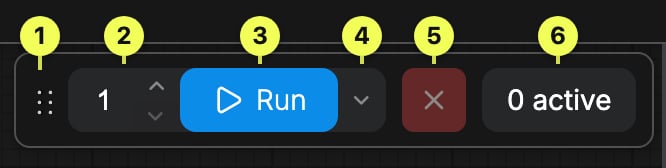
The floating run bar sits at the top of the canvas and holds everything needed to start and supervise a run: batch count, Run, queue mode, cancel, and the active job count.Bottom and help
Bottom Panel
Shortcuts, logs, and (desktop) command terminal
Help Center
Release notes, docs, support, feedback
Feature components
Reusable UI capabilities that are not tied to a single workspace chrome region.Templates
Built-in workflow templates
App Mode
Linear / app-style UI for running workflows
Subgraph
Collapse graphs into reusable subgraph nodes
Partial Execution
Run only part of a workflow
Node Docs
In-app node help (also on the RSP Info tab)
Dynamic Inputs
Dynamic inputs that grow as you connect them
Mask Editor
Paint and edit masks on the canvas
Settings
Settings
Full settings dialog by category
Account and credits
User
Account and profile settings
Plan & Credits
Balance, top-up, usage activity, and Cloud invoices
Cloud exclusive
Workspaces
Team workspaces on Comfy Cloud
Share Workflow
Share workflows from Cloud
Import Models
Upload your own models to Cloud