
Skip to main content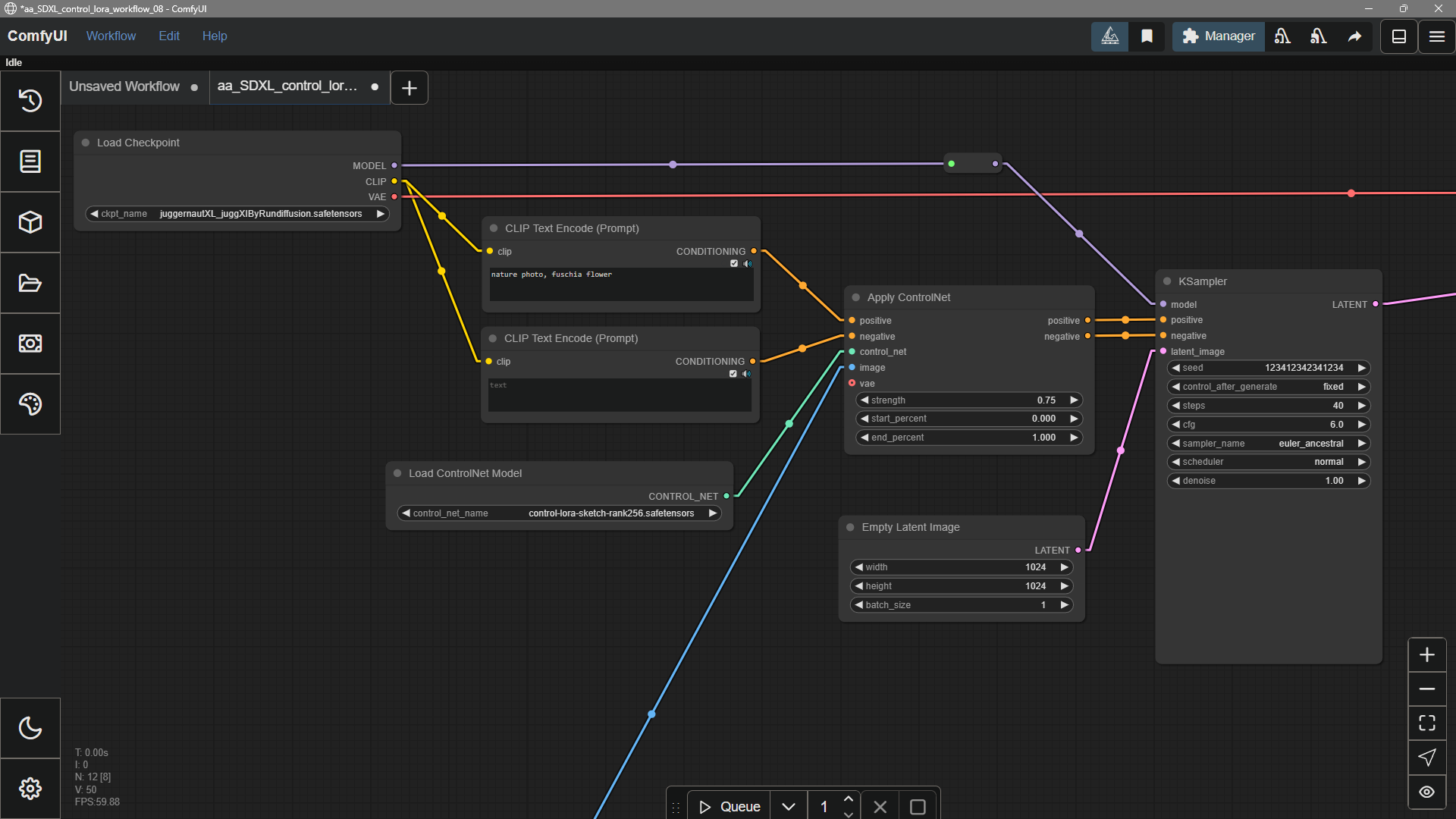


Basic Concepts
ComfyUI Models: Files, Folders, and Loader Nodes
How model files fit into ComfyUI workflows: where they go, how to load them, and common fixes.
Models in plain terms
In ComfyUI, models are the weight files that actually run your workflow. They include checkpoints, VAEs, LoRAs, ControlNets, and upscalers. The app install is small. These files are not included by default. You usually download them from the web, place them underComfyUI/models/ (or follow a template’s prompts), then choose the file in the right loader node (on the canvas, these often appear as nodes whose names start with Load).
Supported models in ComfyUI
- Built-in / first-party coverage is intentionally limited but grows over time as ComfyUI and the open-source ecosystem evolve. When a model gains first-class support, you will usually see a new entry in the workflow template library that shows the expected graph and model pairing.
- Not every checkpoint or weights file works out of the box. For natively supported models and their common companion weights, keep ComfyUI up to date and confirm the matching workflow exists in the template library before assuming your files are in the wrong place.
- Many other models are enabled through community custom nodes. Paths, loader nodes, and graph layout can differ from this page’s generic
ComfyUI/models/guidance. Always follow each project’s README or docs. ComfyUI is highly extensible, so implementations vary by author. For installation and troubleshooting, see How to install custom nodes.
Use models in ComfyUI
- Get the files into the right place. Download from community sites such as Hugging Face, Civitai, or a project’s page on GitHub, then put them under
ComfyUI/models/in the subfolder for that type (for examplecheckpoints,loras,vae). - Add the matching loader node. Pick the loader for that model type (checkpoint, LoRA, VAE, etc.). In the node list, titles often begin with Load.
- Pick the file in that loader node’s dropdown.
- Wire the loader node into the rest of the graph. If you copied files in by hand while ComfyUI was open, restart the app (or refresh as needed) so lists update.
Expect large downloads
A single generative model is often many gigabytes. Budget disk space and time when downloading or syncing.Beyond the main checkpoint
The main diffusion checkpoint does a lot, but many workflows add smaller helper models, for example:- LoRA: lightweight add-ons tuned for a style, character, or concept
- ControlNet: extra guidance from edges, depth, pose, etc.
- Inpainting: fill or replace regions inside an existing image
Uninstalling models
There is no “uninstall” button in the UI yet. To remove a model, delete its file (or files) from the folder underComfyUI/models/ where you put it.
Adding Extra Model Paths
If you want to manage your model files outside ofComfyUI/models, you may have the following reasons:
- You have multiple ComfyUI instances and want them to share model files to save disk space
- You have different types of GUI programs (such as WebUI) and want them to use the same model files
- Model files cannot be recognized or found
extra_model_paths.yaml configuration file
Open Config File
- Portable/Manual Install
- Comfy Desktop
For the ComfyUI version such as portable and manual, you can find an example file named Copy and rename it to
extra_model_paths.yaml.example in the root directory of ComfyUI:extra_model_paths.yaml for use. Keep it in ComfyUI’s root directory at ComfyUI/extra_model_paths.yaml.
You can also find the config example file hereExample Structure
Suppose you want to add the following model paths to ComfyUI:extra_model_paths.yaml file like below to let ComfyUI recognize the model paths on your device:
D:\stable-diffusion-webui\, you can modify the corresponding configuration to
Add Extra Custom Nodes Path
Besides adding external models, you can also add custom nodes paths that are not in the default path of ComfyUI Below is a simple configuration example (MacOS), please modify it according to your actual situation and add it to the corresponding configuration file, save it and restart ComfyUI for the changes to take effect:Common issues
Does ComfyUI support GGUF format models?
Does ComfyUI support GGUF format models?
ComfyUI does not natively support GGUF format models. To use GGUF models, you need to install community custom nodes such as ComfyUI-GGUF.
Why can't I find my model?
Why can't I find my model?
If you’ve installed a model but can’t find it in ComfyUI, try these steps:
-
Verify the model is in the correct location:
- Default path:
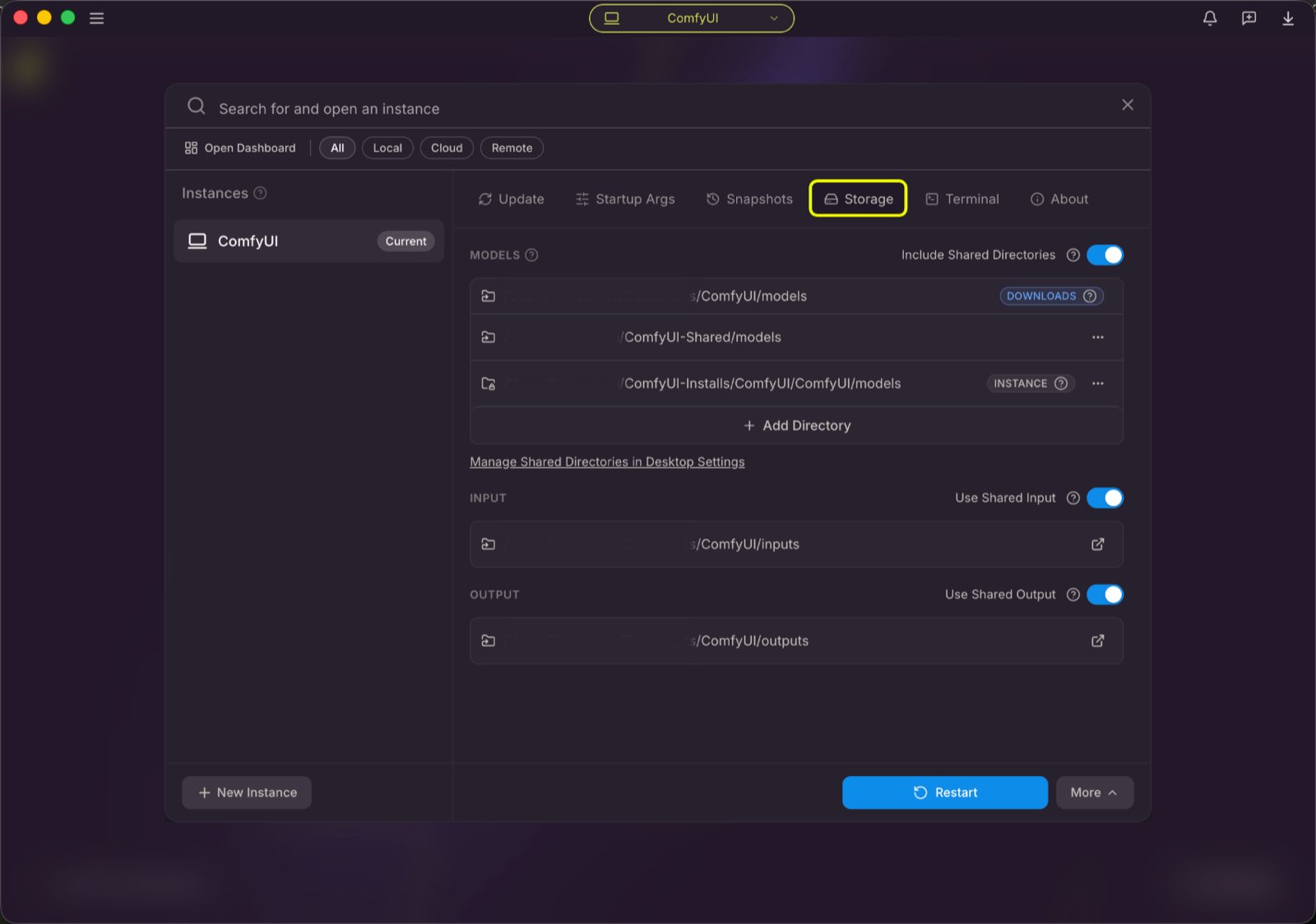
ComfyUI/models/(e.g.checkpoints,loras,vae) - For Comfy Desktop: Click the capsule menu at the top of the desktop app, then open the Storage tab to check your model directories. The capsule only exists in the desktop app, not when ComfyUI runs in a browser.
- Default path:
-
Press the
rkey to refresh node definitions so ComfyUI can detect the model - Restart ComfyUI
- Ensure the correct model is selected in the loader node
Want a bit more background?
What does “model” mean here?
What does “model” mean here?
Here, a model is a data file that encodes what a network learned. It contains enough information to turn inputs (like text and noise) into outputs (like an image). Common examples in image workflows are diffusion checkpoints, text/image encoders such as CLIP, and upscalers like RealESRGAN.
Base models and community variants
Base models and community variants
Large base models from labs and open-source projects are general-purpose. The community often fine-tunes or merges them into new checkpoints and LoRAs that look better for a given style, run a bit lighter, or add new behavior. This is similar to picking a favorite checkpoint on Civitai or Hugging Face.