

Fields
Fields are the backbone of a Resource. Through fields you tell Avo what to fetch from the database and how to display it on the Index, Show, and Edit views.
Fields can also be used in Actions to gather user input before running the action.
Avo ships with various simple fields like text, textarea, number, password, boolean, select, and more complex ones like markdown, key_value, trix, tags, and code.
Declaring fields
You add fields to a resource through the fields method using the field DATABASE_COLUMN, as: FIELD_TYPE, **FIELD_OPTIONS notation.
def fields
  field :name, as: :text
end
The first argument (:name here) is the column in the database where Avo looks for information, or a property on your model.
On the Index and Show views, we'll get a new text column of that record's database value. Finally, on the Edit and New views, we will get a text input field that will display & update the name field on that model.
Specific methods for each view
The fields method is used whenever no view-specific method is defined. To specify fields for each view or a group of views, you can use the following methods:
index view -> index_fieldsshow view -> show_fieldsedit / update views -> edit_fieldsnew / create views -> new_fields
You can also register fields for a specific group of views as follows:
index / show views -> display_fieldsedit / update / new / create views -> form_fields
When specific view fields are defined, they take precedence over view group fields. If neither specific view fields nor view group fields are defined, the fields will be retrieved from the fields method.
class Avo::Resources::City < Avo::BaseResource
  # Used on the `index` and `show` views
  def display_fields
    field :id, as: :id
    field :name, as: :text
    field :population, as: :number
    field :created_at, as: :date_time
  end

  # Used on the `new`, `create`, `edit`, and `update` views
  def form_fields
    field :name, as: :text
    field :population, as: :number
  end
end
INFO
On the preview view, Avo gathers fields from the fields, index_fields, show_fields, and display_fields methods combined.
Some fields must be declared even when hidden
When a form submits a value for a field, that field must be declared on the form views so Avo knows its type and can parse the submitted value. This comes up with resource tools that render inputs for fields themselves: declare those fields with hide_on: :forms instead of omitting them.
For instance, if a tool renders an input for features, a key_value field, you must keep field :features, as: :key_value, hide_on: :forms in your form fields. Omit it and Avo will be unable to update that database column.
Field conventions
When we declare a field, we pinpoint the specific database column for that field. Usually, that's a snake case value.
Each field has a label. Avo will convert the snake case name to a humanized version. In the following example, the is_available field will render the label as Is available.
field :is_available, as: :booleanINFO
If having the fields stacked one on top of another is not the right layout, try the sidebar.
A more complex example
class Avo::Resources::User < Avo::BaseResource
  def fields
    field :id, as: :id
    field :first_name, as: :text
    field :last_name, as: :text
    field :email, as: :text
    field :active, as: :boolean
    field :cv, as: :file
    field :is_admin?, as: :boolean
  end
end
The fields method is already hydrated with the current_user, params, request, view_context, and context variables so you can use them to conditionally show/hide fields
class Avo::Resources::User < Avo::BaseResource
  def fields
    field :id, as: :id
    field :first_name, as: :text
    field :last_name, as: :text
    field :email, as: :text
    field :is_admin?, as: :boolean
    field :active, as: :boolean

    if current_user.is_admin?
      field :cv, as: :file
    end
  end
end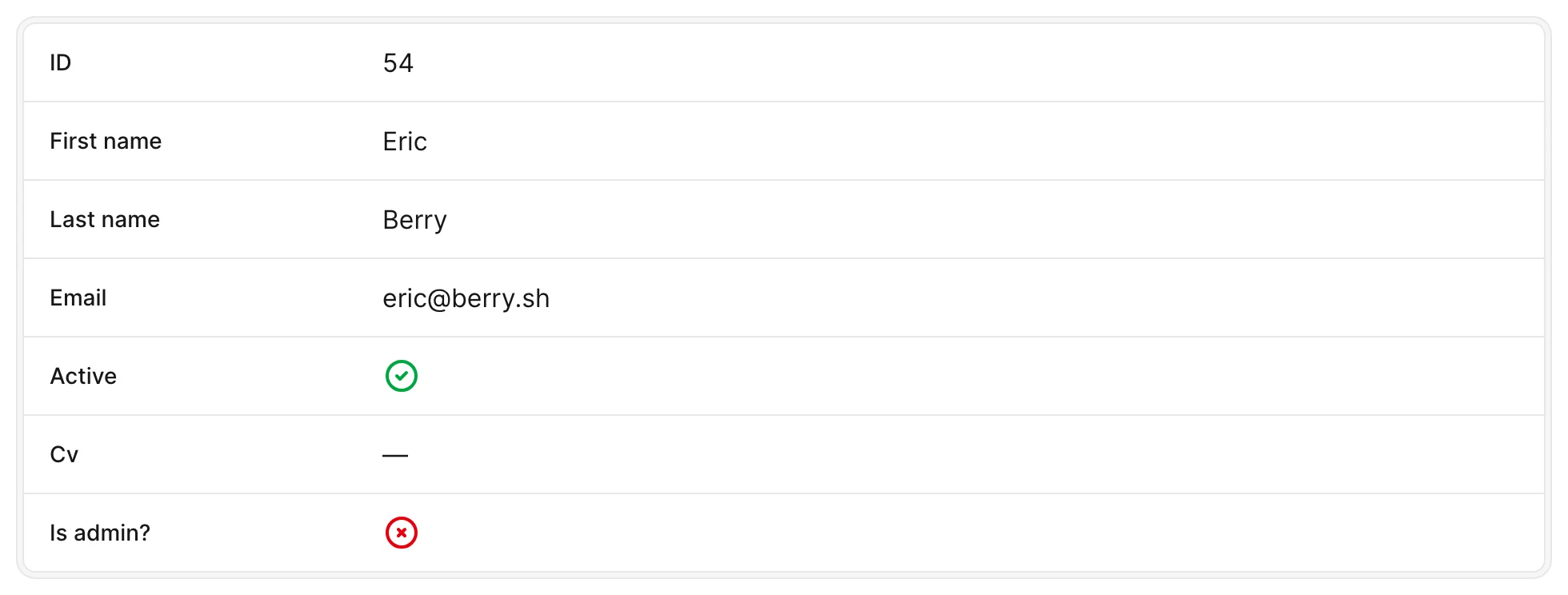
Field types
WYSIWYG & Markdown editors
Avo has six rich text fields, plus the code field for source code. They differ in the editor they render on forms, but they all behave the same on the Show view:
- they span the full width of the panel, with the label beside the value (non-stacked)
- the content is collapsed to a short, faded preview with a
More contentlink that expands it (with an animated height transition) and aLess contentlink that collapses it back always_show: trueskips the collapsing and renders the full content- they are hidden on the
Indexview
Which one should I pick?
Recommendations:
- For rich text (HTML) content, use
rhino— orlexxyif you're on Rails >= 8.0.2 and want Basecamp's newer editor.trixremains the zero-dependency default. - For markdown content, use
markdown(the Marksmith editor).easy_mdeis the legacy markdown field. - For source code, configuration snippets, or JSON, use
code. tip_tapis deprecated in favor ofrhino.
Shared Show view behavior
field :body, as: :rhino                    # collapsed preview + More/Less content
field :body, as: :rhino, always_show: true # full content, no toggle
All of these fields render their value through the same collapsible wrapper (the field wrapper's collapsable option, backed by Avo::Fields::Common::CollapsableContentComponent), so switching between editors doesn't change how records read on the Show view.
Resizable editors
On forms, every editor's viewport can be resized vertically by dragging its bottom-end resize handle. It opens 20rem tall and never goes below 11rem. The height is remembered in the browser's local storage — scoped to the Avo mount path, the resource (or action) and the field — and restored the next time that form renders.
Change the two heights by defining the CSS custom properties in a stylesheet you register with Avo:
/* app/assets/stylesheets/avo_custom.css */
:root {
  --avo-resizable-editor-default-height: 30rem;
  --avo-resizable-editor-min-height: 15rem;
}
Custom editor fields can opt in from their field class:
class Avo::Fields::MyEditorField < Avo::Fields::BaseField
  resizable_editor target: ".my-editor__content"
end
The target is a CSS selector for the editor's scrollable viewport, resolved inside the field wrapper after the editor boots — client-rendered editors work too.
See each field's page for its editor-specific options: Trix, Rhino, Lexxy, Markdown, Easy MDE, Tip Tap, Code.