
Skip to main content


Use the app
Integrations
Connect Google Sheets, Google Drive, Gmail, Outlook, password vaults and MCP clients to Skyvern, and run your agents from Zapier, Make, n8n or Workato.
Open Integrations in the sidebar to connect outside services to your agents. The page lists everything you have connected at the top, then every integration you can add under Available. Search by name, or filter with the category chips (Workspace, Communication, Docs, Agent Orchestrators, Credentials).
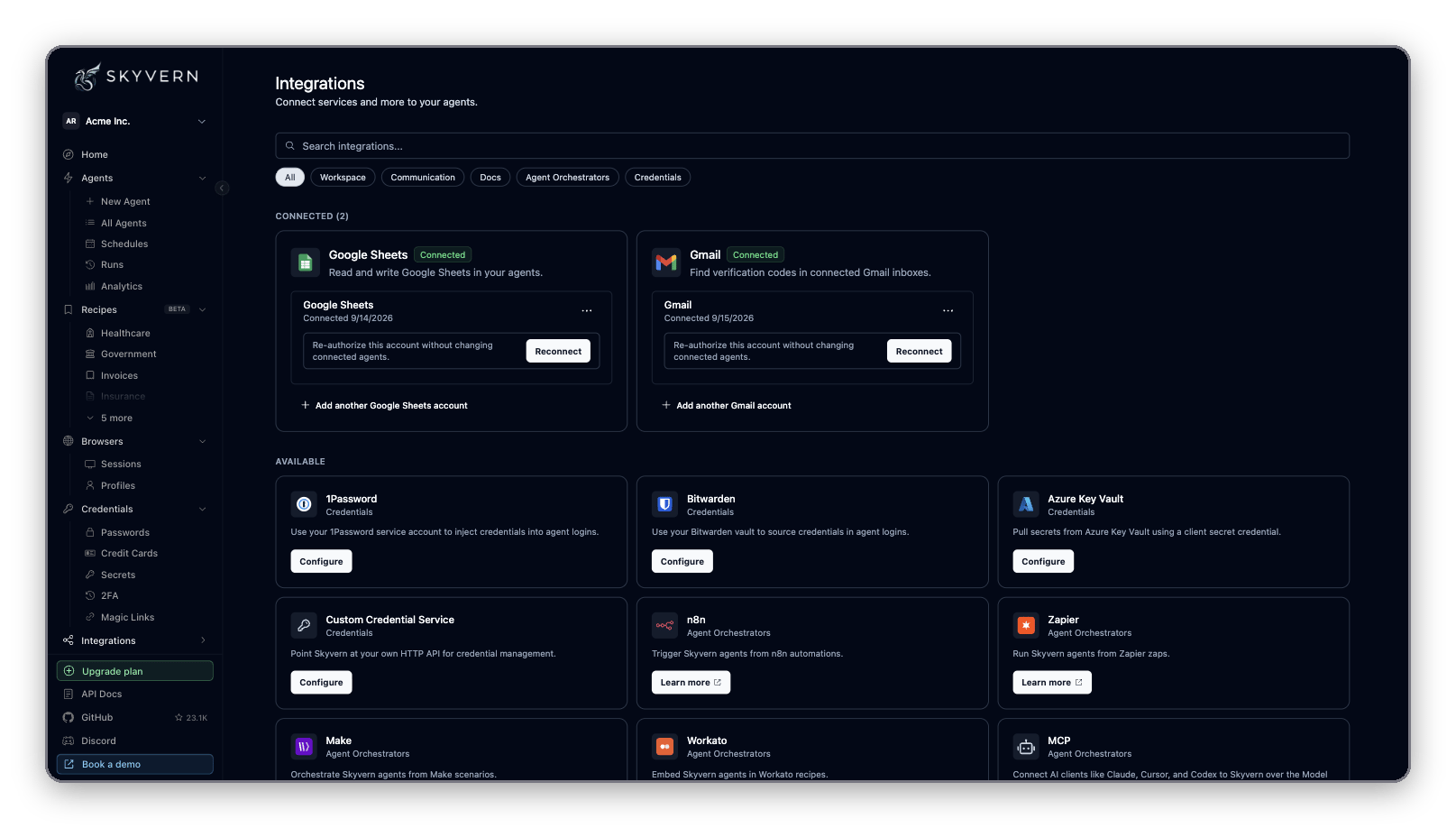
Don’t see what you need? Click Request → on the Request another integration card and name the service.
Google and Microsoft accounts
Google Sheets, Google Drive, Gmail and Outlook connect through Google or Microsoft sign-in.1
Click Connect
Click Connect on the tile.
2
Name the connection
Enter a name, such as “Finance Gmail”. You pick the account by this name in your agent’s blocks. For Gmail, choose what agents may do: Read inbox (on by default) and Send email. Click Continue to Google (or Continue to Microsoft for Outlook).
3
Approve access
Sign in and approve every permission on the consent screen. Skyvern sends you back to Integrations, where the account appears under Connected.
Block settings are in the blocks reference.
Manage a connected account
Each connected card lists its accounts. From there you can:- Add another account: click Add another Gmail account (or the matching name) to connect a second inbox or Google account.
- Rename or Disconnect: open the … menu on the account row. The name you set is what agent blocks show in their account picker.
- Turn on reading or sending (Gmail): the account row shows Read inbox and Send email. Click the one that isn’t on yet and approve the extra permission. Sending needs the account’s address, so an older connection may ask you to reconnect first.
- Reconnect (Google only): if the card shows Needs reconnect, the authorization expired or you didn’t approve every permission. Click Reconnect and approve again. Agents that use the account resume without edits.
Password vaults
The four Credentials tiles let agents log in with secrets you already keep elsewhere. Click Configure, fill in the form, and save. The tile then shows Status: Active, or Status: Inactive if Skyvern could not use what you entered.
To change or remove a vault, click Edit on the tile, then update the fields or click Clear Token / Clear Credential / Clear Configuration.
How agents pick a vault item at run time, and how to reference items in an agent’s inputs, is on Credentials and 2FA.
MCP
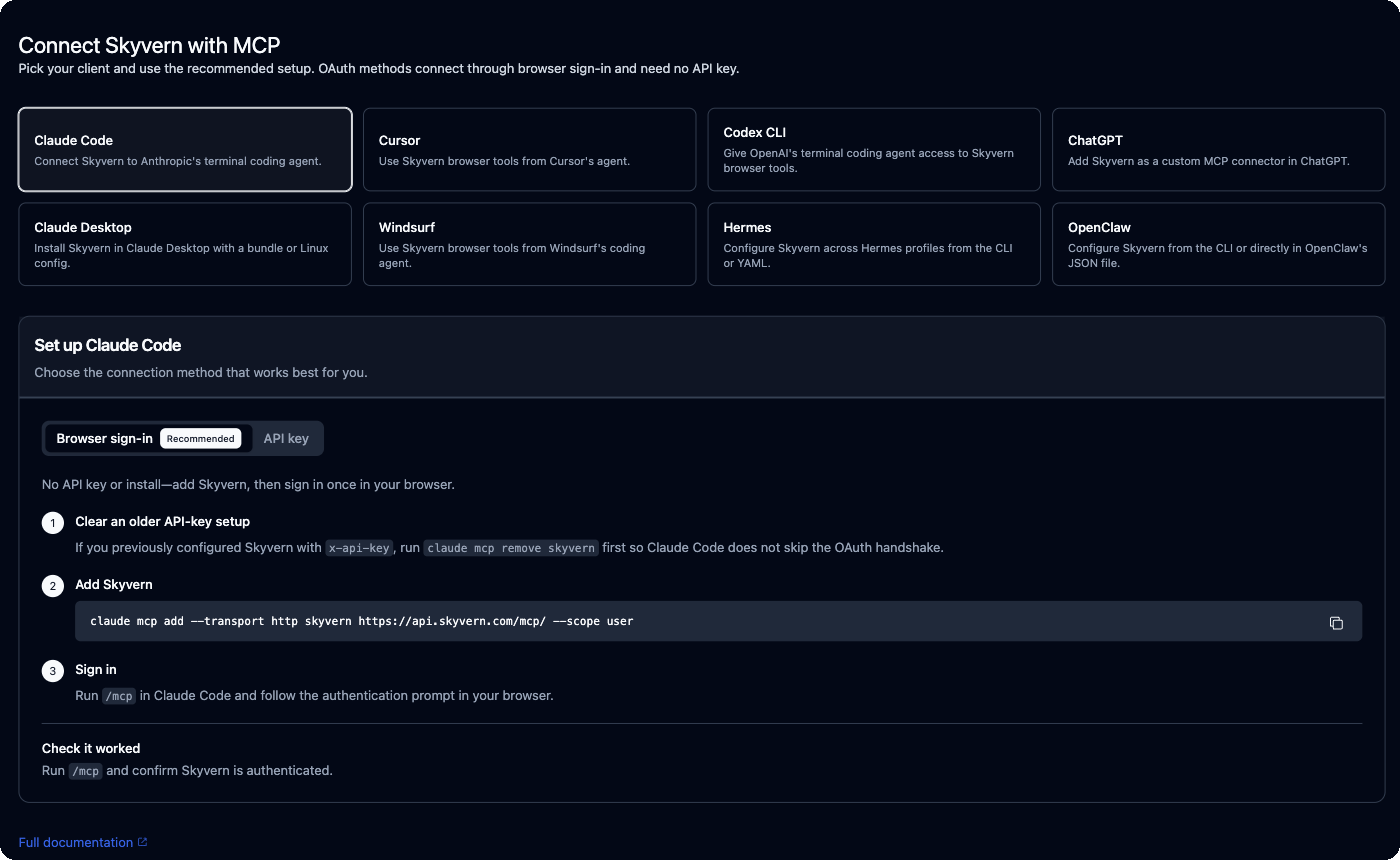
Click Set up → on the MCP tile, or Integrations → MCP in the sidebar, to open Connect Skyvern with MCP at/integrations/mcp. Pick your client: Claude Code, Cursor, Codex CLI, ChatGPT, Claude Desktop, Windsurf, Hermes or OpenClaw. The page shows the recommended setup for that client, with commands you can copy. Browser sign-in (OAuth) methods need no API key. API key methods come pre-filled with your key.
Automation platforms
Build a workflow in Skyvern before adding its run action in a builder. All four connections use an organization API key from Settings → API keys, sent in thex-api-key header. Save the key in the builder’s Skyvern connection, not in a workflow input. Organization keys have full access to your organization; scoped API keys are coming.
For Skyvern Cloud, the API base URL is https://api.skyvern.com. For a self-hosted deployment, use its API origin and make sure the builder can reach it. The n8n node exposes a Base URL credential field (default: https://api.skyvern.com); enter the origin only, without /api/v1, because the node adds API paths itself. The Zapier, Make and Workato listings do not show a custom base URL field; contact Skyvern Support to confirm self-hosted support before connecting.
Zapier
Add Skyvern from the Zapier listing, create a connection with your organization API key, then add Run a Workflow to your Zap. Use Get a Workflow with the returned workflow run ID to retrieve its result. The current Run a Workflow action’s workflow and input fields may not load reliably; verify the workflow exists and the connection uses the right key, but setup alone cannot fix an app-side loading issue.Make
Add a Skyvern module from the Make listing to your scenario and click Create a connection. Enter your organization API key, then choose Run a Workflow or Run a Task. Use Get a Workflow or Get a Task with the returned run ID to retrieve the result.n8n
The verified Skyvern node listing requires a one-time install by an n8n instance owner or admin: open the Nodes panel (+), find Skyvern under More from the community, and select Install. Everyone on the instance can then add it to workflows. On n8n Cloud, the owner controls verified-node availability in the Cloud Admin Panel; on self-hosted n8n, the admin controls it through environment variables. Create a Skyvern API credential with your organization key and, for self-hosted Skyvern, the API Base URL. Choose the Workflow or Task resource and a dispatch operation, then use the matching Get operation with the returned run ID. For Get Workflow, also select the same workflow (or provide its ID) in Workflow Name or ID, and enter the returned run ID in Workflow Run ID. The node’s workflow selector lists at most 100 workflows.Workato
Add the Skyvern connector from the Workato listing to a recipe and create its connection with your organization API key. Choose Run a Workflow or Create and Run Task. Workato’s Get Workflow action looks up a workflow by workflow ID; it does not retrieve a workflow run. Pair Create and Run Task V2 with Get Task V2 and its returnedtsk_v2_... ID; for v1 tasks, use Get Task with the task ID.
Workflow run IDs start with wr_; v1 task IDs start with tsk_, and Task V2 IDs start with tsk_v2_. A run may finish after the builder’s action returns. Use the matching Get action when that builder provides one, or watch the run in Skyvern history. If a Run action offers a webhook callback URL, you can provide one that Skyvern can reach instead of polling.
Next
Credentials and 2FA
Store logins and use vault items in agents
Account and API keys
Find and rotate the key the platforms need
MCP and coding agents
Drive Skyvern from Claude, Cursor or Codex