

Reading lists
If you agree to the terms and conditions, this will create a Kortext account. This will be registered to your university email address and you will receive a confirmation email. Please note that this email can be ignored: you do not need to sign in from there to access digitisations. You will be able to access digitisations immediately using the 'View Online' buttons on your ORLO reading list.
When accessing digitisations, the first page will display a copyright notice as shown in the screenshot below. To navigate through the scan, click the arrows at the bottom right of the screen. You can use the icons in the left-hand panel to download and print the PDF, as well as carry out searches through the PDF. You can copy text in the PDF with or without a reference and carry out web searches from the text.
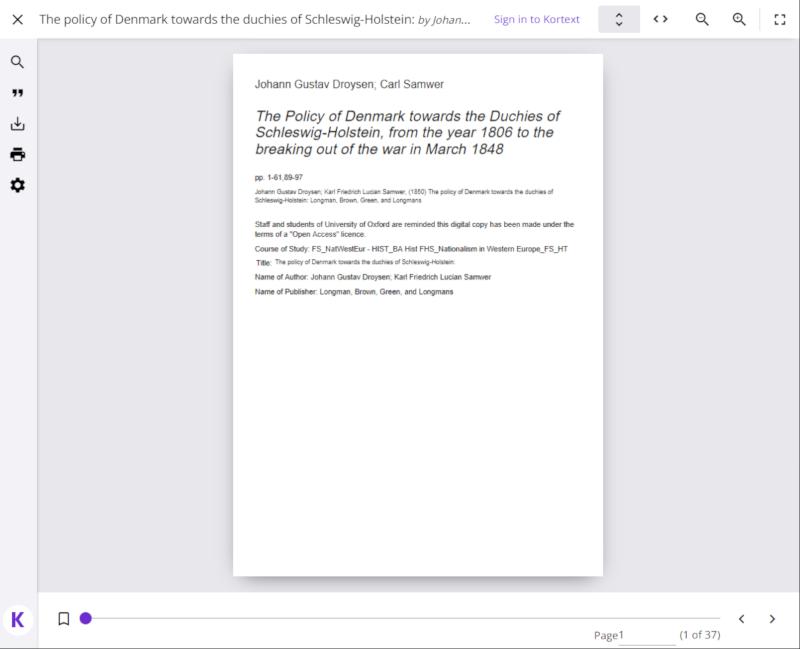
You also have the option to click on the ‘Sign in to Kortext’ link at the top of the page to access further features, but this is not essential to access digitisations. You will be prompted to log into your account. You may need to use the ‘forgotten password’ link to create a password, or else ‘create my account’ if you did not initially agree to the terms and conditions.
With a Kortext account, you will also have the following additional features:
- Add highlights and notes to the PDF
- Add bookmarks on pages throughout the PDF
- Export the reference as a RIS file for reference management software

