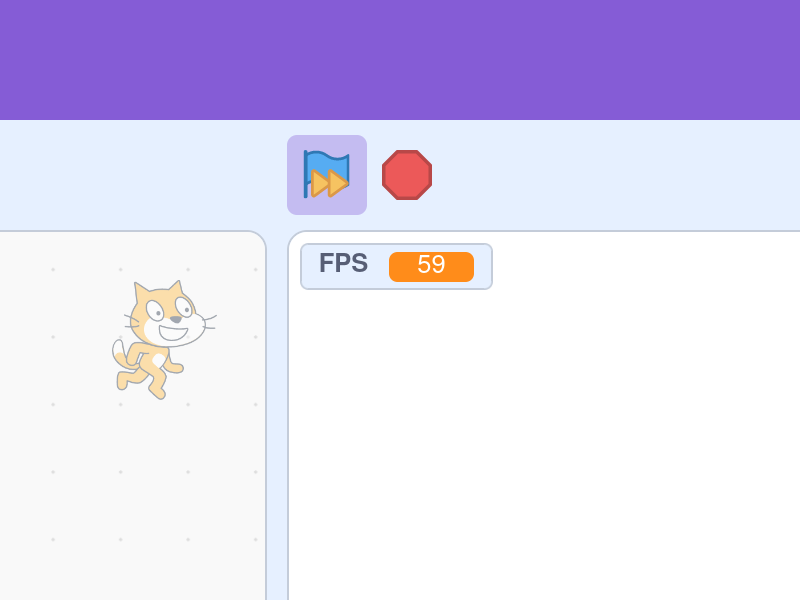
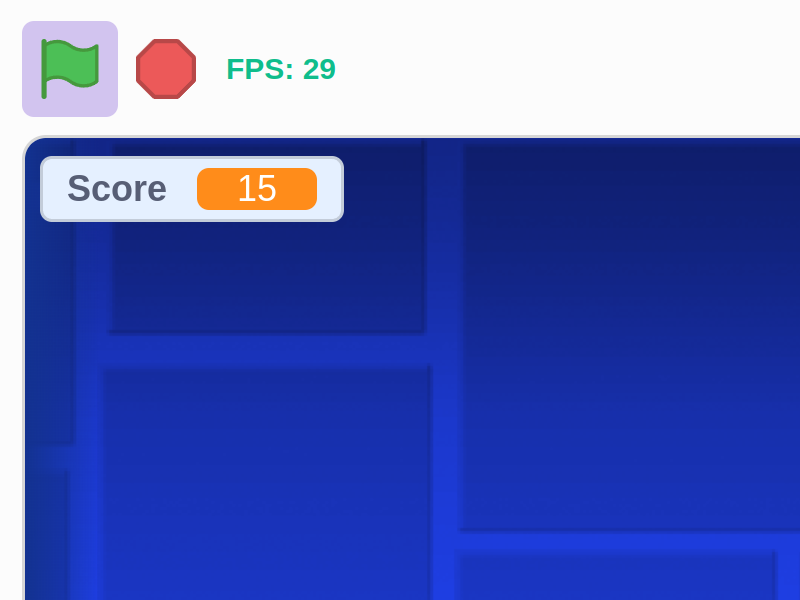
Lets you run projects at more frames per second (FPS) so they look smoother. Hold Alt and click the green flag to toggle between Scratch's default 30 FPS and a custom framerate set below.
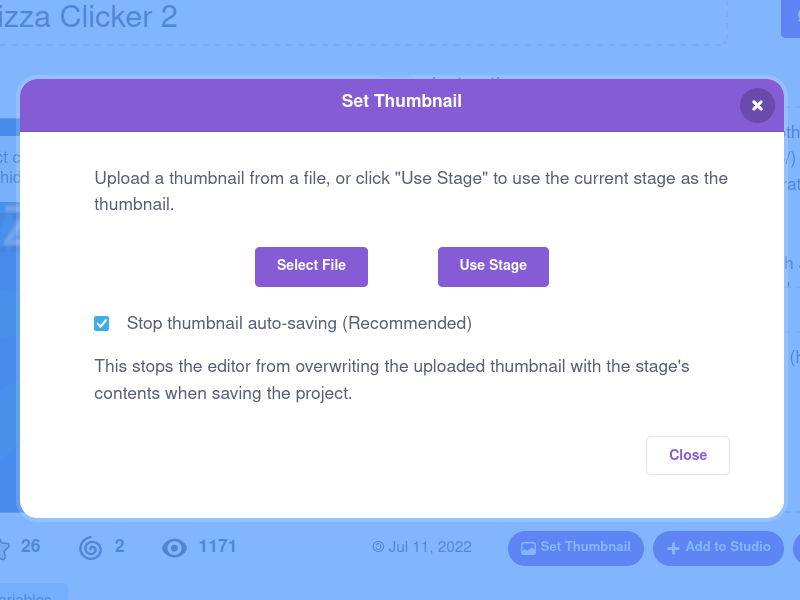
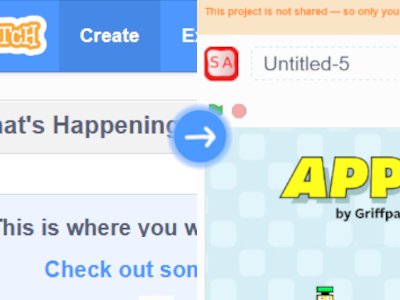
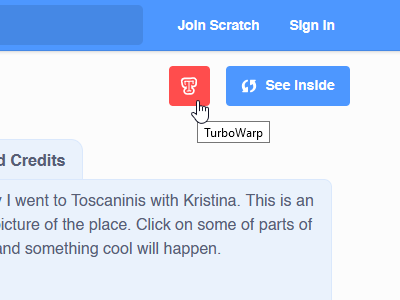
Adds a dropdown next to the "Set Thumbnail" button on the project page to set the thumbnail of your project to any image (including gifs).
Asset conflict dialog
â
asset-conflict-dialog
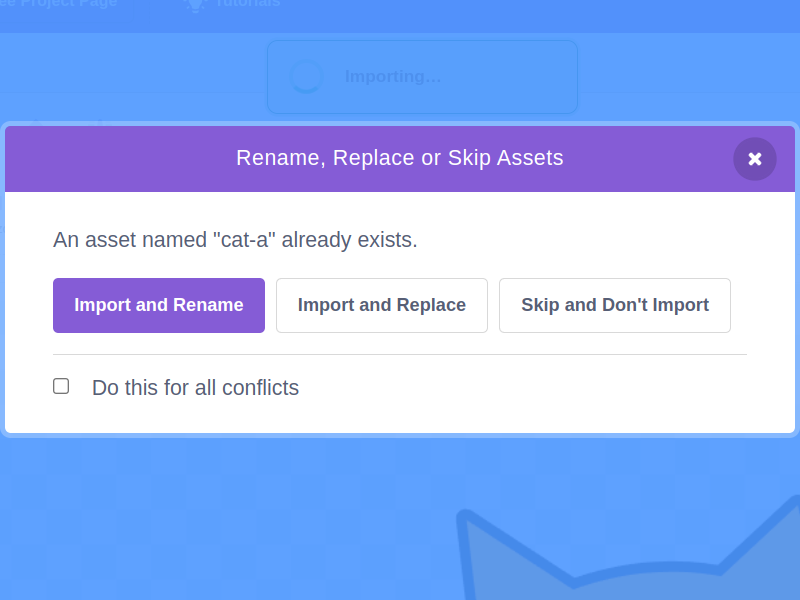
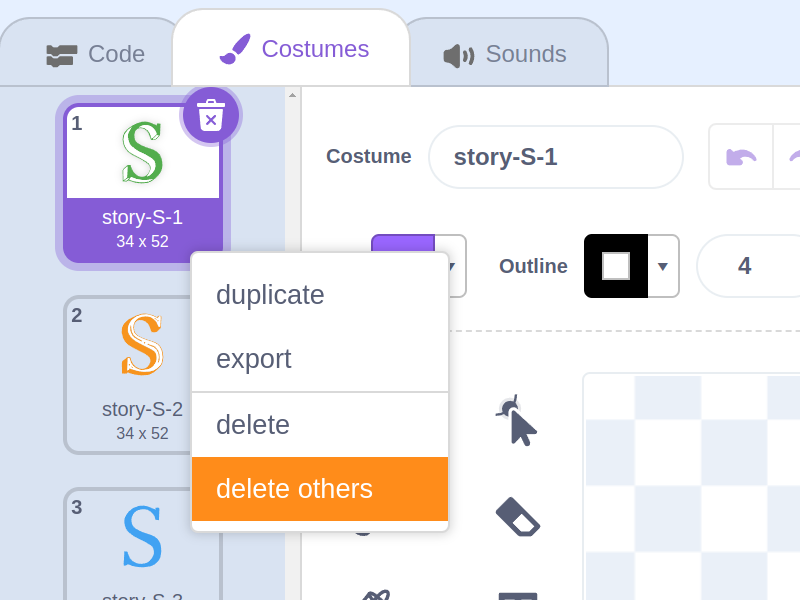
When uploading costumes or sounds with the same name as an existing one, shows a dialog with options to replace or skip them instead of always renaming them.
Makes the website footer stick out slightly from the bottom of the window and makes it expand when hovering over it, allowing it to be quickly accessed from anywhere on the page.
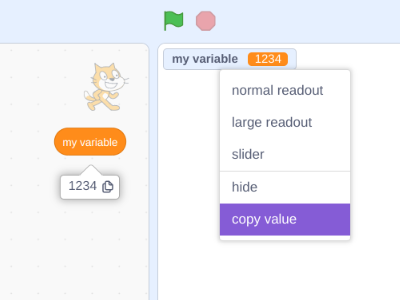
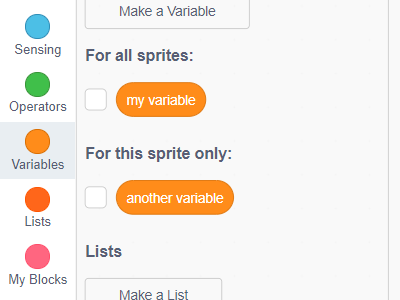
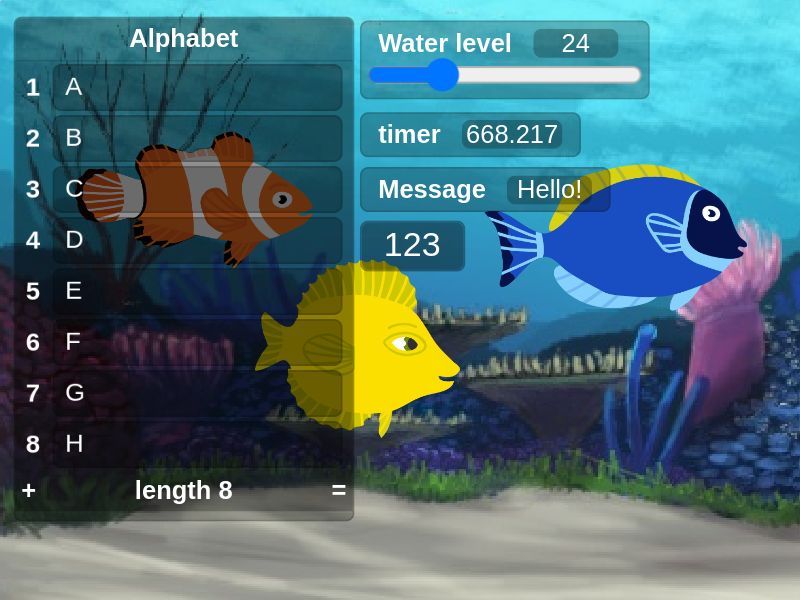
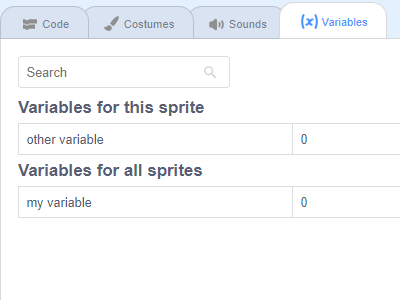
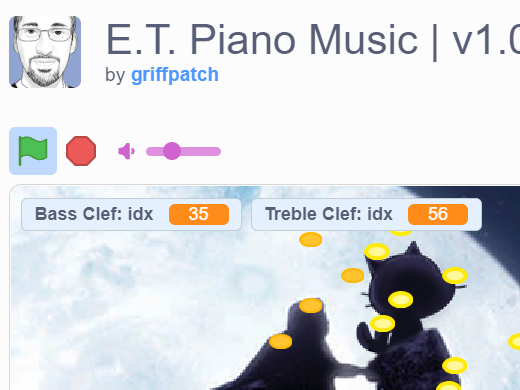
Adds the option to copy values displayed by variable monitors (from the right click context menu) and block reporter balloons.
Costume editor keyboard shortcuts
🌟
costume-editor-shortcuts
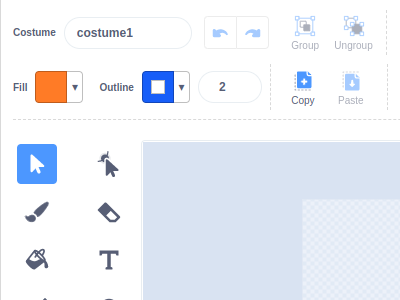
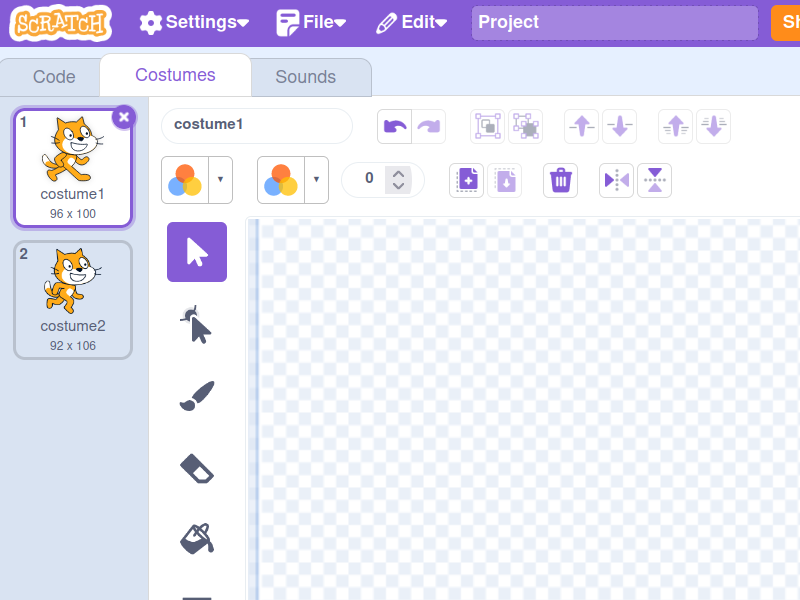
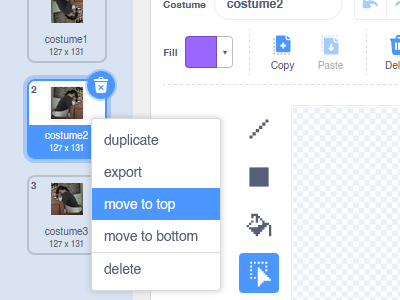
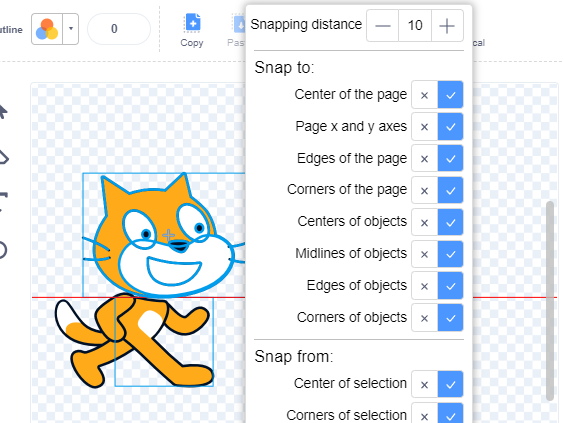
Allows switching costumes with Ctrl+Left/Right and selecting tools in the costume editor using keyboard shortcuts (similar to TurboWarp). Hover over a tool to view its shortcut.
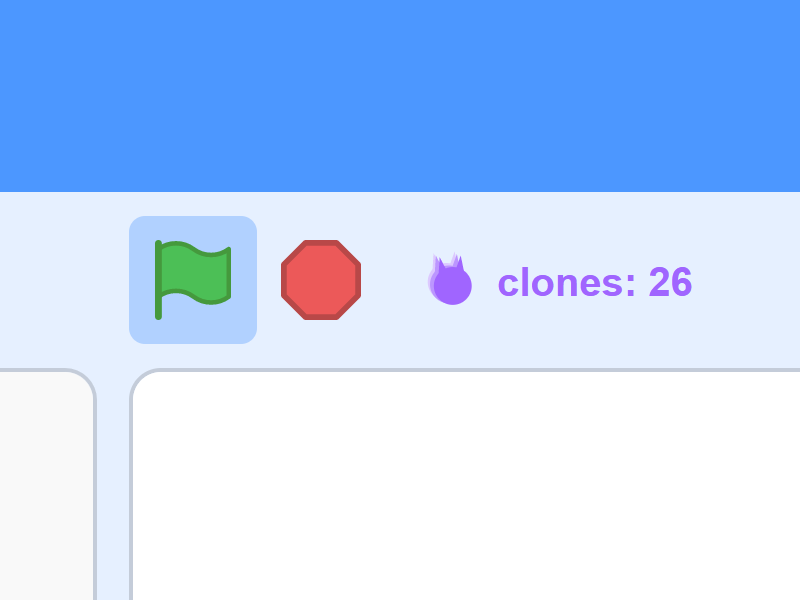
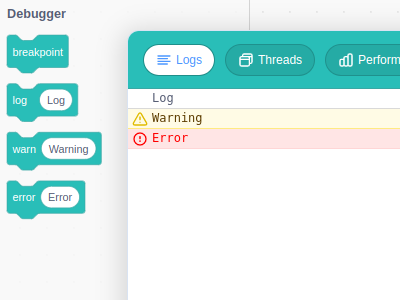
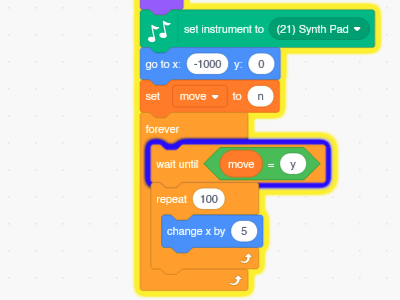
Adds a new "debugger" window to the editor. Allows for logging into the "Logs" tab of the debugger window using the "log", "warn" and "error" blocks. The "breakpoint" block will pause the project when executed. All running stacks of blocks can be viewed in the "Threads" tab of the debugger window, and when paused the "Step" button can be used to execute the next block. A graph of frames per second and number of clones can be viewed in the "Performance" tab. Allows for timing sections of your code with the "start timing" and "stop timing" block. Timing results and more are accessible from the "Timing" tab.
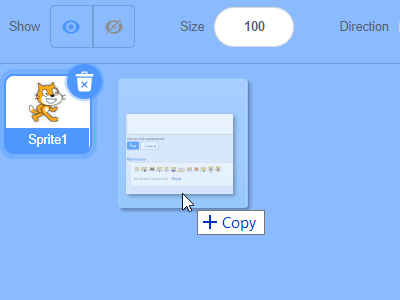
Fixes a bug in the Scratch editor where scripts, costumes, and sounds can't be dragged and dropped into sprites without the sprites jumping around within the sprite pane.
Allows you to download projects directly from the project page, without having to open the editor first. The Download button is added next to the Copy Link button.
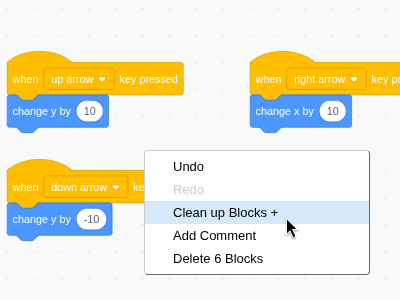
Improves the clean up feature in the code area's right click context menu with multiple columns and suggestions of removing unused variables and lists.
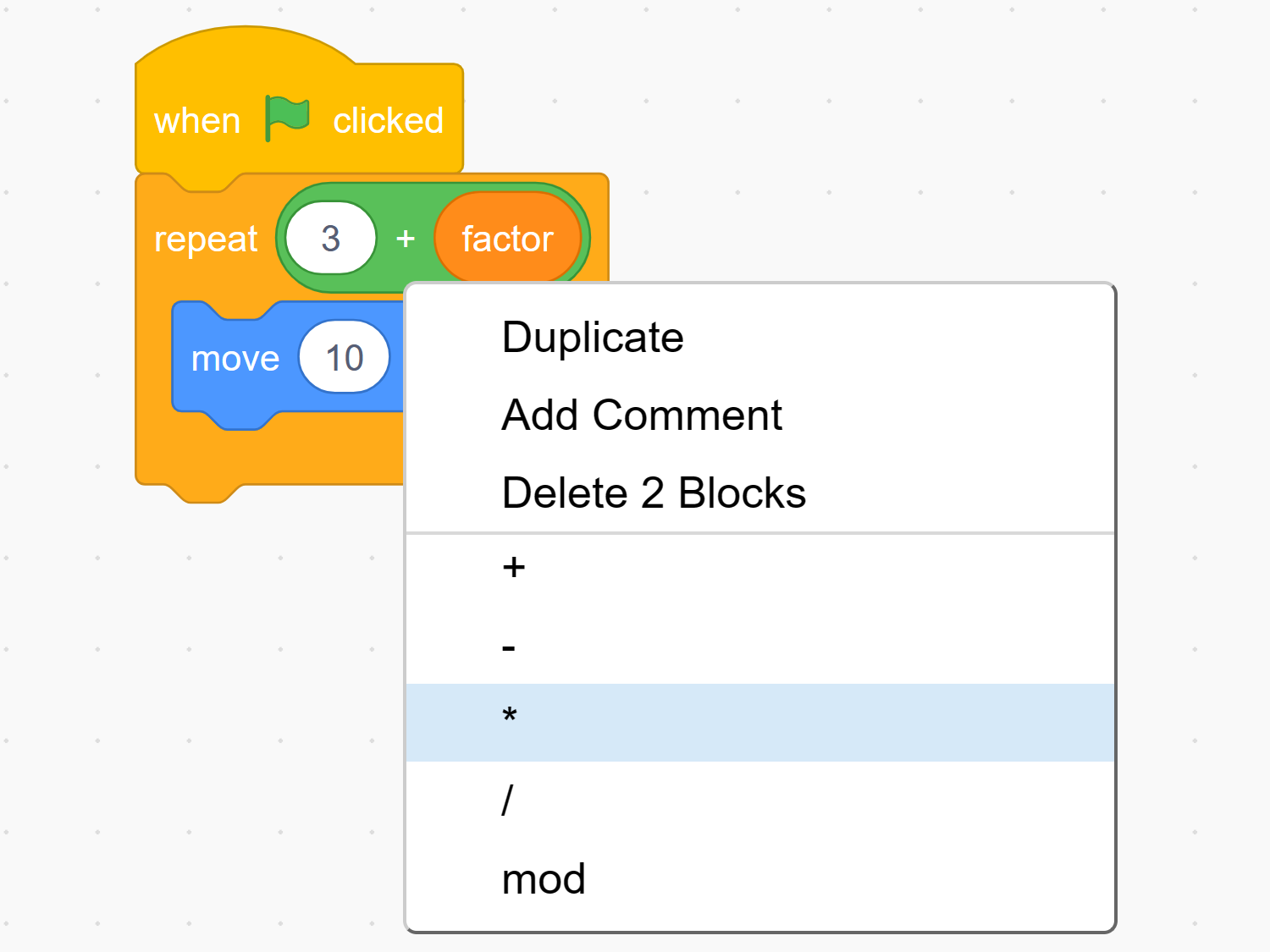
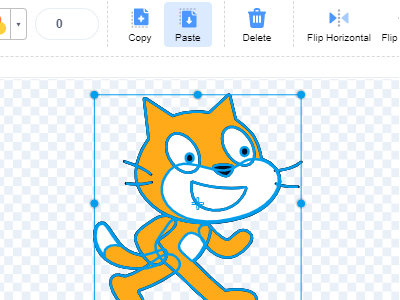
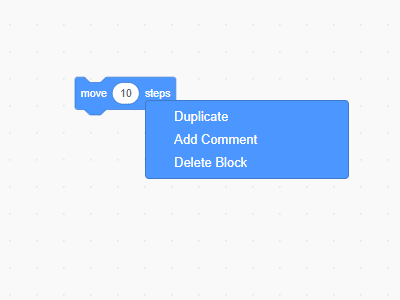
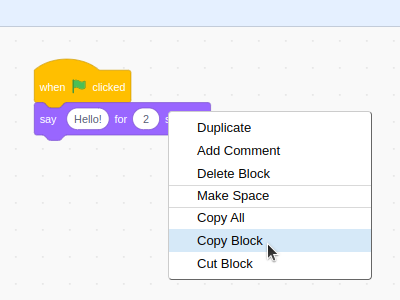
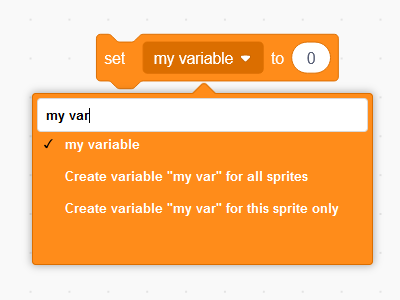
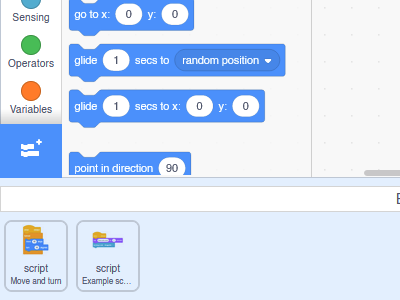
Adds options to copy/cut/paste blocks, swap variables, and make space to the right click context menu.
추가 키 ì„¤ì •
editor-extra-keys
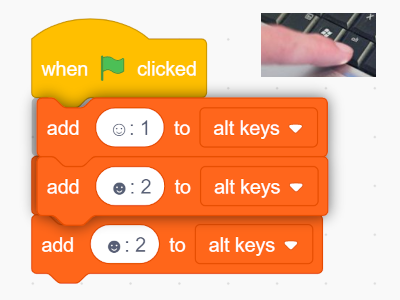
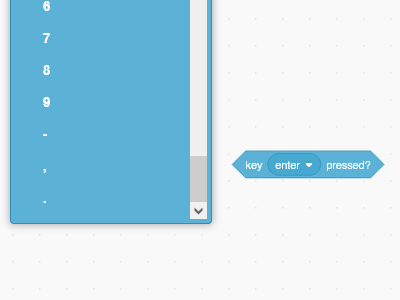
Adds more keys to the "key () pressed?" and "when () key pressed" block dropdowns, such as enter, dot, comma, and more. These keys will work even for users who do not have this addon.
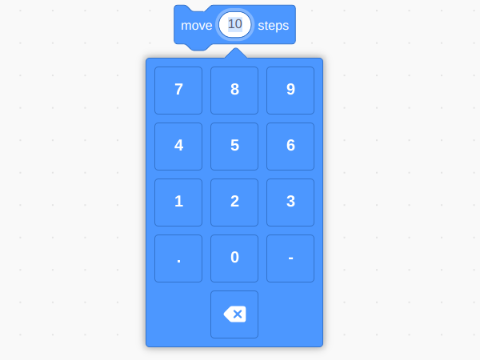
Use the up and down arrow keys to increase or decrease number values in numeric input fields such as those in blocks or the sprite properties area.
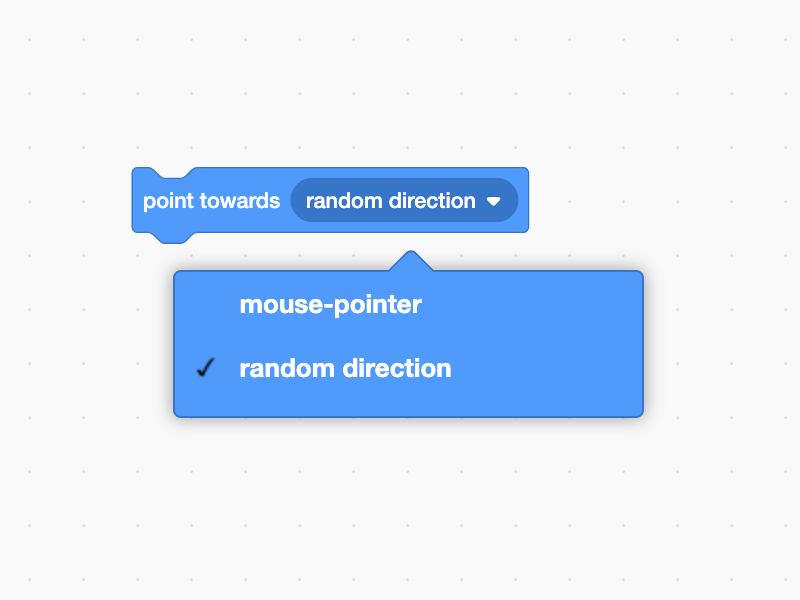
Point towards random direction block
editor-random-direction-block
Adds a "random direction" option to the "point towards ()" block that makes the sprite point in a random direction. This will work for everyone using the project.
When dragging a costume or sound, automatically scrolls the list and fixes a Scratch bug where the dragged item isn't placed at the right position after scrolling.
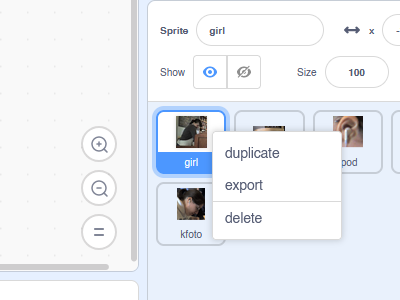
Adds folders to the sprite pane, as well as costume and sound lists. To create a folder, right click any sprite and click "create folder". Click a folder to open or close it. Right click a sprite to see what folders you can move it to, or alternatively drag and drop it into an open folder. This feature works by adding "[folderName]//" at the beginning of the names for your sprites.
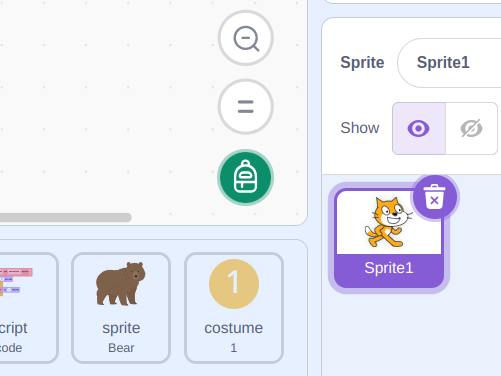
Replaces the backpack bar along the bottom of the editor with a button next to the zoom controls.
ì‚ì œ 버튼 숨기기
â
hide-delete-button
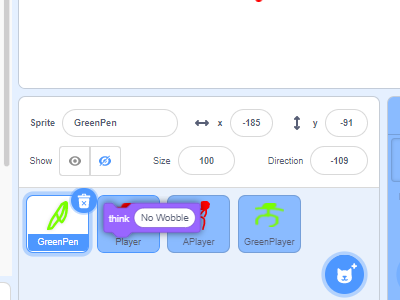
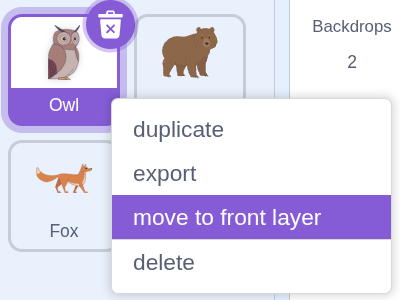
Hides delete button (trash can icon) from sprites, costumes and sounds. They can still be deleted using the right click context menu or by holding the Shift key.
ë¸”ë¡ íŒ”ë ˆíŠ¸ ìžë™ìœ¼ë¡œ 숨기기
🌟
hide-flyout
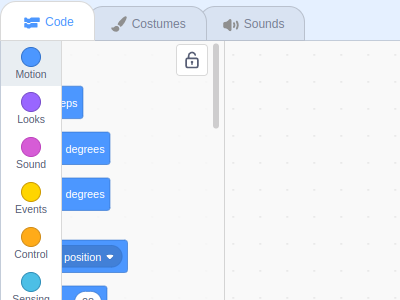
Hides the block palette unless you're hovering over it. Click the lock icon to lock it in place temporarily. Or use the "category click" mode to show/hide it when you click a block category.
새 변수 숨기기
â
hide-new-variables
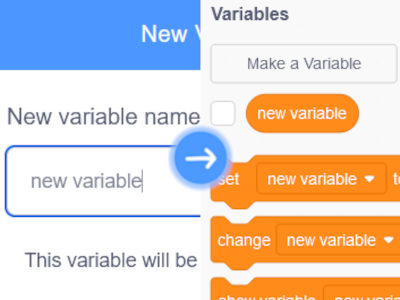
Do not automatically show monitors for newly created variables or lists.
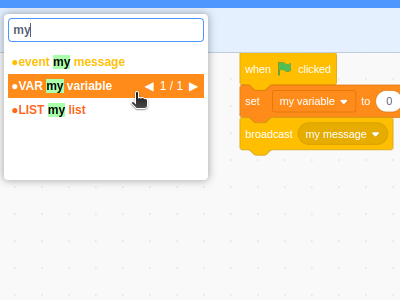
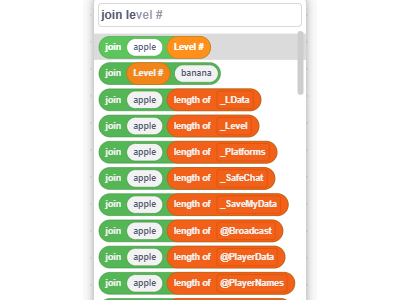
Middle or shift-click the code area, or press Ctrl+Space to bring up a block search window. Type block names (or parts of them) and drag them into the code area to add them to your project. The menu can be navigated with the arrow keys and Enter and supports autocompleting with Tab. To prevent the menu from closing, hold Shift while dragging blocks out of it.
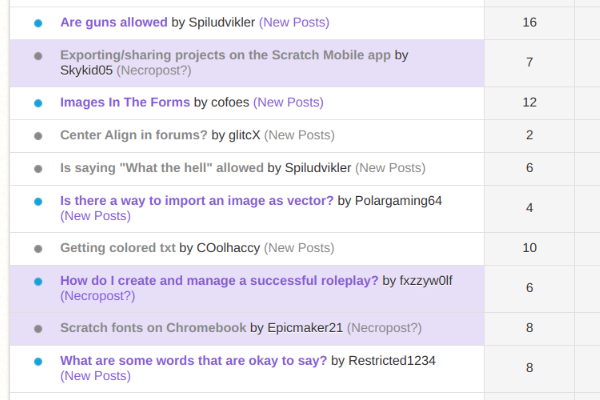
Highlights topics started much earlier than others on the same page in selected forums, so you don't waste time reading zombie messages or replies to help, question or request topics that were actually asked long ago.
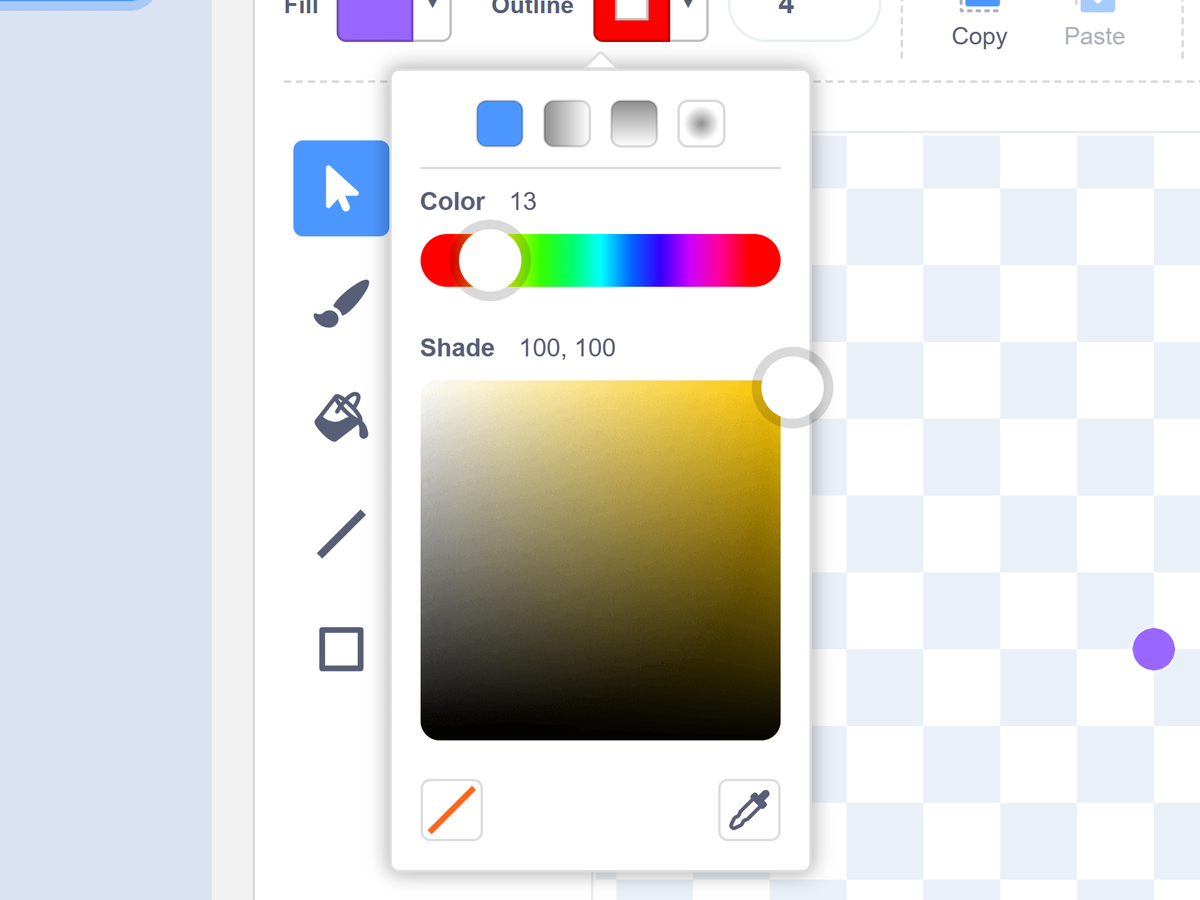
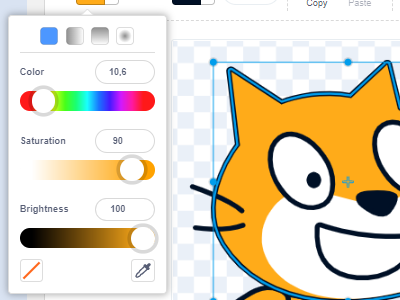
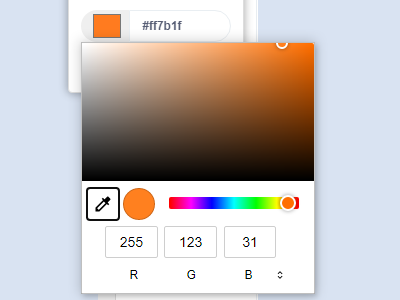
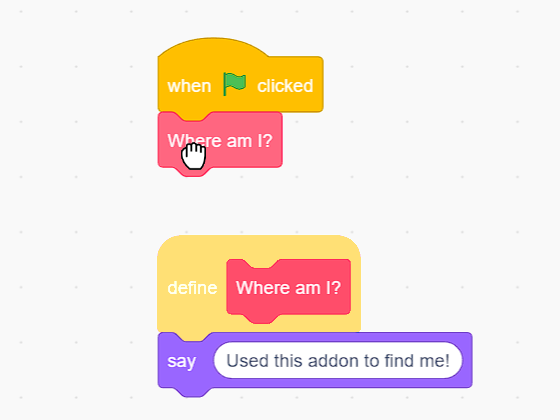
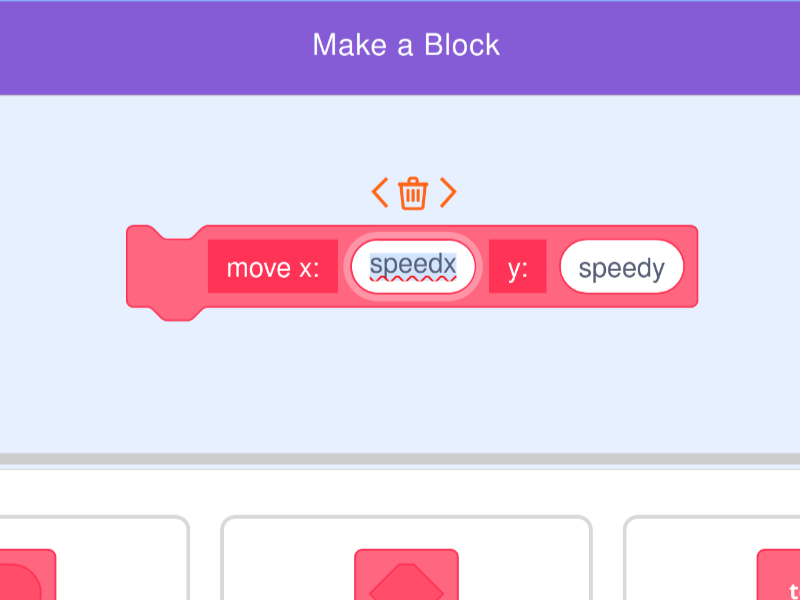
Adds an option to choose a custom color when creating a block. This feature works by adding the color code or category name at the beginning of the block's label.
Redirect to standard forums
redirect-mobile-forums-v2
Redirects you to the standard ("main") view of the forums when you visit the mobile ("m") view of the forums, avoiding Page not found errors.
Remaining reply counter
remaining-replies
Shows you how many more replies can be posted on each comment thread in a studio before reaching the limit of 25.
Remember collapsed forum categories
remember-collapsed-categories
Categories you collapsed on the forum home page (the list of forums) will stay collapsed when you leave and come back.

댓글
Make sure to follow the code of conduct. You can see this comment section on GitHub Discussions, as well as editing and removing your comment.