
Pheditor is a single-file editor and file manager written in PHP.
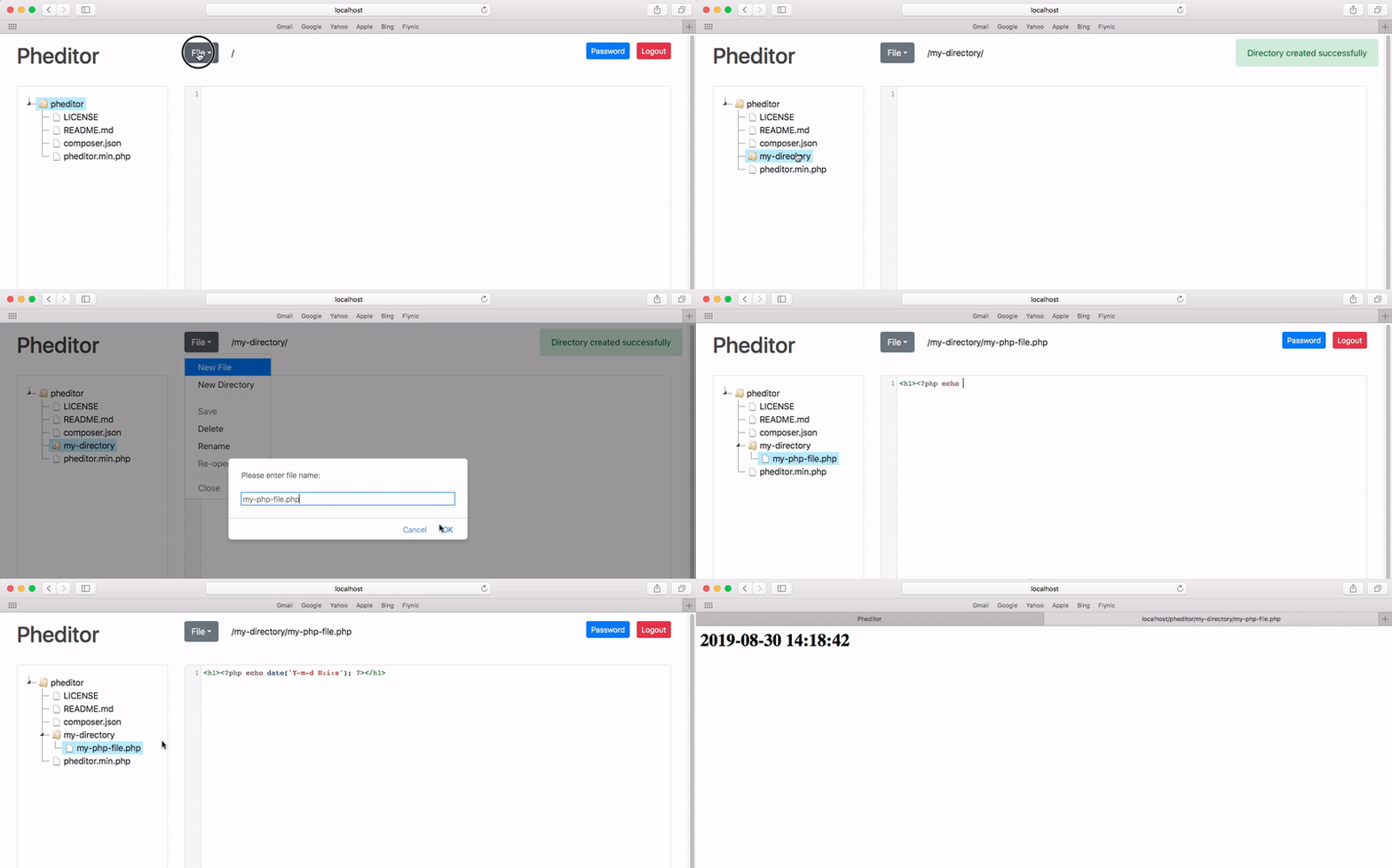
- Editor with syntax highlighting
- File Manager (create, rename and delete files and directories)
- Password protected area
- Keeping the history of edited files and changes
- Keyboard shortcuts
- Access levels for reading and writing and other permissions
- Terminal
- Dark mode
- Search in files
- Web server (Nginx, Apache, or etc)
- PHP 8.3 or above
Install using composer:
composer create-project pheditor/pheditor
or just upload pheditor.php to your web host (and/or rename it as you wish).
By default Pheditor uses CDN to load required libraries but also it is possible to load assets from local directory.
For using local assets follow these steps:
- Edit
pheditor.phpand changeLOCAL_ASSETSdefinition totrue.
define('LOCAL_ASSETS', true);
- Run
npm ito install required dependencies.
Pheditor is a single-admin tool, conceptually similar to a local code editor (e.g. VSCode) exposed over HTTP for remote convenience. It intentionally allows creating, editing, and uploading files of any type — including .php files — because that is the core purpose of a code/file editor. This is a deliberate design decision, not an oversight: a file editor that couldn't edit or upload PHP files would not be useful for editing PHP projects.
Because of this, Pheditor should be treated as equivalent in sensitivity to direct SSH/FTP access to your server, and must never be exposed without proper protection. Specifically:
- Change the default password immediately. The default password (
admin) is public knowledge (it's in this README and the source code). An instance left with the default password is equivalent to having no authentication at all. - Restrict access by IP using the
ACCESS_IPsetting whenever possible, especially if the server has a static IP or VPN. - Do not expose Pheditor on a public/guessable URL without additional protection — consider putting it behind HTTP Basic Auth at the web-server level, a VPN, or an SSH tunnel, in addition to Pheditor's own password.
- Limit
PERMISSIONSto only what you actually need. If you don't need the terminal or upload features, removeterminalanduploadfilefrom thePERMISSIONSconstant. - Treat any leaked password as a full server compromise, not just "editor access" — because file edit + terminal access together are equivalent to shell access.
If you are looking for a tool to expose to untrusted or semi-trusted users, Pheditor is not the right tool — it is built for a single trusted administrator only.
NOTES:
- The default password is
admin. This is publicly known and provides no real protection on its own — you must change it before or immediately after first login. Pheditor will prompt you to change it on first use, but the prompt alone does not protect the instance until the password is actually changed. - Since Pheditor grants full read/write access to files (including PHP files) and, optionally, terminal access, treat the URL and password with the same care you would give to an SSH credential. See Security Model above for recommended hardening steps.
Optional settings:
The settings would be editable in the main PHP file (pheditor.php by default). The settings are as below:
- Define patterns for files and directories to view/edit (empty means all files & directories)
- Log file path
- Show/Hide hidden files
- Limit access to the page only for an IP address (empty means access for all)
- Show/Hide main pheditor file (pheditor.php) in files list to edit
- History files path
- Word wrap
- Changing main directory (
MAIN_DIR) - Enable/Disable Terminal
- Define allowed terminal commands
- Change editor theme (
EDITOR_THEME) (theme list) - New file and directory permissions (
DEFAULT_DIR_PERMISSIONandDEFAULT_FILE_PERMISSION)
Using without password:
You can empty the PASSWORD constant in the source code to access the script without the password. This is strongly discouraged and should only be used in a fully trusted, isolated environment (e.g. localhost-only, behind a VPN with its own authentication) — never on a publicly reachable host.
Access Levels and Permissions:
There are eight permissions for users that is defined in PERMISSIONS constant. You can remove any of them as you need.
Default value: newfile,newdir,editfile,deletefile,deletedir,renamefile,renamedir,changepassword,uploadfile,terminal,movefile
If you're unsure which permissions to enable, start with a minimal set and add more only as needed — especially for terminal and uploadfile, which grant the most powerful capabilities.
Thanks to: