
Memory Profiler module reference
The Memory Profiler module displays memory data in a chart at the top of the Profiler window. It displays a breakdown of where Unity allocated memory in each frame in the details pane in the lower half of the window.
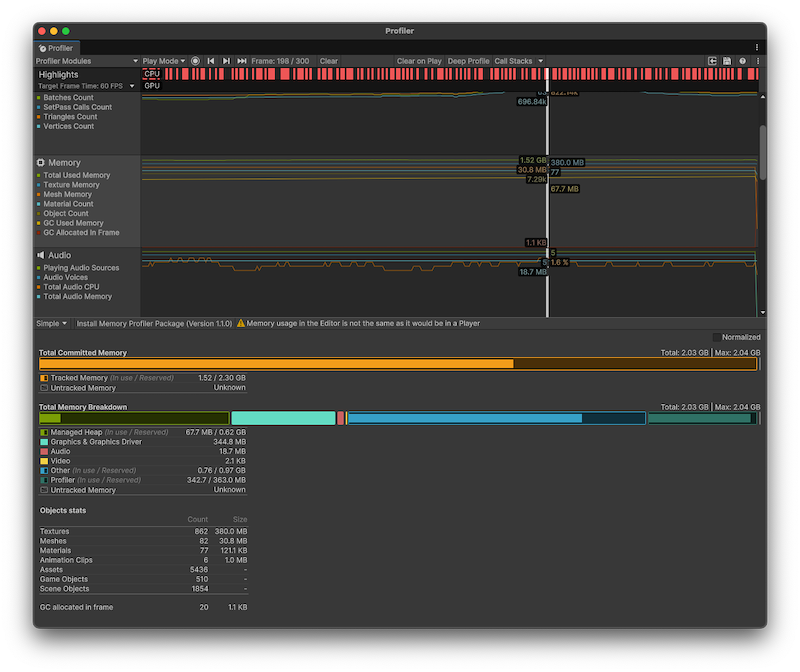
Chart categories
The Memory Profiler module’s chart has categories that display detailed information on where your application spends memory.
Module details pane
When you select the Memory module, the details pane displays a breakdown of where Unity allocated memory in your application. The dropdown has the following options:
| View | Description |
|---|---|
| Simple view | Displays a basic overview of where Unity allocated memory in your application. |
| Detailed view | Important: This view is deprecated. Use the Memory Profiler package instead. If you have the Memory Profiler package installed, select the Open Memory Profiler button at the top of the details pane to open the Memory Profiler window. |
Simple view
The Simple view indicates how much memory the operating system reports as being in use by your application. This value is based on the System Used Memory profiler counterPlaced in code with the ProfilerCounter API to track metrics, such as the number of enemies spawned in your game. More info
See in Glossary. On platforms that support getting the total memory size of the application from the operating system, the System Memory Usage is over 0 and is the same size in a task manager.
Unity sets some memory pools aside for allocations to avoid asking the operating system for memory too often. The Profiler module displays how much memory Unity reserves, and how much memory Unity used at the time of the Profiler capture as (In use / Reserved)
The following reference tables describe the statistics available in the Simple view. Their corresponding profiler counters are available via the ProfilerRecorder API and in the Profiler module editor so you can add them to a custom Profiler module.
Total Committed Memory
Total Committed Memory displays the total amount of memory that Unity’s Memory Manager system tracked for the selected frame.
| Value | Description |
|---|---|
| Tracked Memory (In use / Reserved) | The total amount of memory that Unity used and tracked (in use), and the amount of memory that Unity reserved for tracking purposes and pool allocations (Reserved). |
| Untracked Memory | Indicates the total amount of memory that Unity used but isn’t aware of. Some examples of untracked memory are: - Memory allocated through native plug-ins or some drivers - Mono or IL2CPP type metadata - Memory that executable code and DLL files use The Memory Profiler package and native platform providers might have more information on some of these untracked memory amounts. |
Note: The Tracked Memory (In use / Reserved) statistic’s equivalent profiler counter is System Used Memory for in use memory, and Total Reserved Memory for reserved memory.
Total Memory Breakdown
Breaks up the Total Committed Memory into high level categories, based on the subsystems that Unity allocated the memory for.
Not all memory systems use pools or differentiate between used and reserved memory. Those that do display two numbers, the used and the reserved amount of memory. If the used amount doesn’t share the same unit (B, MB, GB) as the reserved amount, Unity displays the unit, otherwise it’s omitted.
| Value | Description |
|---|---|
| Managed Heap | The used heap size and total heap size that managed code uses. This memory is garbage collected. |
| Graphics & Graphics Driver | The estimated amount of memory the driver uses on Textures, render targets, Shaders, and Mesh data. |
| Audio | The Audio system’s estimated memory usage. |
| Video | The Video system’s estimated memory usage. |
| Other | Displays native memory that Unity tracks, but isn’t reported under a specific counter. To get more information on the makeup of this or the other categories, use the Memory Profiler package. |
| Profiler | The memory that the Profiler functionality uses and reserves from the system. |
Objects stats
Displays the amount of object instances of the types of Assets that commonly take up a high percentage of the memory (Textures, Meshes, materials, Animation Clips), together with their accumulated sizes in memory (Assets, GameObjects, Scene Objects).
Note: These statistics aren’t available in release players.
Normalized
Enable this setting to scale the Total Committed Memory and Total Memory Breakdown charts to the memory usage of the selected frame. If you disable this setting, the charts scale to the total used memory within the frame range. This setting can help you understand how the total or relative amounts of memory change from frame to frame.