
Creating and publishing private packages
Table of contents
To share your code with a limited set of users or teams, you can publish private user-scoped or organization-scoped packages to the npm registry.
For more information on scopes and private packages, see "About scopes" and "About private packages".
Note: Before you can publish private user-scoped npm packages, you must sign up for a paid npm user account.
Additionally, to publish private organization-scoped packages, you must create an npm user account, then create a paid npm organization.
Creating a private package
-
If you are using npmrc to manage accounts on multiple registries, on the command line, switch to the appropriate profile:
npmrc <profile-name> -
On the command line, create a directory for your package:
mkdir my-test-package -
Navigate to the root directory of your package:
cd my-test-package -
If you are using git to manage your package code, in the package root directory, run the following commands, replacing
git-remote-urlwith the git remote URL for your package:git initgit remote add origin git://git-remote-url -
In the package root directory, run the
npm initcommand and pass the scope to thescopeflag:-
For an organization-scoped package, replace
my-orgwith the name of your organization:npm init --scope=@my-org -
For a user-scoped package, replace
my-usernamewith your username:npm init --scope=@my-username
-
-
Respond to the prompts to generate a
package.jsonfile. For help naming your package, see "Package name guidelines". -
Create a README file that explains what your package code is and how to use it.
-
In your preferred text editor, write the code for your package.
Reviewing package contents for sensitive or unnecessary information
Publishing sensitive information to the registry can harm your users, compromise your development infrastructure, be expensive to fix, and put you at risk of legal action. We strongly recommend removing sensitive information, such as private keys, passwords, personally identifiable information (PII), and credit card data before publishing your package to the registry. Even if your package is private, sensitive information can be exposed if the package is made public or downloaded to a computer that can be accessed by more users than intended.
For less sensitive information, such as testing data, use a .npmignore or .gitignore file to prevent publishing to the registry. For more information, see this article.
Testing your package
To reduce the chances of publishing bugs, we recommend testing your package before publishing it to the npm registry. To test your package, run npm install with the full path to your package directory:
npm install my-package
Publishing private packages
By default, scoped packages are published with private visibility.
There are two ways to publish your package to the npm registry:
Direct publishing
To publish directly with npm publish, you need either:
- Two-factor authentication (2FA) enabled on your account, or
- A granular access token (GAT) with bypass 2FA enabled
For more information, see the npm documentation on requiring 2FA for package publishing.
-
On the command line, navigate to the root directory of your package.
cd /path/to/package -
To publish your private package to the npm registry, run:
npm publish -
To see your private package page, visit https://npmjs.com/package/*package-name*, replacing *package-name* with the name of your package. Private packages will say
privatebelow the package name on the npm website.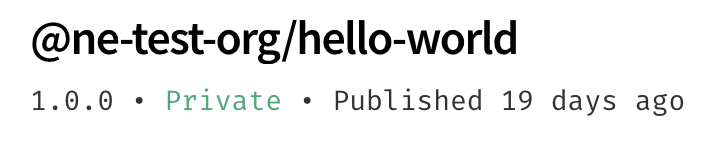
For more information on the publish command, see the CLI documentation.
Staged publishing
Instead of publishing directly, you can stage your package and approve it later. Staging the package does not require 2FA, which allows CI workflows to submit a package to the staging area. Before the package is published to the registry, a maintainer must review and approve it with 2FA.
If the package does not yet exist, staging it publishes a placeholder version of the package that is publicly available. The staged version and its contents are not available until the staged package is approved.
A GAT with bypass 2FA does not bypass the 2FA check during staged package approval.
-
On the command line, navigate to the root directory of your package.
cd /path/to/package -
To stage your package, run:
npm stage publishThis submits your package to a staging area.
-
To check that your package has been staged, use either of the following methods:
- In the CLI, run
npm stage list <package-name>to find the staged package and its stage ID. - On npmjs.com, open the Staged Packages tab to review staged packages.
- In the CLI, run
-
To approve and publish the staged package, use one of the following methods:
- In the CLI, run the
npm stage approve <stage-id>command. - On npmjs.com, review the staged package in the Staged Packages tab, then click Approve.
Note: You will be prompted for 2FA verification regardless of whether you approve the package in the CLI or on npmjs.com. Once approved, the package is published to the live registry.
- In the CLI, run the
For the full staged publishing workflow, including reviewing, inspecting, and rejecting staged packages, see Staged publishing.


![dependabot[bot]](https://github.com/dependabot%5Bbot%5D.png?size=40)


