
Cursor
Cursor is an AI code editor whose cloud agents can read a GitHub issue, propose a fix as a pull request, and iterate on review comments. A Cursor connection in Firetiger surfaces Cursor in the Fix ▾ dropdown on every issue — clicking it opens a Cursor session seeded with the issue’s description and investigation details.
This page covers setting up the connection. For the end-to-end workflow (what happens after you click Fix), see Fixing issues with coding agents.
Recommended: Create and manage connections via the web UI at https://ui.cloud.firetiger.com/integrations/connections.
Installation
-
Generate a Cursor API key at cursor.com/dashboard/cloud-agents under My User API Keys. The key should start with
key_. -
In the Firetiger UI, navigate to Integrations → Connections, click New Connection, and select Cursor from the picker.
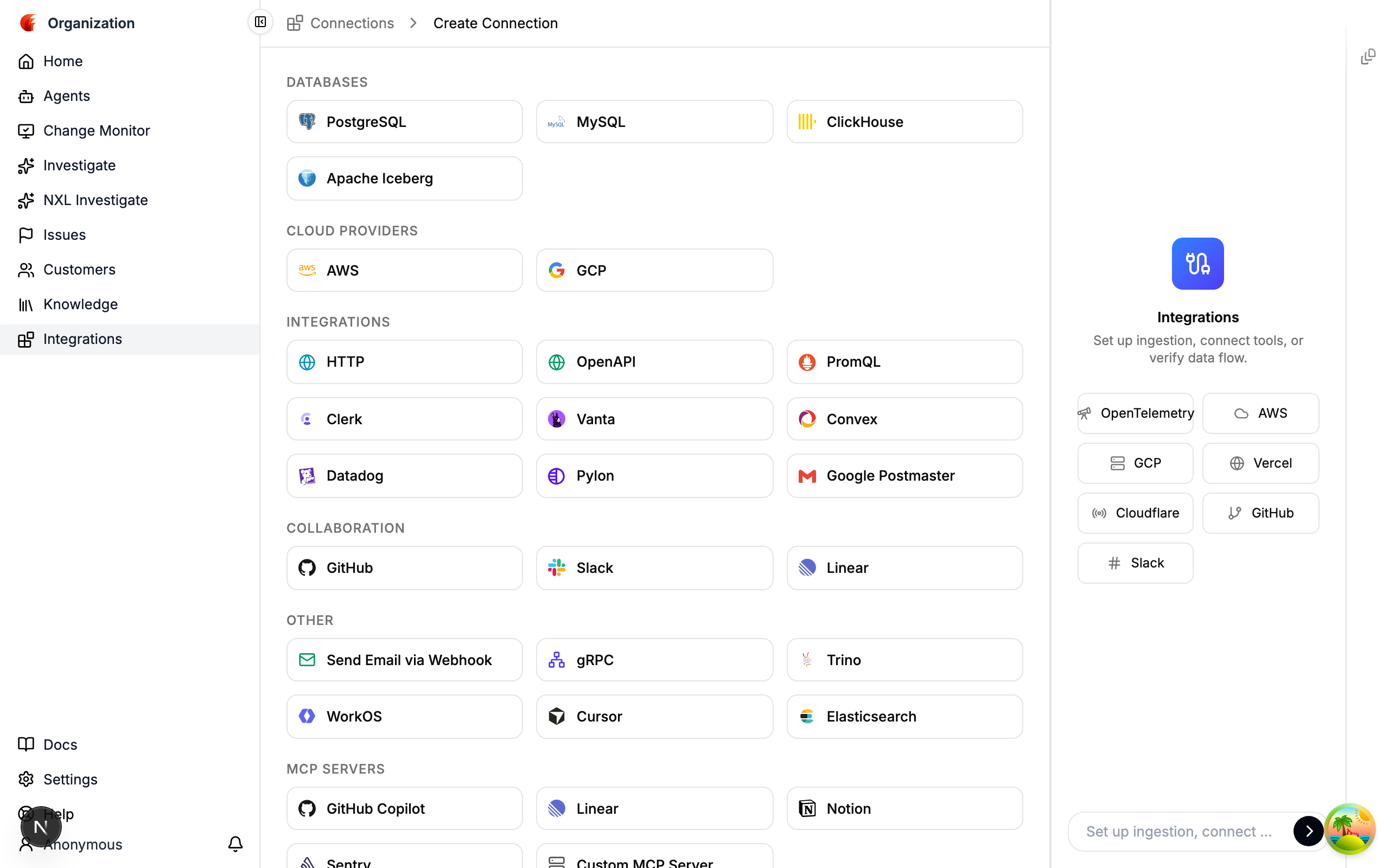
-
Fill in the form:
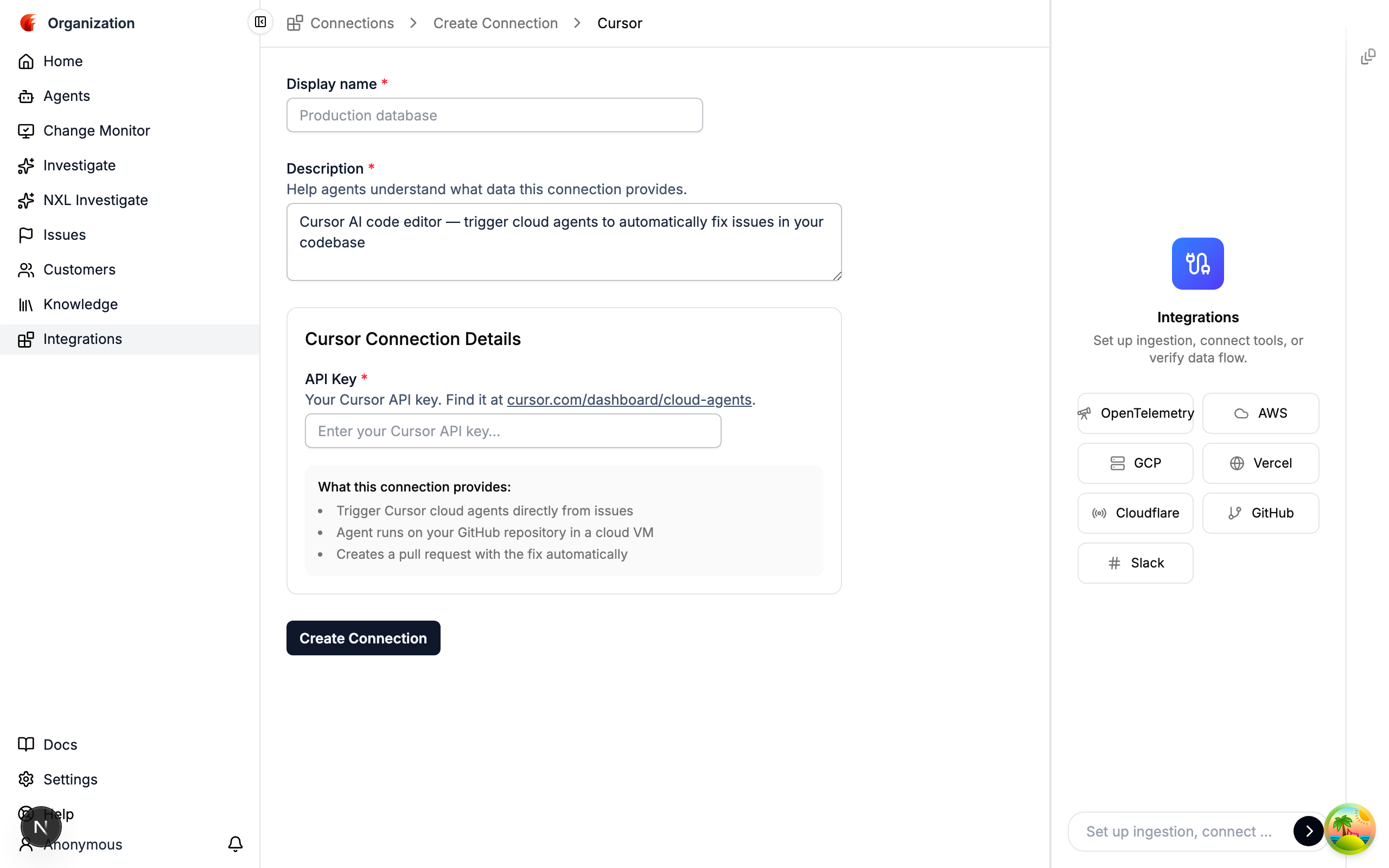
-
Click Create Connection. Cursor now appears in the
Fix ▾dropdown on any issue.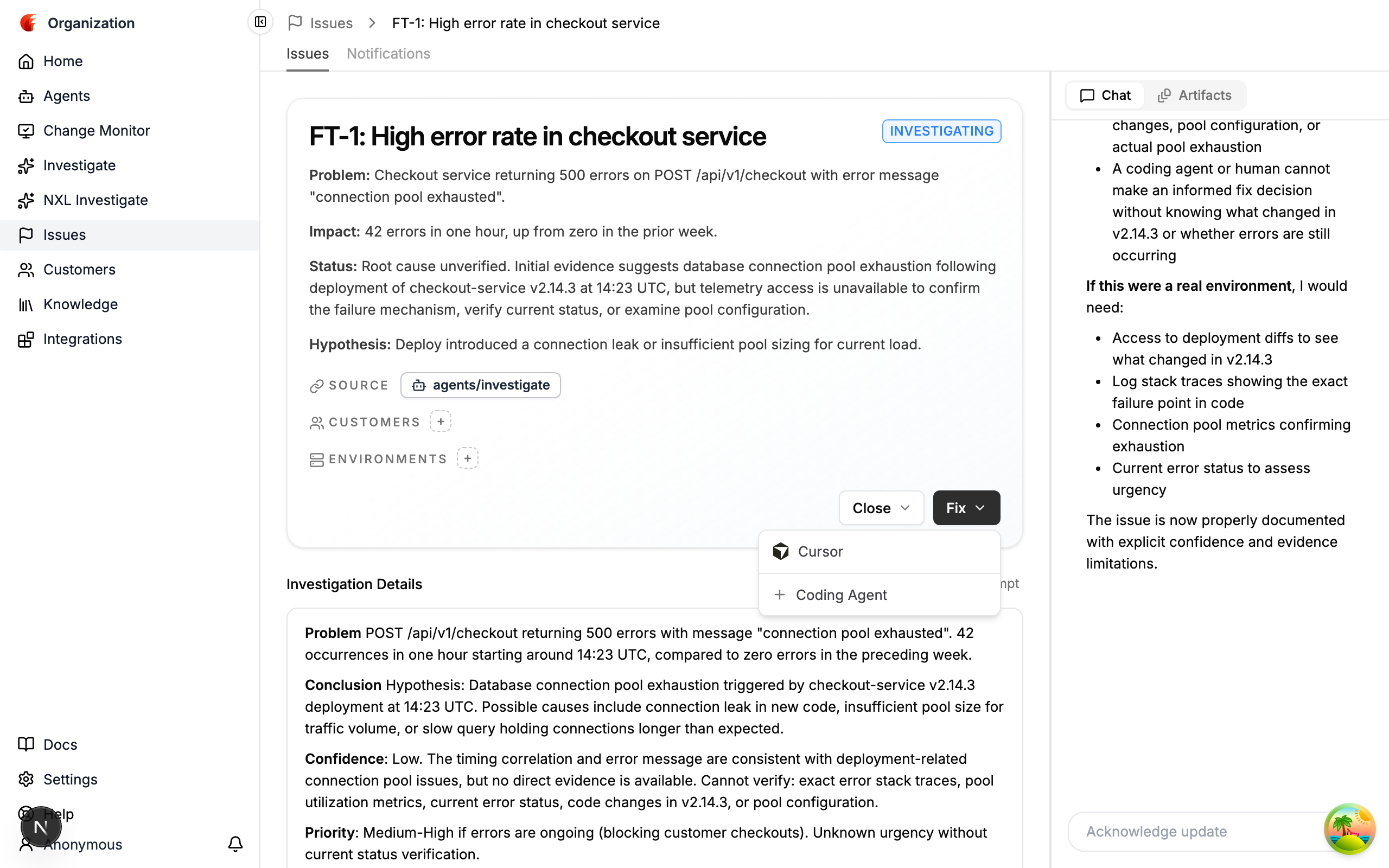
What gets created
A single Connection resource with:
No webhooks, no GitHub App install, no extra side effects — just a stored credential and a row that shows up in the Fix dropdown.
Multiple Cursor connections
You can register as many Cursor connections as you want. Each one renders as a separate row in the Fix ▾ dropdown with its own display name, so you can scope keys per team, environment, or seat allocation without forcing users to pick between them at configuration time — they pick at fix time.
Revoking a key
To rotate a compromised or expired Cursor key:
- Revoke it at cursor.com/dashboard/cloud-agents.
- In Firetiger, go to Integrations → Connections, find the Cursor connection, click Edit, and paste the new key.
If you omit the API key on edit, Firetiger keeps the previous value — useful for updating only the display name or description without touching the credential.
Capabilities
A configured Cursor connection enables:
- Fix-from-issue —
Fix ▾ → Cursoron any issue detail or issue-card surface, seeded with the issue’s description and details. - Multiple simultaneous sessions — clicking Cursor on different issues launches independent Cursor agent sessions that work in parallel.
Related
- Fixing issues with coding agents — end-to-end workflow, from
Fix ▾click to closed issue - Coding Agents API — programmatic access to launch / list / get sessions
- Connections API — create and update the underlying Cursor connection via API