FAQs about Bright Data accounts: proxy credentials, port 44445, SSL certificates and IP management across all proxy and API products.
Where is my proxy username and password?
You can find your username and password for your Bright Data product (e.g. proxy, Web Unlocker API, Browser API etc) in the “Overview” tab for product you created. You can create more than one password if you want.Note: the username and password you created for the Bright Data site are NOT used for accessing the actual products. It is only used for dashboard access.
Which proxy service port shall I use: 22225 or 33335?
In Bright Data we distinguish between our proxy service ports, to which you address your requests and the target ports which refer to the target website or host you are trying to reach.This entry refers to Proxy service ports, of our main host: brd.superproxy.io
When working with Bright Data proxies in Native mode, you need to provide a proxy port. This setting is redundant when working with proxy APIs - see more here of the differences between API vs. native Access.
Bright Data now serves requests over native proxy port 44445, introduced with the new root certificate in July 2026. The old certificates on ports 22225 and 33335 expire on September 25, 2026 at 00:00 UTC, and traffic still relying on them after that date will fail. For a step-by-step move, see the root certificate migration guide.For proxy zones of types Residential, Web Unlocker API and SERP API which require either KYC or SSL Certificate it is essential to install the correct certificate which complies with port used.If you are still using port 22225 or 33335, complete the transition to port 44445 before September 25, 2026.
The certificates operate in tandem and differ by port, so you can migrate gracefully. Use the certificate that matches the port you connect to. Port 44445 uses brightdata_root_ca_44445.crt.
Inform your network administrator or security administrator to open the domain brd.superproxy.io on port 44445 for outgoing communication.
If you are using certificate: install the new certificate. See instructions on certificate installation here: SSL Certificate
How do I set up a password for my account?
Even if you first signed in with ‘magic link’ or using a six-digit code, you can always create a password for your account. You can then save the password in your browser for faster access to the control panel.To set up a password for your Bright Data account, follow these steps:
Create your password: Follow the instructions to create a password for your account. We recommend at least a 10-digit password with numbers and symbols.
Remember, each user must set their own password. If you have other users on your account, they can configure their passwords individually if needed.Note: If you’re authenticated via third-party service like Google or GitHub, please add a separate user and sign in through Bright Data’s standard signup flow instead of using third-party services.
How to review IPs Allocated to Your Zone?
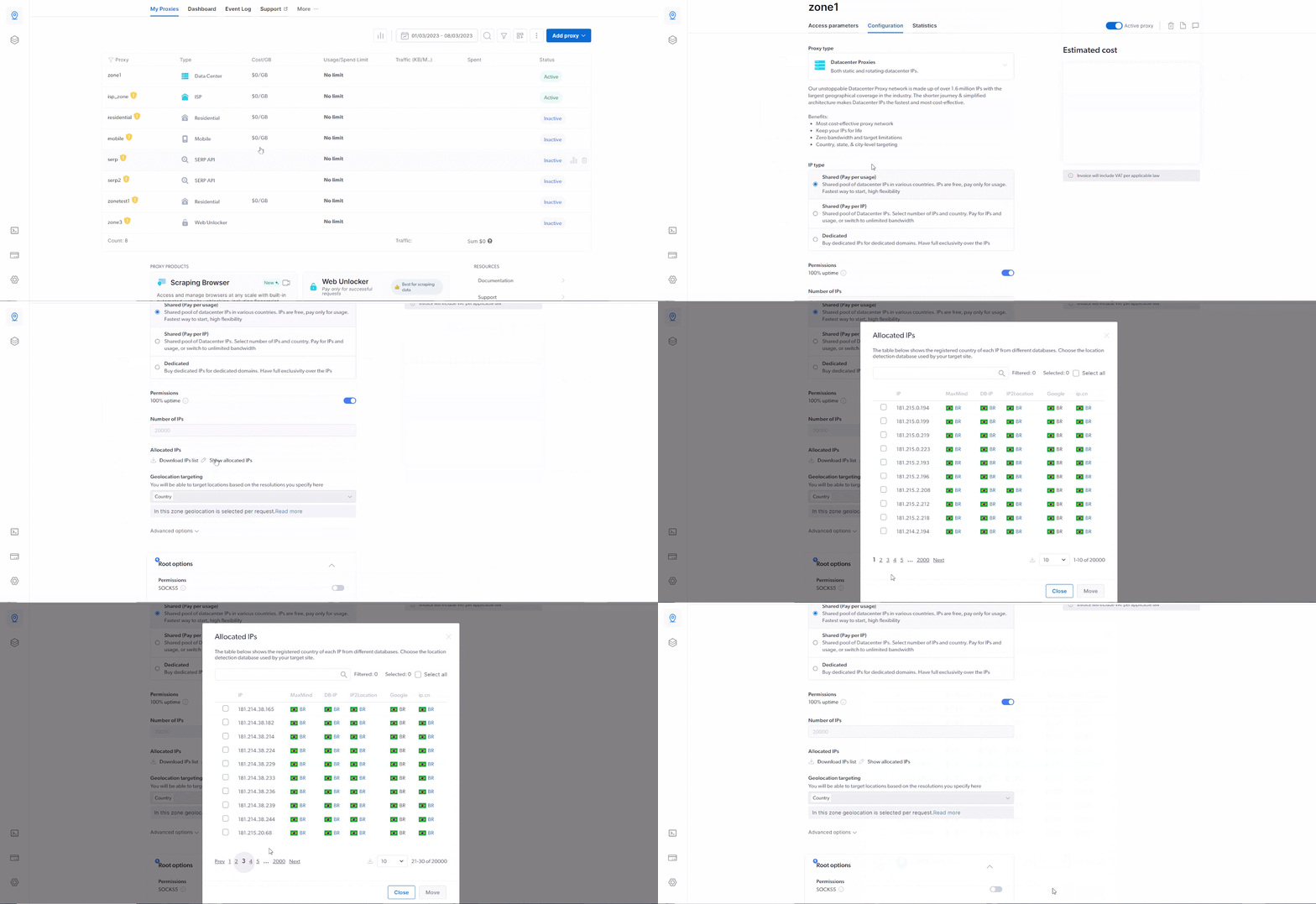
To review the list of IPs allocated to your zone, simply navigate to ‘My proxies page’, click on your Proxy zone, scroll down to the ‘Allocated IPs’ section, then simply click ‘Show allocated IPs’ or ‘Download IPs list’.
Due to privacy and security concerns, this option is not available for Residential Shared Pay-Per-GB configuration. See -session flag instead.
How to view your zone's statistics?
There are 2 ways to view your zones statistics:
via Control Panel
via The API
To see stats across all your zones, go to your dashboard:
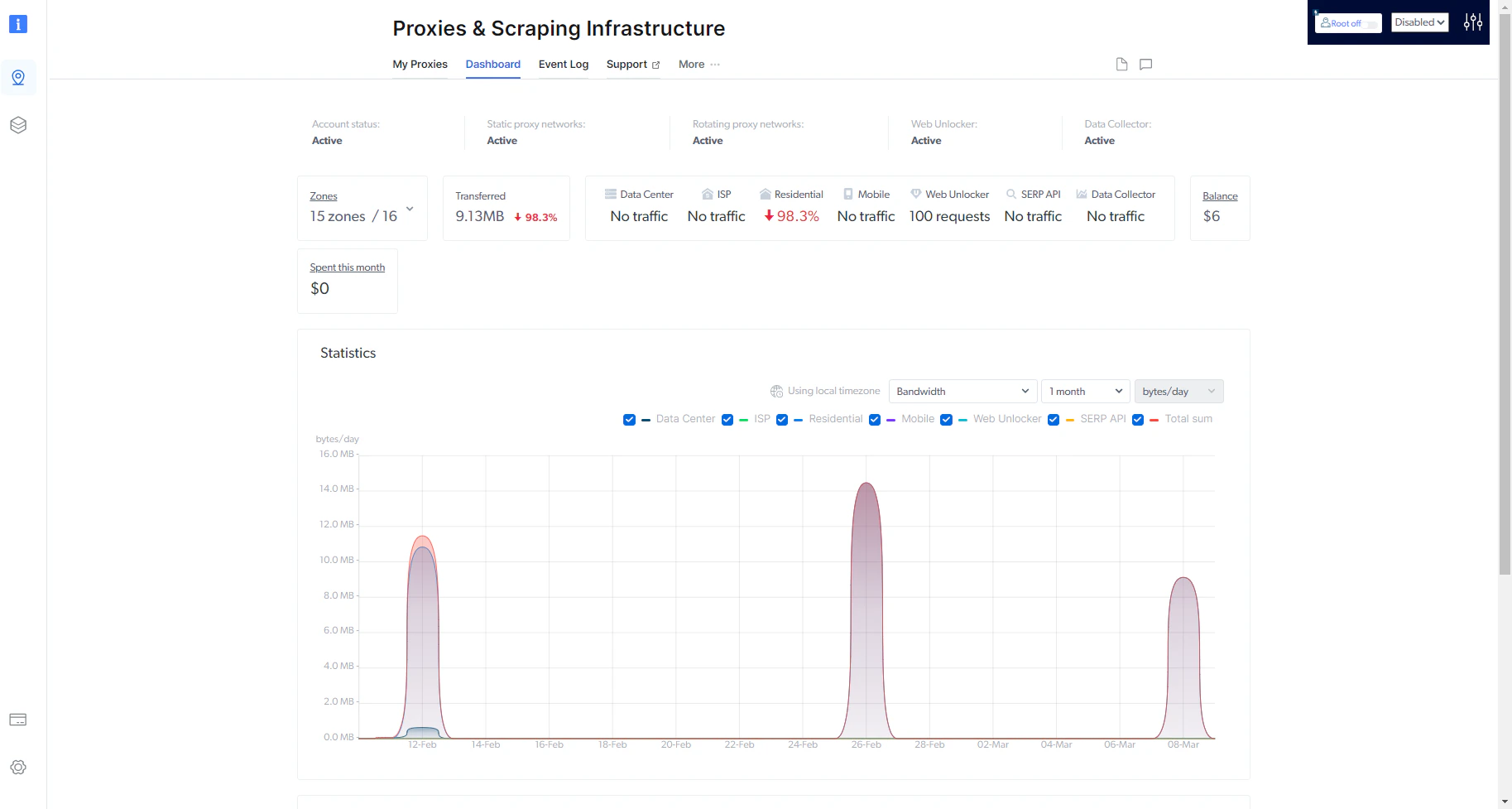
To see stats for a specific zone, click on “Proxies and Scraping” on the left navigation bar and go to the zone’s settings and click the “statistics” tab:
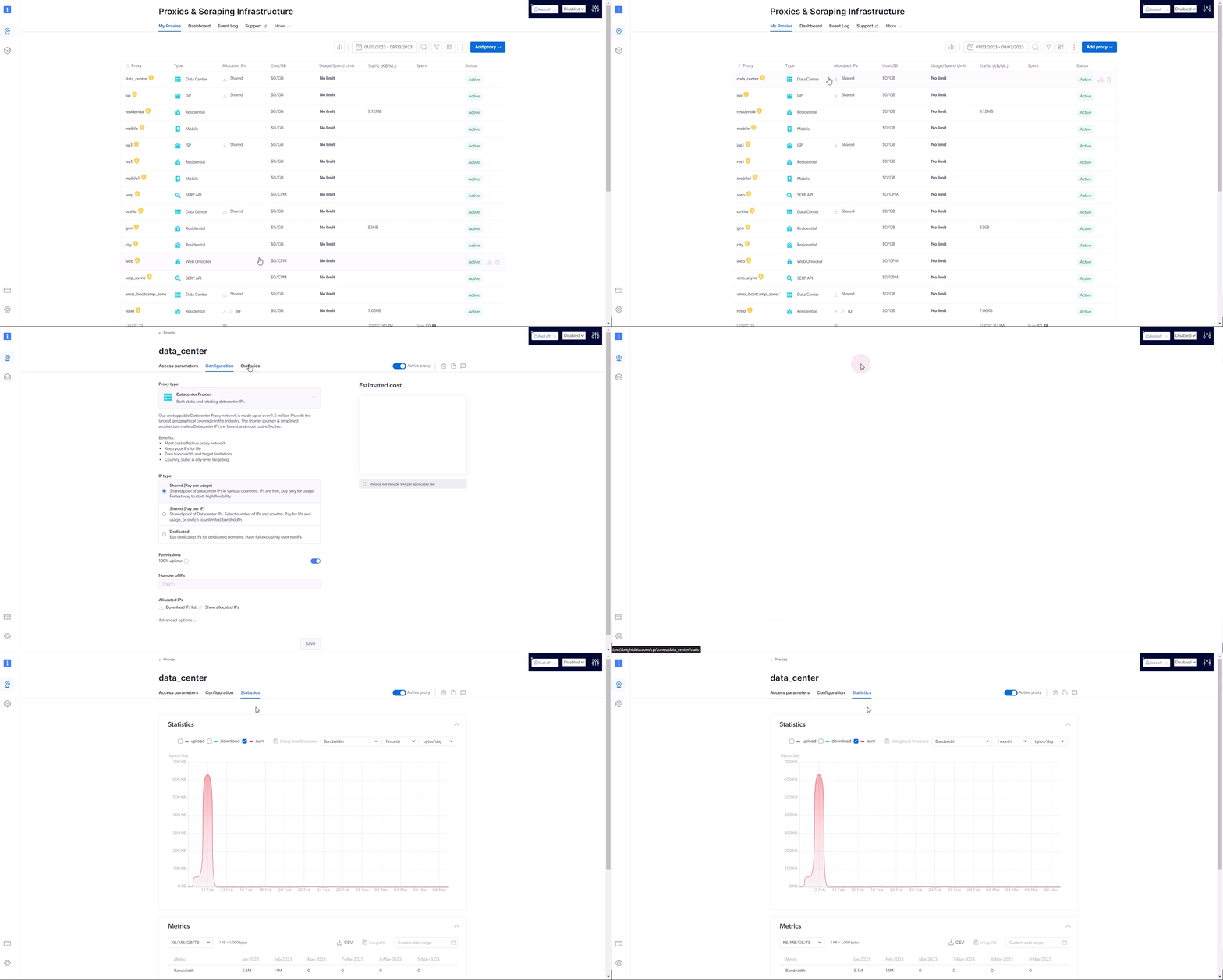
Please visit this page to see all available API endpoints (in multiple languages) and example responses related to viewing statistics.
How to set limits to bandwidth usage?
By default, all proxy zones have unlimited usage, and you can set a limit by one of 4 parameters:
$/day
$/month
bytes/day
bytes/month
To set this limit on one of your zones, from Bright Data’s ‘My proxies page’
1
Go to any of your zone's settings by clicking on that zone.
2
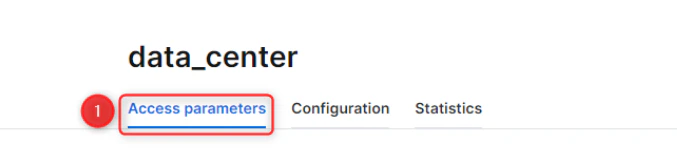
Go to the "Access parameters" tab.
3
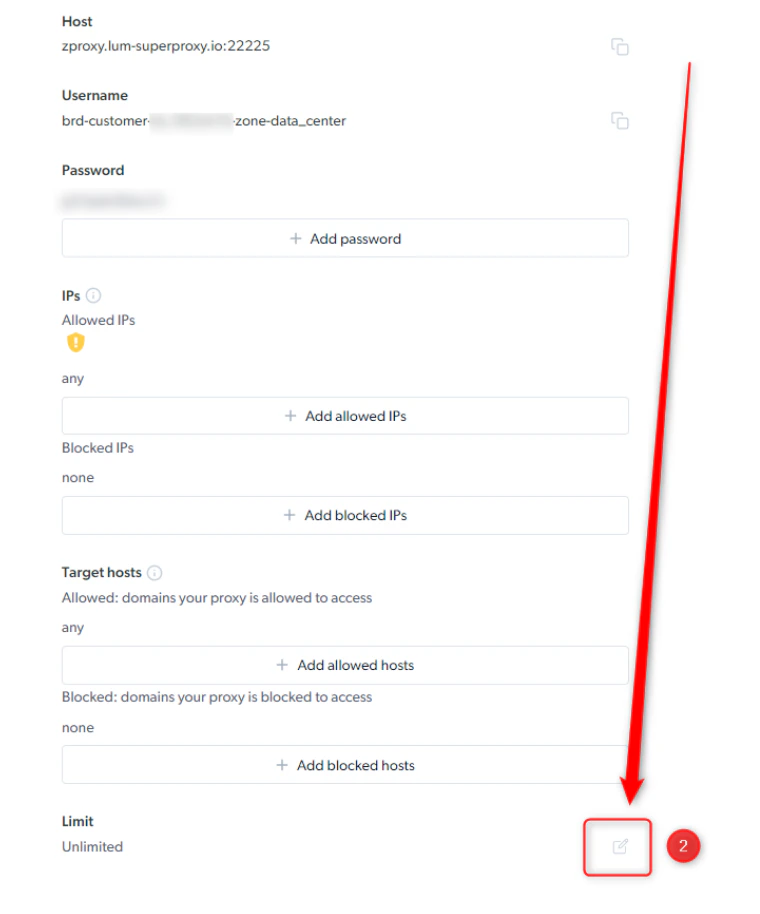
Scroll down to "Limit", the default value is "unlimited"
4
Click the "edit" button
5
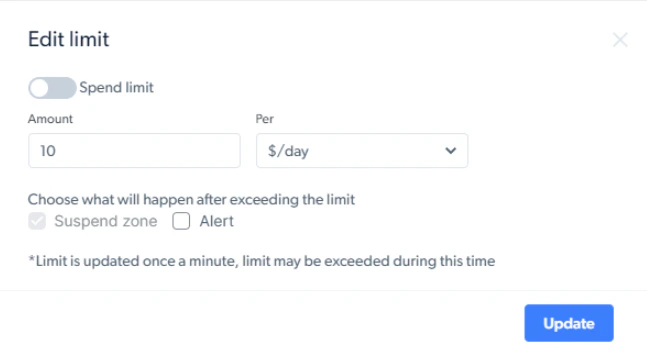
Enable the "spend limit" option.
6
Set the parameters you wish to work with and click "update"
7
You'll see the change back in the Limit section and the proxies page, in the Usage/Spend Limit column.
How do I calculate the Cost effectiveness of residential IPs?
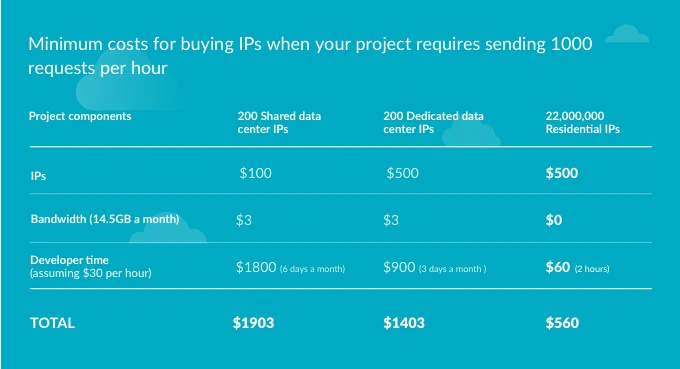
How did we calculate this table?Your company needs to collect information from the web by sending 1,000 http requests per hour to a specific website. You write the scraper code and run it through a server. The target website allows 50 requests per minute from the same IP before blocking your scraper. Now, you have to purchase more proxies.Assuming you choose datacenter proxies:
You don’t want to share IPs, so you buy 200 dedicated data-center IPs. You code the integration of the scraper with the new data-center proxies for 2 hours and then run the new program. This time, it takes 3 days for your target website to detect your scraper. Once your proxies are detected, you’ll have to purchase new proxies and repeat this process again, checking each day to make sure the proxies haven’t been detected. Cost per month (all numbers are from real customers):
200 dedicated IPs: $500
Bandwidth: (1000 request X 20KB per request X 24 hours X 30 days = 14.5GB): $3 per month
Developer (2 hours integration X 10 + 1 hour every 3 days for managing the proxies): ~3 days of work a month or ~$900
Your total cost per month will be at least $1400 for just these things alone, and the salary of $30 per hour for a developer is very conservative. Additionally, this doesn’t account for a lack of information reliability if your target website sends misinformation before blocking you or if your information flow is cut every few days, which can be detrimental to your brand or your revenue stream.Assuming you choose Bright Data residential proxies: You buy a basic package of 40GB with access to unlimited residential IPs. It takes 2 hours to integrate your scraper. Due to Bright Data’s pool of 400M+ residential IPs, your target website can’t detect your scraper, allowing you to focus on other projects.The bandwidth and unlimited IPs cost just $500 per month. Your information is always reliable because your requests are always successful and access is never cut in the middle of the month. When your business grows as a result of this scraping and your projects exceed 600MB each month, the difference in costs can be much higher than just ~$1000.Bright Data also allows you to suspend your account when not in use, so your cost can be lower than $500 per month. Start by using the $5 voucher for free data-center traffic to test Bright Data’s benefits and then ask for access to our residential network for cheap and reliable data collection.
What is the yellow warning icon next to my zone name?
This is a reminder to setup your allowlist access
To restrict your proxy zone access from unauthorized servers, we recommend you setup an IP allowlist. This will ensure only IPs you recognize will be allowed to access your proxy zone, for higher security and control.Consult your IT or networking specialist to make sure your outgoing IP is fixed and does not change, otherwise you may block yourself or other authorized users from your company to access the proxy zone.
How to restrict access using Token-based Authentication
This workflow is optimal when using multiple crawlers with rotating IPs that target the Proxy Manager installed remotely. This method requires you API key an Authentication token.Run From inside the remote server the next command in Terminal/CMD
curl -X GET "http://127.0.0.1:22999/api/gen_token" -H "accept: application/json"
This will generate an API key as an authentication token for you:
Output
"token":"<API_KEY>"
Now you can simply send a request using the API key you just created:
Do you only collect public data or do you also collect private data?
We never collect private data. We only collect publicly-available data.
What is Playground mode?
When you sign up, your account automatically enters a free trial “Playground mode” for the first 7 days, allowing you to instantly try different Bright Data solutions. No credit card or any other form of payment method is needed.Separately, every new account also gets a recurring free tier of 5,000 credits per month for the Web Unlocker API, SERP API, Web Scraper API, Scraper Studio and Browser API. These credits renew on the first of each month and do not expire with the trial.You can extend this free trial to 30 days and unlock Proxy and Web Unlocker API usage. To do so and receive a $5 free credit, verify your account to start our Limited 30-day trial. Note that the 30-day trial does not apply to certain countries.
During Playground mode, Proxy Networks (Residential, ISP, Datacenter) and Web Unlocker API are not available for accounts registered with personal email addresses and no payment method on file. Adding a payment method removes this restriction. See Payment Verification.
Playground mode is a free trial intended for small-scale testing and exploration, not for large-scale tests or production use. Product usage is subject to limitations such as speed, bandwidth, and requests per second until you verify your account and start our Limited Trial.
While operating in Playground mode (or any unfunded state), requests across the SERP API, Web Unlocker API and Proxies are subject to a default rate limit of 1,000 requests per minute. You can verify your current rate limit in the Control Panel, under the zone’s Overview tab > Access details.
What is Limited Trial mode?
Limited Trial mode if a free trial period that allows you to freely explore our Bright Data proxy solutions without immediate payment. You’ll receive a $5 credit to use any of our proxy services for a period of 30 days, giving you a full month to test and experience our offerings.Note that the 30-day trial does not apply to certain countries. If you don’t see this option, add funds to your account to start using Bright Data - you can add as little as $10 to get started with a Pay as You Go plan.
How do I verify my account to start the “Limited Trial” and receive a $5 credit?
Account verification is simple and free. Just add a valid payment method to your account to start Limited Trial mode and receive your $5 credit. You will not be charged.
At the end of the 30-day trial period, your $5 proxy trial credit expires (if not already used), and you will need to add funds to your account to keep using the proxy products. The recurring free tier of 5,000 credits per month for the Web Unlocker API, SERP API, Web Scraper API, Scraper Studio and Browser API is unaffected and continues to renew monthly.
Can I use the free credit on any of your proxy products?
Yes, the $5 trial credit can be used on any of our proxy products during the duration of the trial, allowing you to test the products that best fit your needs.
Why can't I connect to brightdata.com site or dashboard?
In rare cases, some ad-blocking program/extensions can block access to Bright Data sites. If you encounter any issues, allowlist brightdata.com or disable the ad-blocker.
Where can I see the list of country codes?
Below is the list of ISO 3166 country codes. Not all the countries in the list have Bright Data proxies, most of the countries do.
Country Name
Country code
Åland Islands
ax
Zimbabwe
zw
Zambia
zm
Yemen
ye
Western Sahara
eh
Wallis and Futuna
wf
Virgin Islands (U.S.)
vi
Virgin Islands (British)
vg
Viet Nam
vn
Venezuela (Bolivarian Republic of)
ve
Vanuatu
vu
Uzbekistan
uz
Uruguay
uy
United States of America (the)
us
United States Minor Outlying Islands (the)
um
United Kingdom of Great Britain and Northern Ireland (the)
gb
United Arab Emirates (the)
ae
Ukraine
ua
Uganda
ug
Tuvalu
tv
Turks and Caicos Islands (the)
tc
Turkmenistan
tm
Turkey
tr
Tunisia
tn
Trinidad and Tobago
tt
Tonga
to
Tokelau
tk
Togo
tg
Timor-Leste
tl
Thailand
th
Tanzania, United Republic of
tz
Tajikistan
tj
Taiwan (Province of China)
tw
Syrian Arab Republic
sy
Switzerland
ch
Sweden
se
Svalbard and Jan Mayen
sj
Suriname
sr
Sudan (the)
sd
Sri Lanka
lk
Spain
es
South Sudan
ss
South Georgia and the South Sandwich Islands
gs
South Africa
za
Somalia
so
Solomon Islands
sb
Slovenia
si
Slovakia
sk
Sint Maarten (Dutch part)
sx
Singapore
sg
Sierra Leone
sl
Seychelles
sc
Serbia
rs
Senegal
sn
Saudi Arabia
sa
Sao Tome and Principe
st
San Marino
sm
Samoa
ws
Saint Vincent and the Grenadines
vc
Saint Pierre and Miquelon
pm
Saint Martin (French part)
mf
Saint Lucia
lc
Saint Kitts and Nevis
kn
Saint Helena, Ascension and Tristan da Cunha
sh
Saint Barthélemy
bl
Réunion
re
Rwanda
rw
Romania
ro
Republic of North Macedonia
mk
Qatar
qa
Puerto Rico
pr
Portugal
pt
Poland
pl
Pitcairn
pn
Philippines (the)
ph
Peru
pe
Paraguay
py
Papua New Guinea
pg
Panama
pa
Palestine, State of
ps
Palau
pw
Pakistan
pk
Oman
om
Norway
no
Northern Mariana Islands (the)
mp
Norfolk Island
nf
Niue
nu
Nigeria
ng
Niger (the)
ne
Nicaragua
ni
New Zealand
nz
New Caledonia
nc
Netherlands (the)
nl
Nepal
np
Nauru
nr
Namibia
na
Myanmar
mm
Mozambique
mz
Morocco
ma
Montserrat
ms
Montenegro
me
Mongolia
mn
Monaco
mc
Moldova (the Republic of)
md
Micronesia (Federated States of)
fm
Mexico
mx
Mayotte
yt
Mauritius
mu
Mauritania
mr
Martinique
mq
Marshall Islands (the)
mh
Malta
mt
Mali
ml
Maldives
mv
Malaysia
my
Malawi
mw
Madagascar
mg
Macao
mo
Luxembourg
lu
Lithuania
lt
Liechtenstein
li
Libya
ly
Liberia
lr
Lesotho
ls
Lebanon
lb
Latvia
lv
Lao People’s Democratic Republic (the)
la
Kyrgyzstan
kg
Kuwait
kw
Korea (the Republic of)
kr
Korea (the Democratic People’s Republic of)
kp
Kiribati
ki
Kenya
ke
Kazakhstan
kz
Jordan
jo
Jersey
je
Japan
jp
Jamaica
jm
Italy
it
Israel
il
Isle of Man
im
Ireland
ie
Iraq
iq
Iran (Islamic Republic of)
ir
Indonesia
id
India
in
Iceland
is
Hungary
hu
Hong Kong
hk
Honduras
hn
Holy See (the)
va
Heard Island and McDonald Islands
hm
Haiti
ht
Guyana
gy
Guinea-Bissau
gw
Guinea
gn
Guernsey
gg
Guatemala
gt
Guam
gu
Guadeloupe
gp
Grenada
gd
Greenland
gl
Greece
gr
Gibraltar
gi
Ghana
gh
Germany
de
Georgia
ge
Gambia (the)
gm
Gabon
ga
French Southern Territories (the)
tf
French Polynesia
pf
French Guiana
gf
France
fr
Finland
fi
Fiji
fj
Faroe Islands (the)
fo
Falkland Islands (the) [Malvinas]
fk
Ethiopia
et
Eswatini
sz
Estonia
ee
Eritrea
er
Equatorial Guinea
gq
El Salvador
sv
Egypt
eg
Ecuador
ec
Dominican Republic (the)
do
Dominica
dm
Djibouti
dj
Denmark
dk
Côte d’Ivoire
ci
Czechia
cz
Cyprus
cy
Curaçao
cw
Cuba
cu
Croatia
hr
Costa Rica
cr
Cook Islands (the)
ck
Congo (the)
cg
Congo (the Democratic Republic of the)
cd
Comoros (the)
km
Colombia
co
Cocos (Keeling) Islands (the)
cc
Christmas Island
cx
China
cn
Chile
cl
Chad
td
Central African Republic (the)
cf
Cayman Islands (the)
ky
Canada
ca
Cameroon
cm
Cambodia
kh
Cabo Verde
cv
Burundi
bi
Burkina Faso
bf
Bulgaria
bg
Brunei Darussalam
bn
British Indian Ocean Territory (the)
io
Brazil
br
Bouvet Island
bv
Botswana
bw
Bosnia and Herzegovina
ba
Bonaire, Sint Eustatius and Saba
bq
Bolivia (Plurinational State of)
bo
Bhutan
bt
Bermuda
bm
Benin
bj
Belize
bz
Belgium
be
Belarus
by
Barbados
bb
Bangladesh
bd
Bahrain
bh
Bahamas (the)
bs
Azerbaijan
az
Austria
at
Australia
au
Aruba
aw
Armenia
am
Argentina
ar
Antigua and Barbuda
ag
Antarctica
aq
Anguilla
ai
Angola
ao
Andorra
ad
American Samoa
as
Algeria
dz
Albania
al
Afghanistan
af
Can I use Bright Data as a VPN for my PC?
Not really. Bright Data is a service for enterprise customers who want to collect public web data from the Internet, and is not designed for private users.In addition, using Bright Data does not encrypt your Internet traffic.If you want a free VPN, we recommend you check out BrightVPN - it is available for Windows and macOS.
Can I use the direct Bright Data API to manage my account?
Yes, we have extensive coverage of actions that can be performed programmatically via code by using our direct API to manage your account and proxies/zones - you can perform actions like adding or deleting zones, managing IP allowlists/denylists, fetch a list of IPs allocated to your zone, get billing balance and so on. For more detailed and accurate information, please see our API documentation section - Account Management API Documentation
How can I add my company details to the invoice?
You can add your company details in the Account Settings, and your monthly invoices will be addressed to your company automatically.
How can I change/update the email address on my account?
You cannot directly “change” or “update” the email address in your account. But, you can create a new user with the new email address, and then delete the “old” user - this would achieve the same desired result as updating/changing/replacing your email address.
How to access proxies with IP allowlist only? (IP:PORT method)
To gain access your proxies by IP allowlist authentication only (IP:PORT), without using the API key authentication method or the USERNAME:PASSWORD authentication method, you can utilize the Proxy Manager tool.
How much time does it take to get a KYC decision and how can I see my account verification status?
It usually takes up to 2 business days to review your KYC request. However, if your submission does not include all the information, or the documentation submitted is unclear visually, outdated or incorrect the KYC can take longer.To check your account verification status browse to the control panel, under account settings -> Profile. In there you can see your verification status as one of: not submitted , in progress , approved or denied.Click this link to view the status: https://brightdata.com/cp/setting/customer_details
Can I use personal email for KYC?
No, only company email addresses are accepted for KYC verification.
Where can I see the legal restrictions and policies of Bright Data?
How can I contact Bright Data Support/Account Manager/Sales/Compliance?
If you need to reach out to our staff, you can do that either through the Help & Support section in the control panel - in the top right section of the screen under the question mark icon (?) or by emailing sales@brightdata.com, support@brightdata.com or compliance@brightdata.comNote: assistance from our staff is only provided to paying customers or customers who are employees of an enterprise. If the option to contact support is not available via the control panel, please add funds to your account and the option will be unlocked.
What is zproxy.lum-superproxy.io?
zproxy.lum-superproxy.io is a deprecated proxy integration endpoint that was used by Bright Data in the past - It should not be used anymore as it has been replaced with: brd.superproxy.io
When should i use scrapers and when should i use datasets?
When should I use scrapers vs. datasets?
Use Scrapers: When you need fresh or real-time data (e.g., prices, news, or live updates) or if the data isn’t available in existing datasets. Scrapers are ideal for tracking changes over time or gathering niche, specific information directly from websites.
Use Datasets: When you need historical data or pre-collected, and structured information. Datasets save time and effort, especially for machine learning, analytics, or research, but may not always be up-to-date.
For ongoing projects, you can combine datasets for historical context and scrapers for real-time updates.
I want to DELETE my account
If you wish to completely delete your account:
Go to Settings -> Account Settings -> Profile.
Click on Delete account
Notice that:
This action cannot be undone.
All your data and settings will be lost
All users will be logged out and lose access to the Bright Data Control Panel
How do I find my Bright Data account ID?
Your Bright Data account ID is a component in your proxy username credentials, and when asking for support, you may need to provide it so a support engineer can provide a proper answer.Your account ID and login to Bright Data control panel are not your proxy logins. Each zone has its own username and password to access.You can see your bright data account ID if you click the User icon on the top right part of your control panel, or by browsing to : “Account settings” on the left menu and selecting the “Profile” tab. You can access the profile tab directly by using this link: https://brightdata.com/cp/setting/customer_details
What do I need to do to submit KYC?
In order to submit a KYC you must register to BrightData.com with a company email Free emails like ***@google.com or ***@yahoo.com com are not eligible to submit a KYC. Requests from free email providers are not allowed and rejected on the spot.During the process, you will be required to provide proof of identity, business identity and ownership/role as well as your business use cases.