

For current workspace setup, permissions, and availability, see
Managing ChatGPT Sites for your workspace
in the Help Center.
Use this guide to decide who can create, change, and use sites in your workspace, and how your organization reviews and maintains them. To build or use a site, see Sites.
Before you begin
Sign in to the workspace you administer. Decide who should create and publish sites, which audiences are appropriate, and who will handle review, support, and removal requests.
Start with a specific use case. For example, an onboarding site that displays approved reference material needs a different review from a request tracker that collects employee information or a dashboard that uses connected apps. Agree on:
- The intended audience and whether external or public access is appropriate.
- The information the site displays, collects, stores, or sends to another service.
- The people responsible for the site’s content, application behavior, and ongoing support.
- The review required before first publication and after material changes.
How sites work
A site can contain pages, application code, and visitor information. Review what it publishes and collects before sharing it. For the building and publishing workflow, see Creating and managing ChatGPT Sites.
What you can build
Sites can support reference pages, forms, trackers, and interactive dashboards. The review should follow what the application does. A reference page needs a content and audience review. A form also needs a decision about which submissions to collect and who can read them. A connected dashboard needs a review of the accounts, permissions, and information used by its connections.
Information stored or exposed by a site
Information from prompts, conversation context, and uploaded or referenced files can become part of a site. Check the resulting pages, sample records, downloads, and generated content for information that should not reach the intended audience.
Distinguish information copied into a site from information retrieved through a connection. For example, an uploaded spreadsheet can become a shared snapshot. A visitor using their own connected account may have different access from the person who built the site. Test the resulting behavior; the creator’s preview alone does not establish what another visitor can see.
For the builder workflow, see Data and connections.
For hosting and processing providers, see OpenAI’s sub-processor list.
Enable sites and permissions
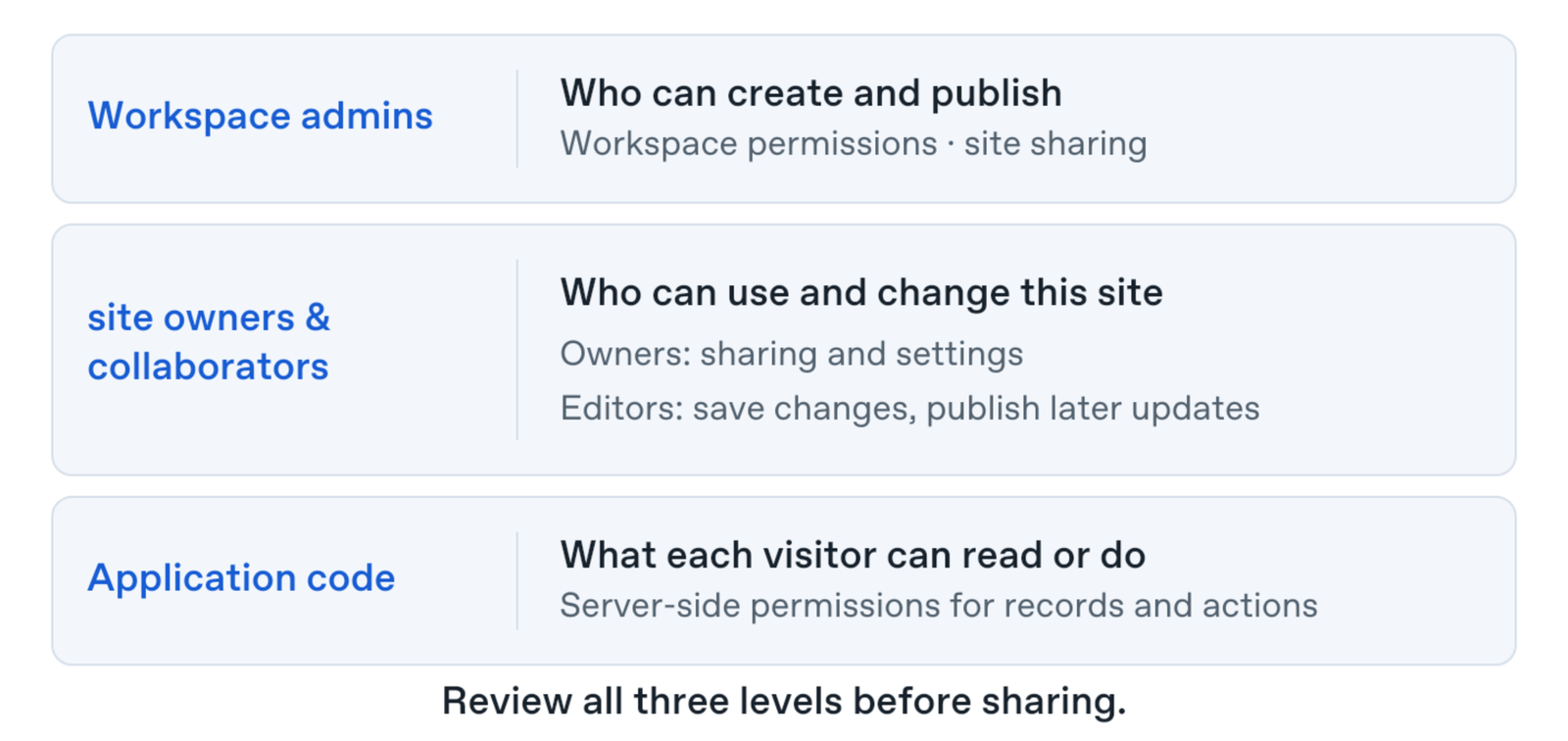
Review three levels of control: workspace permissions, the site’s sharing and editing permissions, and permissions implemented by the application.
Workspace admin controls
Workspace permissions govern who can create and publish sites. Review public publishing and external invitations separately: allowing a named external viewer and making a site available to anyone on the internet are different decisions.
For configuration steps and current role permissions, follow the workspace administration guidance.
Site owner and collaborator controls
Use the site’s sharing controls to decide who can view it and who can help maintain it.
Audience and sharing
A site’s audience controls who can open it. Choose an audience that matches the information and activities the site provides. Review the full set of access grants when narrowing access. Removing an individual invitation may still leave access through a group, workspace-wide sharing, or public publishing.
Check the site from the intended visitor experience after changing access. For the sharing workflow, see Publishing and sharing.
Editors and collaboration
Owners can invite eligible workspace members as editors. Owners publish first; editors can publish later updates. Owners manage access and owner-only settings.
Agree on how editors request and record review before publishing changes. An editor can publish later versions without a separate owner-approval step, so an organization’s review process must account for who has edit access.
Application permissions
Site access and access to individual records are separate. For private application data, enforce record access in server-side code and test with ordinary visitor accounts.
For example, a request tracker might let every workspace member open the site while allowing each person to see only their own requests. The application needs to check that rule when returning a record or accepting an action. Hiding a page element does not enforce the rule. Test with separate accounts that should and should not have access to the same record.
Configure connections
Creating or sharing a site does not itself authorize connected-app access. Review organization approval, plugin settings, and each visitor’s connected account and permissions in the Help Center connected-app guidance.
Include connections in the site’s review. Identify which services it uses, what information it requests, and who should authorize that access. Keep the site’s audience decision separate from the connected service’s permissions.
Keep credentials out of prompts, attachments, and visible site content. For questions about network access, contact your workspace admin.
Verify the visitor experience
Keep connected sites private to their workspace. Before sharing a connected site more widely within that workspace, test with another eligible workspace member who uses their own connected account. Confirm that the site shows information appropriate to that person’s existing permissions.
Also check the experience when a visitor does not grant the requested connection access. Explain which features need the connection and make sure the site does not present missing data as a successful result. Follow the current Help Center guidance for supported connections and access requirements.
Review and manage sites
Saved versions and publishing
Editing and saving a version are separate from publishing it. Review the updated preview, then publish when it’s ready for visitors. Sending editing instructions does not immediately change the published site.
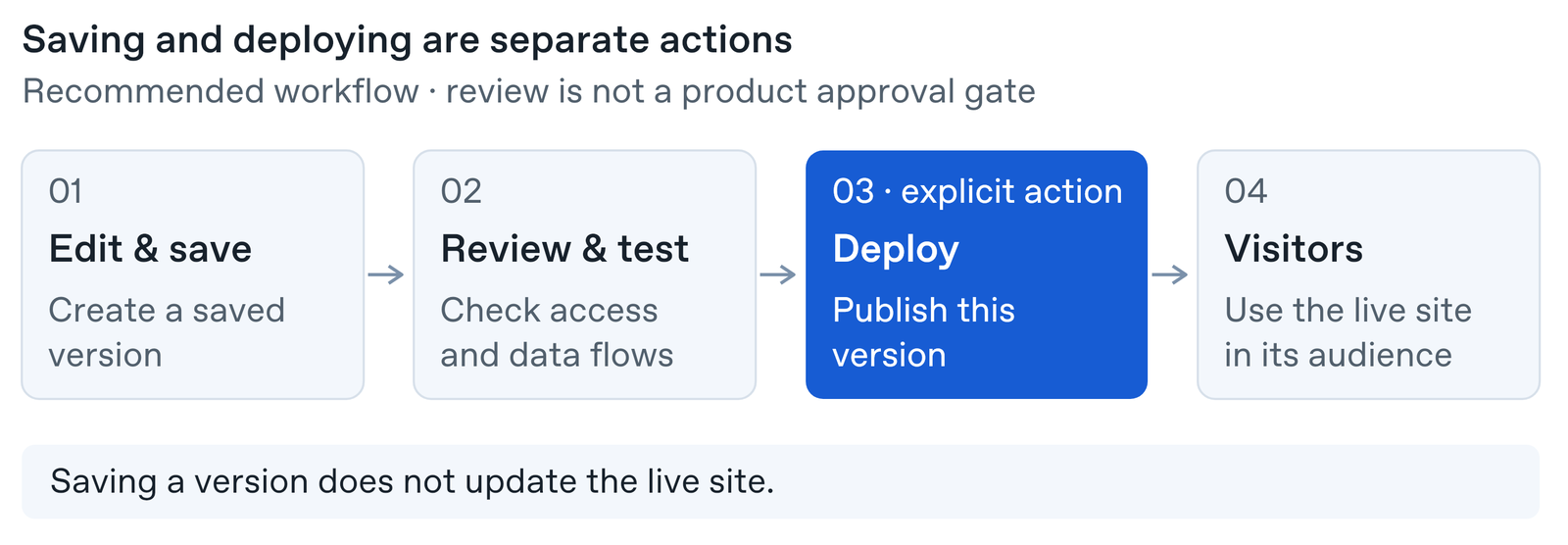
Use this workflow for the first publication and later updates:
- Describe the change and review the saved version.
- Check the content, audience, application permissions, and connections affected by the change.
- Complete your organization’s review, then have the owner or an eligible editor publish the version. The owner must complete the first publication.
- Open the published site as an intended visitor and confirm that the expected content and behavior are available.
The review step is a recommended organizational process. It does not add a product approval gate.
Shared responsibilities
Successful generation or publication does not establish that a site meets your organization’s requirements. Assign responsibility for reviewing the content, access rules, generated application code, and connected services. Use reviewers with the appropriate expertise for the site’s data and use case.
Review before publishing
Review the intended audience, generated code, visitor submissions, and connections before publishing. Test the experience for intended and unintended visitors. Repeat the review after material changes.
For example, a team dashboard can look correct for its creator while exposing an uploaded customer list to a broader audience than intended. A request form can collect the right fields while allowing one visitor to read another visitor’s submission. Review both what appears on the page and how the application handles data and actions.
Before publishing, check:
- Content: Review generated text, images, links, uploaded files, and example data for accuracy and appropriate sharing.
- Audience: Confirm who should be able to open the site, including external viewers and public visitors where applicable.
- Records and actions: Verify that visitors can read and change only the information they have permission to access.
- Forms and submissions: Decide what to collect, where it goes, who can see it, and how visitors can ask questions about it.
- Connections and credentials: Review the services used, requested access, and any information exposed in pages, downloads, or error messages.
- Visitor experience: Use separate visitor accounts to check the expected paths and denied-access cases.
Ongoing maintenance
Give each production site an owner and a reporting route for access, data, or service issues. Plan ownership handoffs and retirement with your workspace admin.
Revisit the review when the site gains a new audience, editor, data source, connection, form, or application feature. Periodically check whether the audience and editor list still match the site’s purpose, whether its content is current, and whether its connections still work for intended visitors.
Troubleshoot access
Start with the affected person’s account, role, and attempted action. A creator’s successful preview does not confirm that another person can view, edit, publish, or use a connection.
To review available workspace controls or troubleshoot access, follow the Help Center guidance.
Security and privacy
Check current hosting, residency, and data requirements against your organization’s policies before choosing what information to store in a site.
Visitor privacy and personal information
Before adding a form, sign-in feature, or other way to collect visitor information, decide why the site needs that information and how the site will use it. Review who can access submissions and whether the site will send information to another service or display it to other visitors.
Plan the appropriate privacy notice and a contact route for visitor questions. Use the resources below with your organization’s privacy reviewers to determine what the notice and handling process should cover.
For responsibilities and privacy guidance, review these resources:
- Review ChatGPT Sites Terms.
- Review Operator responsibilities.
- Review Data-protection responsibilities.
- Review Privacy-policy guidance.
How should I plan an ownership handoff or site retirement?
Before an owner changes roles or leaves, identify who will maintain the site and use the current administration guidance for available handoff options. For retirement, plan how to restrict access and handle information collected by the site. Confirm deletion and retention requirements before promising a recovery or removal timeline.
Where can I confirm retention and deletion requirements?
For retention or deletion questions, contact OpenAI Support.
How do I report an access issue?
For access questions, contact OpenAI Support. Include the site URL, workspace, affected role, attempted action, time, and error details. Omit secrets and access tokens.