


API keys authenticate your requests to Context7’s documentation services. You can create one in the Context7 dashboard.
Managing API Keys#
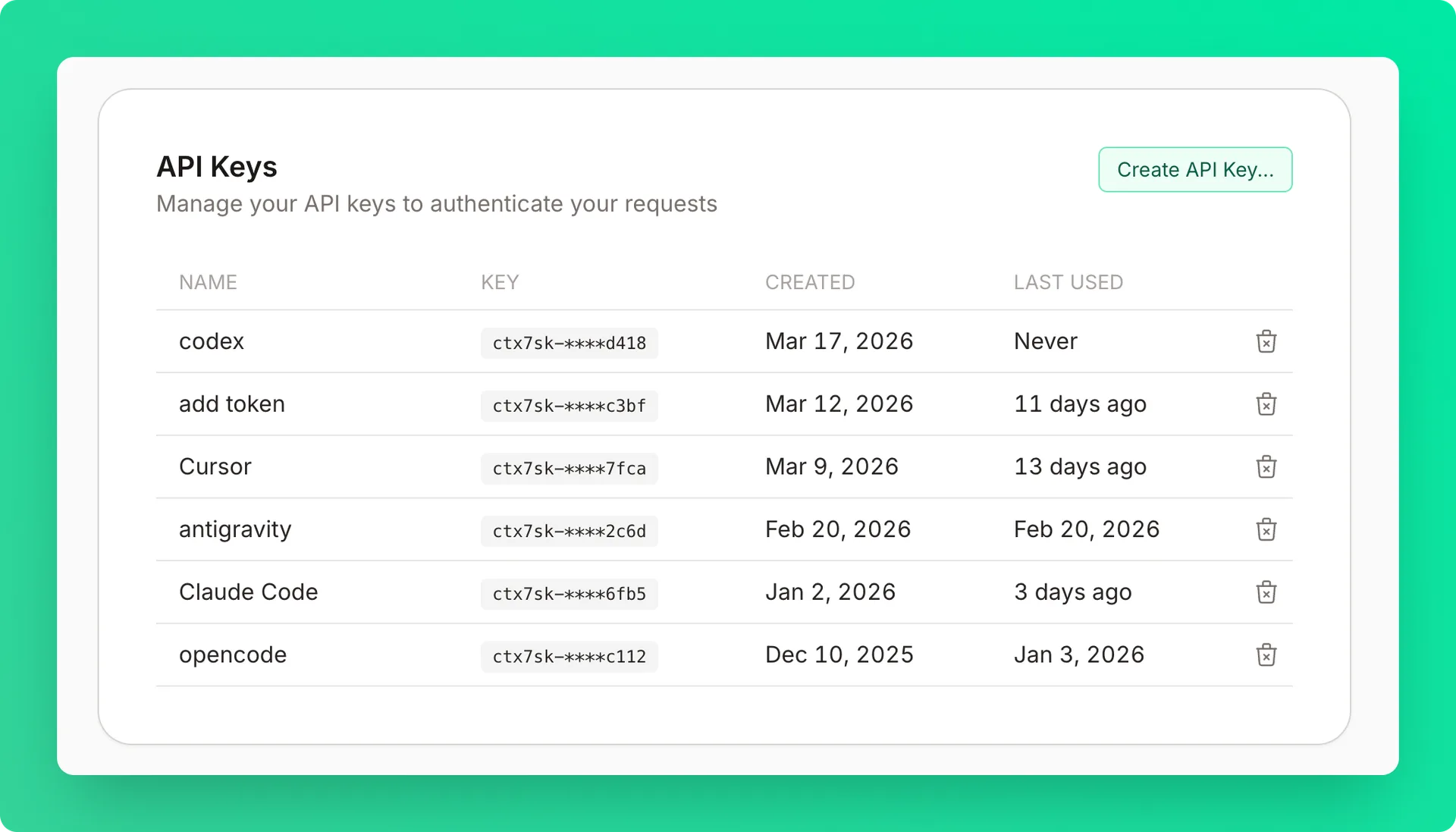
Creating API Keys#
Open the create dialog
Click Create API Key in the API Keys card.
Name the key
Enter a name (optional but recommended). Descriptive names like “Cursor”, “Claude”, “VS Code”, or “Devin Desktop” help you identify the key later.
Choose management access
Tick Management access only for a key that manages the teamspace (see below). Leave it off for keys that only fetch docs.
Copy the key immediately
Keys are shown only once for security. The format is ctx7sk-**********************.
Use the key
Use it in your requests or MCP configuration:
Management access#
The Context7 Admin MCP and the management API (/api/v2/teamspaces/*) accept an API key only when Management access was ticked when the key was created. Such a key can change the teamspace with your role: its members, libraries, rules and policies, usage, and Docs7 and Ask sites. It reaches only its own teamspace.
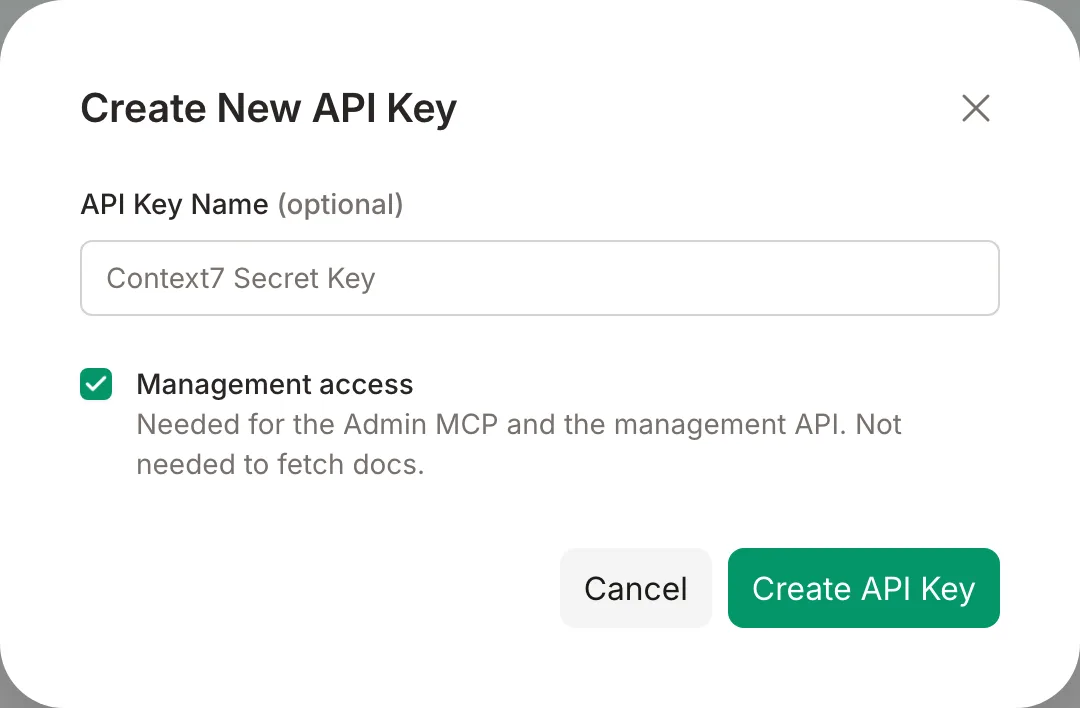
A key without it gets 403 with the error management_access_required. You cannot add management access to an existing key: create a new key with the box ticked. With the Admin MCP you can also sign in with OAuth and use no key.
Revoking Keys#
Delete the key
Click the delete button next to the key you no longer need.
Confirm deletion
Confirm in the modal. The key deactivates immediately — all requests using it will fail.
Revoking a key is permanent and cannot be undone. Update any applications using the key before revoking.