
Attach to a running container
Visual Studio Code can create and start containers for you but that may not match your workflow and you may prefer to "attach" VS Code to an already running Docker container - regardless of how it was started. Once attached, you can install extensions, edit, and debug like you can when you open a folder in a container using devcontainer.json.
Attach to a Docker container
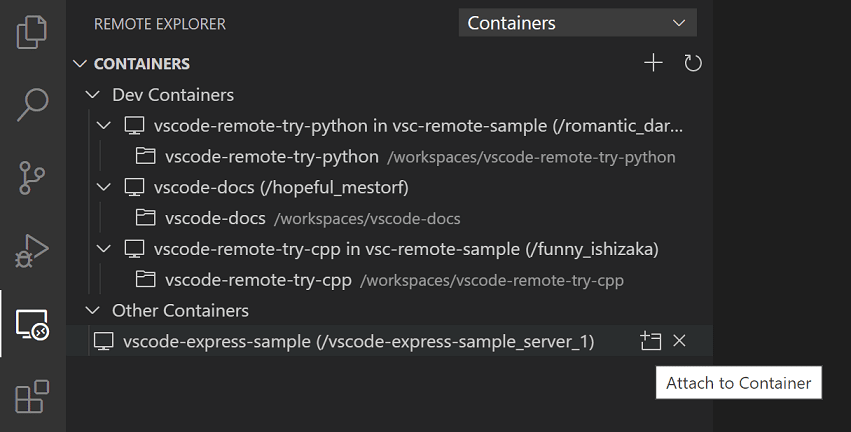
To attach to a Docker container, either select Dev Containers: Attach to Running Container... from the Command Palette (F1) or use the Remote Explorer in the Activity Bar and from the Containers view, select the Attach to Container inline action on the container you want to connect to.
Note: When using Alpine Linux containers, some extensions may not work due to
glibcdependencies in native code inside the extension.
Attached container configuration files
VS Code supports image or container name-level configuration files to speed up setup when you repeatedly connect to a given Docker container. Once attached, anytime you open a folder, install an extension, or forward a port, a local image-specific configuration file will automatically be updated to remember your settings so that when you attach again, everything is back to the right place.
-
By default, an image-level configuration is used. To view or update it after attaching, select Dev Containers: Open Container Configuration File from the Command Palette (F1).
-
If you would prefer to tie your configuration to a container name, select Dev Containers: Open Named Configuration File from the Command Palette (F1) after attaching. Any updates from this point forward will apply to this name-level configuration rather than at the image level.
Both of these files support a subset of devcontainer.json properties:
{
  // Default path to open when attaching to a new container.
  "workspaceFolder": "/path/to/code/in/container/here",

  // Set *default* container specific settings.json values on container create.
  "settings": {
    "terminal.integrated.defaultProfile.linux": "bash"
  },

  // Add the IDs of extensions you want installed when the container is created.
  "extensions": ["dbaeumer.vscode-eslint"],

  // An array port numbers to forward
  "forwardPorts": [8000],

  // Container user VS Code should use when connecting
  "remoteUser": "vscode",

  // Set environment variables for VS Code and sub-processes
  "remoteEnv": { "MY_VARIABLE": "some-value" }
}
See the attached container config reference for a complete list of properties and their uses.
Once saved, whenever you open a container for the first time with the same image / container name, these properties will be used to configure the environment.
Tip: If something is wrong with your configuration, you can also edit it when not attached to the container by selecting Dev Containers: Open Attached Container Configuration File... from the Command Palette (F1) and then picking the image / container name from the presented list.
Finally, if you have extensions you want installed regardless of the container you attach to, you can update settings.json to specify a list of extensions that should always be installed.
Attached container configuration reference
Attached container configuration files are similar to devcontainer.json and support a subset of its properties.
Variables in attached container configuration files
Variables can be referenced in certain string values in attached configuration files in the following format: ${variableName}. The following table is a list of available variables you can use.
Attach to a container in a Kubernetes cluster
To attach to a container in a Kubernetes cluster, select Dev Containers: Attach to Running Kubernetes Container... from the Command Palette (⇧⌘P (Windows, Linux Ctrl+Shift+P)). Alternatively, first install the Kubernetes extension and kubectl along with the Dev Containers extension. Then select the Kubernetes explorer from the Activity Bar and expand the cluster and Pod where the container you want to attach to resides. Finally, right-click on the container and select Attach Visual Studio Code from the context menu.
Note: Attached container configuration files are not yet supported for containers in a Kubernetes cluster.

Next steps
- Create a Dev Container - Create a custom container for your work environment.
- Advanced Containers - Find solutions to advanced container scenarios.
- devcontainer.json reference - Review the
devcontainer.jsonschema.