
A complete restaurant management software
An excellent solution for managing your bar efficiently
Try for Free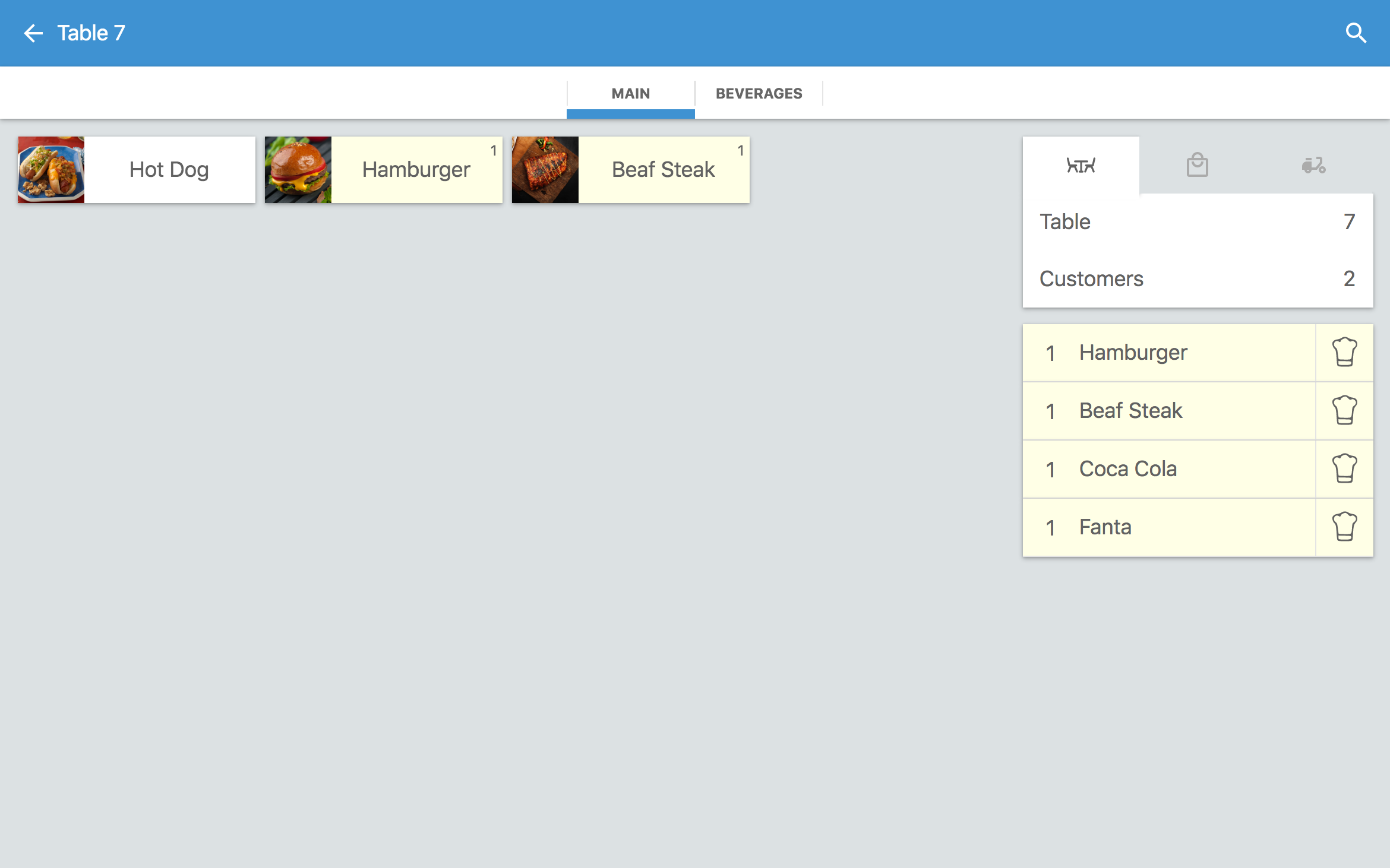
Why use waiterio
Grow your revenue
Faster customer service
Better business decisions

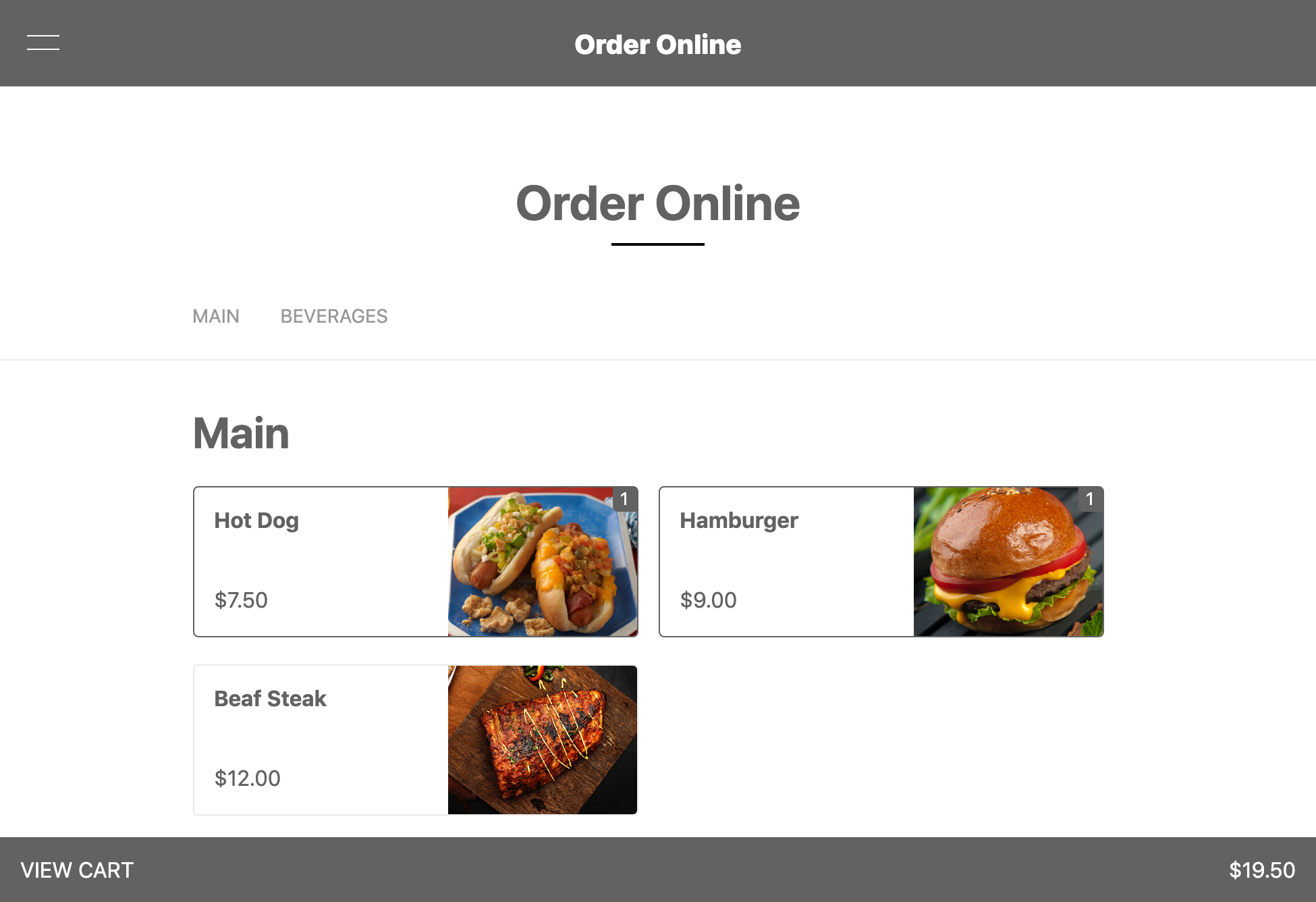
Create a functional website for your restaurant using our free website builder system and start accepting online orders. Get more meal orders and build an online presence for your restaurant. The result? Increased sales!
Try for Free
With a very fast POS system, the entire food ordering process becomes seamless and systematic. This ensures that the main processes of your restaurant like accepting orders, sending the order to the kitchen, generating invoices become much faster. The result? Happier customers!
Try for Free
Get valuable business insights by using our system to generate sales reports for your restaurant. Understand what’s working
Try for FreeWhat we offer
Waiterio offers you everything you need to start, run, and grow your food business.
40,000+
Restaurants2.6+ Million
Menu items5+ Million
Meal ordersTry this awesome order management system for free. You can add up to 100 orders per month while using this software for free. The app is available for Android, iOS, Windows, macOS and Linux. You can use this Point of Sale system on any tablet, smartphone, tv, laptop and desktop computer.
It is very quick and straightforward to install and setup the Waiterio POS for your restaurant. All you need to get started is an email address and a device with an internet connection.
Downloads
Loved by our customers

Favorite feature: Staff management
Waiterio POS is practical and it is easy to use for all of our staff members. Its fast and simple yet it is a very powerful software. Our restaurant operations are now faster and more efficient. Each process takes less time so we can serve our customers faster.
Carlos Balderas
Shanghai Tres Ríos
Culiacán, Mexico

Favorite feature: Online ordering
The online ordering has been the perfect tool, especially with the ongoing COVID-19 pandemic as customers choose to limit face to face interaction. We have grown food delivery by over 112 percent which is solely due to the use of the free online ordering website.
Matthew Johnson (Mr.)
MrBreakfastJa
Kingston, Jamaica

Favorite feature: Sales reports
Waiterio is very helpful in organizing my sales. A huge advantage when it comes to controlling my monthly returns. It is also very easy to add new products and update prices.
Lucas Carpi
DeLucca Ristorante
Embarcacion, Argentina
Flexible pricing
Try the app for free. You can add up to 100 orders per month while using the app for free. You can subscribe to any of the following plans to take more orders:
Frequently asked questions
Connection Interfaces
Each thermal printer has one or more types of connection interfaces:- Wifi
- Ethernet cable
- USB
- Bluetooth (NOT RECOMMENDED)
- Parallel (NOT SUPPORTED)
- Serial (NOT SUPPORTED)
Avoid Bluetooth thermal printers
Blueooth thermal printers should be avoided. Bluetooth thermal printers are cheaper but lose connection very easily. Bluetooth thermal printers are not supported on iOS and many times don't work on either operative systems as well.Buying online
We recommend to purchase thermal printers on Amazon. The same printer model can have different types of connectivity so it's necessary to check on each ad description the connectivity interface of that specific product sold. It's better to search for "Wifi thermal printer" than by thermal printer model.Read the rest of the question>
- Open Waiterio app and login
- Scroll right to switch to the STAFF tab
- Tap the button INVITE STAFF MEMBER
- Enter the email that your co-worker will use to login in Waiterio
- Enter the role you want him/her to be granted
- Tap the Invite button
- Your co-worker should receive an invitation email
- The co-worker needs to Sign Up to Waiterio using the same email you used to invite him/her
- Open Waiterio app and login
- Scroll right until you reach the RESTAURANT tab
- Tap on Subscription
- You will see all available plans for your currency
- You can subscribe/cancel/upgrade/downgrade to a plan by clicking on the green/red button shown at the bottom of each plan
How are orders per month counted:
Each plan allows a certain a mount of orders per month. Only one order is counted for each table served. In other words, if you add items to an existing order it will NOT INCREASE the orders count.Read the rest of the question>
Install the app for Android, iOS, Windows or macOS.
A) Find out the IP address of your thermal printer
- Turn off the printer
- Connect the printer to the electricity and connect an Ethernet cable from the printer to your wifi router
- Press down the Feed button and keep it pressed, then turn on the printer while still pressing the Feed button. After 5 seconds the printer should print a paper with written its current settings
- Read the setting paper and find the IP address. The IP address should look like 192.168.y.x
Your wifi router has two IP address:
Read the rest of the question>
- Download the latest version of Waiterio: Download for Windows Download for Mac OS X
- Install, open and login into the Waiterio application
- Navigate to the PRINTING tab and click on the button ADD PRINTER
- Set the protocol field to ESC POS
- Set the connection field to usb
- Input a name for your printer
- Click on the SAVE button
- Click on the new printer that just appear in the PRINTING tab
- Be sure your printer is turned on and connected to your computer with the USB cable
- Click on the button PRINT SAMPLE
- If the print fails, follow the additional steps below:
Extra steps on Windows
On Windows you will also need to install the WinUSB driver by following these steps:Read the rest of the question>
It is not currently possible to add new content such as creating a new Order in offline mode.
We do think that the possibility to add new orders in offline mode would be nice.
Unfortunately it is technically very difficult to achieve and we prefer to focus our limited resources into adding and updating more essential features.
We suggest you to get a fast DSL connection and a good wifi router to solve the No Internet Connection warnings.
You can also use a 3G/4G mobile data connection with a sim card on each device or shared through a portable wifi router.
- Open Waiterio app and login
- Scroll right to switch to the MENU tab
- Tap on the item Margherita
- Tap on the option 'Add new extra' from the popup menu
- Enter the name of the extra/topping
- Enter the price of the extra/topping. You can enter 0 for free extra/topping.
- Tap on the button SAVE
- Now you will able to use that extra/topping in any new order
You can add an extra/topping to an entire category of the menu.
You will be able to add that extra/topping to any item of that category in any new order.You can add extras/toppings that are already part of the menu in any new order
For example, if you have added an extra/topping Olives to an item named Margherita, you can follow these steps to use the extra/topping in a new order:Read the rest of the question>
- two or more customers wish to pay only a part of the bill
- a customer wish to pay the bill with two different payments methods (cash and credit card)
- Open the Waiterio app and login
- Create a new order with some items
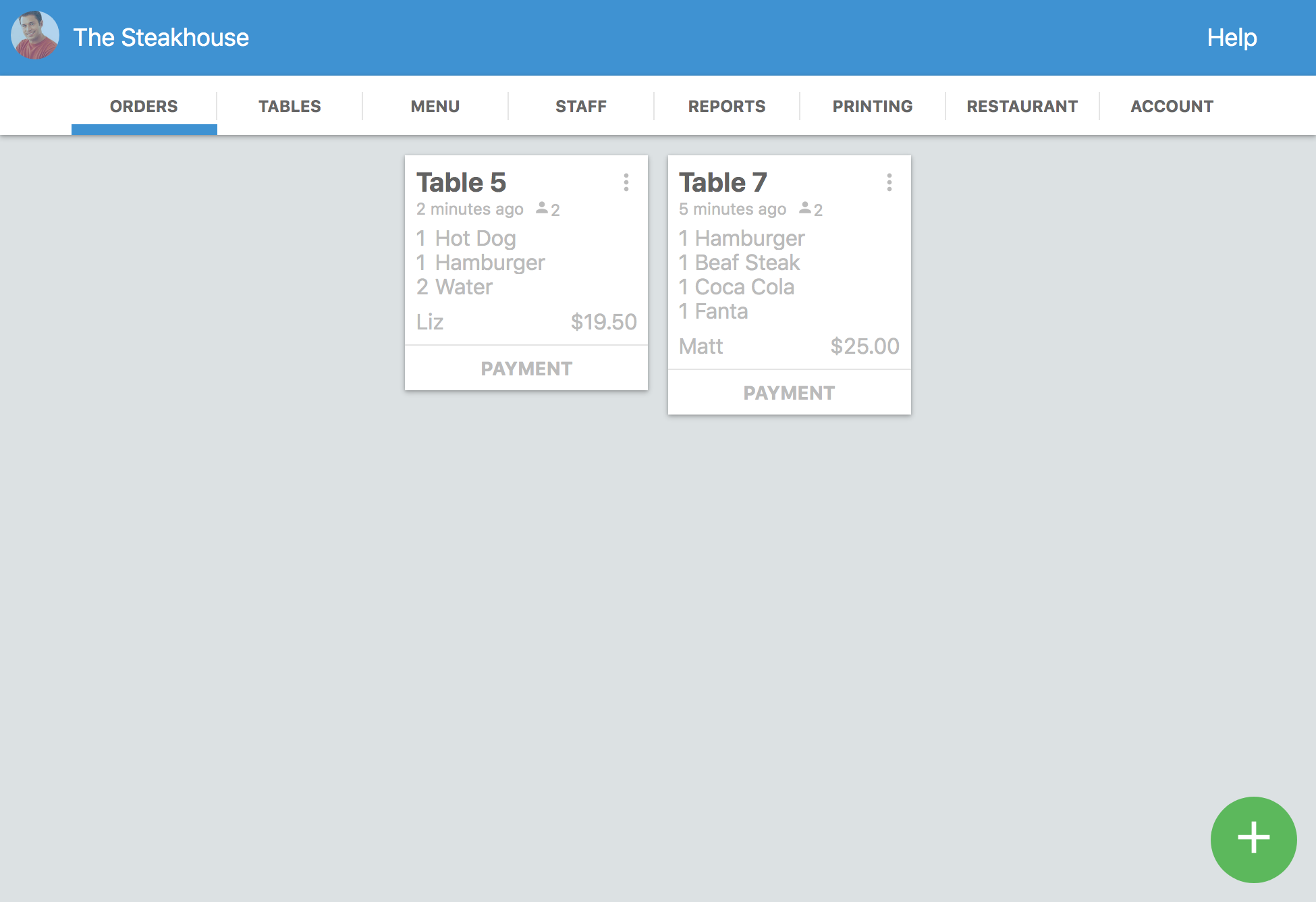
- Navigate to the ORDERS tab
- Click on the icon that looks like 3 vertical dots on the top right corner of the order you created and choose Payment from the popup menu
NOTE: Users with roles ADMIN, OWNER, MANAGER and CASHIER should see a button PAY on each order that allows them to navigate faster to the Payment screen - You should be now in the Payment screen
- Click on any item of the order to select it
- Selected items should be yellow with a ✓ icon on their left
- Click on the green button Pay to continue
- Choose a the payment method from the horizontal bar (ex. Cash) and click on the green button PAID WITH CASH
- You will see the items you selected appear now as Paid in the Payment screen
- Repeat the previous steps to select other items and receive partial payments
Read the rest of the question>
- Open the Waiterio app and login
- Create a new order with some items
- Navigate to the ORDERS tab
- Click on the icon that looks like 3 vertical dots on the top right corner of the order you created and choose Payment from the popup menu
NOTE: Users with roles ADMIN, OWNER, MANAGER and CASHIER should see a button PAY on each order that allows them to navigate faster to the Payment screen - You should be now in the Payment screen
- Click on the icon on the top right corner that looks like a percentage % sign on an arrow pointing down
- You can give a percentage discount (ex 10%) or a fixed discount (ex 5$).
- Open Waiterio app and login
- Navigate to the TABLES tab
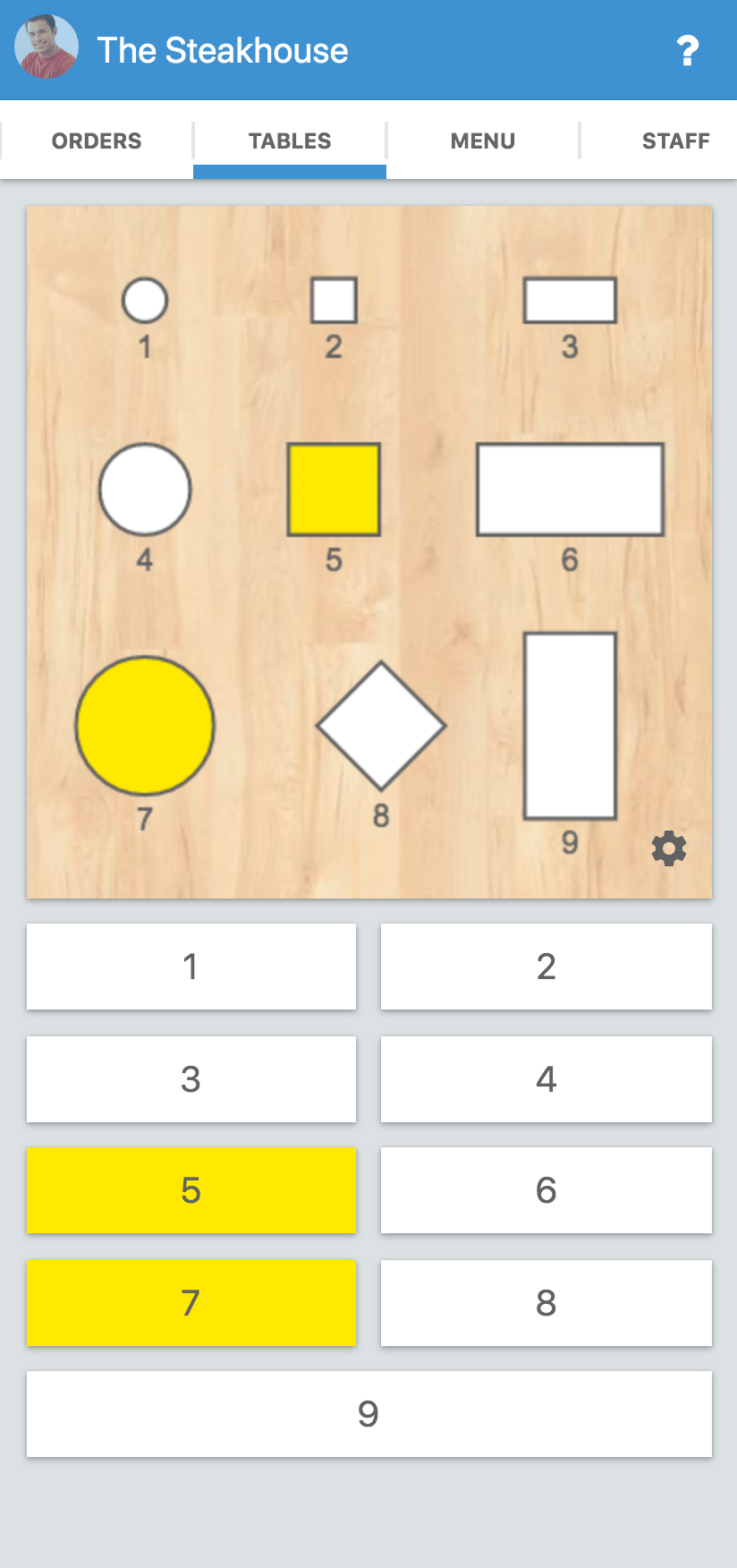
- Click on the gear icon that appear on the bottom right corner of the map of the tables
- Click on the gear icon that appear on the bottom right corner just below the drawings of the tables
- You should be now in the Map screen where you will be able to add tables.
- Navigate to the Map screen as described in the previous steps of this guide.
- Click on the gear icon that appear on the bottom right corner just below the drawings of the tables in the Map screen
- Click on Add new table in the popup menu.
- The new table will be added on the top right corner
- Read the next point to find out how to change the appearance of the new table
Read the rest of the question>
- Open Waiterio app and login
- Navigate to the REPORT tab. Only users with ADMIN, OWNER or MANAGER roles can view the REPORT tab
- Select a period of time like Today, Yesterday, This Week, This Month
- Click on the button Export .csv. On a smartphone this button may appear as a download icon drawn as an arrow pointing down.
- Save the .csv file on your device.
- Open the .csv file with a spreadsheet application like Microsoft Excel or Numbers On Microsoft Excel follow these extra steps:
- Select column A
- Click to the Data tab
- Click on Text to columns or Convert data
- Select Delimited and click on Next
- Select Comma and click on ‘Next
- Click on Finish
- Open Waiterio app and login
- Navigate to the ACCOUNT tab
- Click on the Logout button
- Log back in the app
- If during the login you are asked to choose a restaurant then your user is part of multiple restaurants. You will have to pay extra attention to login in the very same restaurant on all your smartphones/tablets/computers where you are using Waiterio
- Repeat the step above for ALL the devices of your restaurant.
Read the rest of the question>
- Navigate to the restaurant tab and scroll down until the section Online and POS payments.
- Click on the legal entity button and enter your business information as either a company or an individual.
- From the restaurant tab click on the bank account button to provide the checking account coordinates where you wish to receive the payouts for the card payments.
- Google Pixel 2 and newer
- Samsung Galaxy A12 and newer
- Samsung Galaxy S10 and newer
- Samsung Note 10 and newer
- Oppo Reno5 and newer
- Oppo Find X3 and newer
- OnePlus 6 and newer
- Xiaomi Redmi 9 and newer
- Xiaomi Poco X4 and newer
Read the rest of the question>
- Open Waiterio app and login
- Navigate to the Website tab and click on "Self Order With QR Code"
- Click on "Download QR Codes", this will download a .pdf file that contains the QR Codes of all the tables in your restaurant
- After downloading the .pdf file, you need to print it using an inkjet printer on an A4 size sticky paper. You can buy sticky paper online by googling "buy A4 sticky paper"
- Follow the outlines and cut out the QR code stickers. The printed page contains the room and the table information along with the QR code. The table label at the bottom of each QR Code tells you which table the QR Code represents.
Read the rest of the question>
A) Pairing
First of all you are going to need to pair your smartphone or tablet to the bluetooth thermal printer.
- Turn on your bluetooth thermal printer
- Open the Settings app on your smartphone or tablet
- Click on Bluetooth
- Turn ON the bluetooth
- Your smartphone/tablet will scan for nearby bluetooth devices
- Click on the name of your bluetooth thermal printer to start the Pairing
- Your bluetooth thermal printer should now be listed under Paired devices
Read the rest of the question>
Install the app for Android, iOS, Windows or macOS.
Adhoc Wifi or setup application on the CD?
Some Wifi thermal printer create an adhoc wifi network that you can use to provide them with the SSID and password of your wifi hotspot router. Some other Wifi thermal printer must be configured with an application that was available on the CD that came with the printer.
Follow these steps to find out if your Wifi thermal printer can be setup using ad adhoc wifi network or using an program from the CD:
Read the rest of the question>


