
Installing Python 3
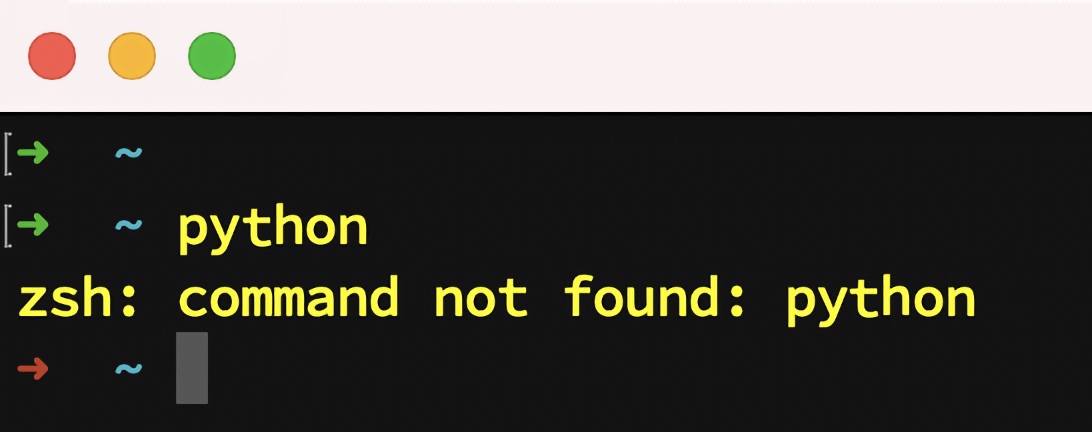
Welcome soon-to-be Python user! Python is one of the easiest programming languages to learn and grow with. But there can be a bump right at the beginning: making sure you have Python installed with a sufficiently new version (3.12+ is recommended these days).
Good news! In 2025, installing Python has become incredibly simple thanks to uv -- a blazing-fast Python package and project manager that also handles Python installation. With uv, you get one tool that works the same way on Windows, macOS, and Linux. Hear all about it on Talk Python.
The Modern Approach: Install uv, Then Python
The process is just two steps:
- Install uv (one command)
- Install Python with uv (one command)
That's it! Jump to your operating system to get started:
Windows
Step 1. Install uv
Open PowerShell or Windows Terminal and run:
powershell -ExecutionPolicy ByPass -c "irm https://astral.sh/uv/install.ps1 | iex"
After installation completes, close and reopen your terminal for the changes to take effect.
Step 2. Install Python
Now install Python 3.14 with a single command:
uv python install 3.14
You'll see output like:
Searching for Python 3.14
Installed Python 3.14.2 in 2.34s
 + cpython-3.14.2-windows-x86_64-none
Step 3. Verify It Works
uv run python -V
You should see:
Python 3.14.2
You're all set! 🎉
macOS
Step 1. Install uv
Open the Terminal and run:
curl -LsSf https://astral.sh/uv/install.sh | sh
After installation completes, close and reopen your terminal for the changes to take effect.
Step 2. Install Python
Now install Python 3.14 with a single command:
uv python install 3.14
You'll see output like:
Searching for Python 3.14
Installed Python 3.14.2 in 1.89s
 + cpython-3.14.2-macos-aarch64-none
Step 3. Verify It Works
python -V

# or

uv run python -V
You should see:
Python 3.14.2
You're all set! 🎉
Linux
Step 1. Install uv
Open a terminal and run:
curl -LsSf https://astral.sh/uv/install.sh | sh
After installation completes, close and reopen your terminal (or run source ~/.bashrc or source ~/.zshrc) for the changes to take effect.
Step 2. Install Python
Now install Python 3.14 with a single command:
uv python install 3.14
You'll see output like:
Searching for Python 3.14
Installed Python 3.14.2 in 1.52s
 + cpython-3.14.2-linux-x86_64-gnu
Step 3. Verify It Works
python -V

# or

uv run python -V
You should see:
Python 3.14.2
You're all set! 🎉
Working with Python Projects
Once you have uv installed, you'll typically work within virtual environments for your projects. uv makes this simple:
Creating a Virtual Environment
Navigate to your project folder and run:
uv venv --python 3.14
This creates a .venv folder in your project. If Python 3.14 isn't already installed, uv will automatically download and install it for you.
Activating the Virtual Environment
Windows (PowerShell):
.venv\Scripts\Activate.ps1
macOS / Linux:
source .venv/bin/activate
Once activated, you can use python directly:
python -V
Installing Packages
With uv, installing packages is lightning fast:
uv pip install requests
Or add dependencies to a project:
uv add requests
Managing Multiple Python Versions
Need multiple Python versions? uv handles that too:
uv python install 3.12 3.13 3.14
List installed versions:
uv python list
Create a virtual environment with a specific version:
uv venv --python 3.12
Why uv?
uv is developed by Astral, the creators of Ruff (the popular Python linter). It's designed to be:
- ⚡️ Blazing fast -- 10-100x faster than pip
- 🐍 Python version manager -- installs and manages Python itself
- 📦 Package manager -- replaces pip, pip-tools, and virtualenv
- 🔒 Lockfile support -- reproducible environments
- 🖥️ Cross-platform -- works identically on Windows, macOS, and Linux
One tool. No complexity. Just Python.
Corrections and Improvements
If you find a problem or have a suggestion to make this page better, please visit the GitHub repository here. Note that this is not intended for tech support but rather for genuine, broadly applicable improvements to the instructions: