excel
44955 Topics
Odd pasting of things as images
This just started on specific page of one specific workbook, but now happening on completely new workbook. If I select a cell and copy and paste it puts it as an image in the cell. If I right click to paste I dont get the usual choices of test, formula, format etc I just get paste picture in cell or paste (which pastes an image) I've done a full reinstall and now it seems to be alternating between normal copy and copy as image if I do Ctrl C. The clipboard shows an image and then text in the history. I've disabled all com addins except dropbox. Driving me nuts as been getting slowly worse over last few months. Any ideas appreciated4Views0likes0Comments
HELP WITH EXCEL
Struggling to do a simple transition in Excel if anyone can give some advice: I have 3 items I need to run up & down instead of across... is there any easy way ??? So I need the Name and two of the xx Boxes to run from top to bottom... I did the first two but I did them cell by cell.... is there a formula that will take the entire thing and create what I need? Adriana Zaragoza Lopez Alejandro J Escobedo Alyssa Christina Amber H McCord Ana C DePaz xx xx xx xx xx xx xx xx xx Adriana Zaragoza Lopez xx xx Alejandro J Escobedo xx xx3Views0likes0Comments
How to edit an embedded textbox
Years ago I made an invoice form (actually I used an Excel template and modified it) that has an embedded text box containing 3 lines: address, city - state - zip, and a phone number. I want to change the phone number, but for the life of me I can't remember how I entered the info to begin with, nor can I figure out how to edit it. When I click on it the address bar reads =EMBED("Forms.TextBox.1", ""). Can anyone please tell me how to change the phone number in this textbox? This has gotten very frustrating. Thanks in advance.15Views0likes1Comment
Excel worksheet protected but can't use text to column function
HI I have a worksheet that several people use that I need to protect. There are formulas and a pivot table. I have been able to lock what I need and am able to refresh the pivot table but I can not use the "text to column" function in the raw data as its greyed out. The area in question are not locked cells but the function is still unavailable. We need to be able to use the text to column function but I also need the sheet locked to protect the formulas.23Views0likes2CommentsChart plotting values in wrong place according to axis?
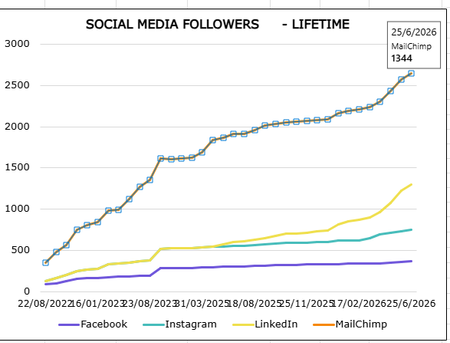
I have this chart in excel that is being produced from a table in another tab in the same workbook. It has simple date in one column and values in another. When I hover over the plots for the MailChimp line the value displays correctly (e.g. 1344 in the screengrab for 25/6/26 datapoint) but the plot is between 2500 and 3000 on the graph according to the axis. This isn't happening for any other lines on the graph for any other values, only for the Mailchimp line. Any ideas how I can rectify this or what could be going wrong?23Views0likes1CommentWelcome to the Excel Community
The Excel Community is a place we've built for all of you. You can learn more about how to do something with Excel, discuss your work, and connect with experts that build and use the product. With over half a billion Excel customers, we want to engage with you in fundamentally different ways and the community is a starting point for that. Our community helps answer your product questions with responses from other knowledgeable community members. We love hearing feedback and feature requests from you which helps us build the best version of Excel ever. If you have found an outage or a bug please post at our Answers forum. We look forward to getting to know you! Sangeeta Mudnal & Olaf Hubel on behalf of the Excel Team66KViews30likes99CommentsAn Inside Look at Copilot in Excel
When you ask Copilot in Excel to “add a drop-down menu to this column” or “fix this formula in the team inventory tracker,” behind the scenes, Copilot reasons about your intent, picks and applies the right Excel features, and then edits the workbook. This can feel straight forward for some tasks but, now imagine you’re a Finance professional asking Copilot in Excel: “What’s broken in this valuation model, and how does fixing it change the outcome?” This is not a simple single formula request; it is an end-to-end finance workflow. To tackle it, Copilot needs to inspect the workbook, understand the finance specific business question, identify assumptions and formulas that may be wrong, correct the model, recalculate outputs, and explain the impact in a way a finance professional can trust. A good answer is not just “here is the new result.” A good answer is a clear, auditable explanation of what changed, why it changed, and its impact on values in the model. That kind of prompt is what we think of as an L4 workflow: an open-ended business problem that requires multiple steps, multiple Excel capabilities, and domain judgment. It is also a great way to understand why evals matter. To provide a great response to this question, many different operations and features need to ladder together successfully to deliver the final result. So how do we make sure every part comes together to solve the customer's intent? This is the job of our evaluation system, aka our "evals.” We’ll provide a brief tour through how we think about evals in Excel: what they are, how we organize them, the benchmarks they produce, and how we use these results to make Copilot in Excel better every week. What are evals, and why do we have them? An eval is a repeatable test of Copilot quality. We give Copilot in Excel a task and a starting workbook, let it do its work, and then grade the output against a series of checks and rubrics. These checks go beyond just confirming whether a value is correct. They also assess whether the workbook is usable, auditable, well- formatted, and aligns to Excel best practices. We evaluate more than the final workbook output. For agentic workflows, the path to the result matters too: what steps the agent took, which tools it called, how many turns it needed, how long the experience took end to end, and more. Looking at that trajectory helps give us a clearer measurement of whether the agent is becoming more accurate, capable, and efficient at how it reaches the desired result. Evals measure Copilot quality and are how we move from “this feels better” to “this is measurably better.” A prompt tweak, model upgrade, or a new tool can improve one customer intents while quietly making another worse. Our evals help us catch those regressions before they reach customers, as well as quantify improvements from new capabilities and find quality gaps early enough to prioritize fixes. How we organize our evals Excel is used by millions to complete a wide range of work: tracking lists, analyzing sales, managing operations, building financial models, planning budgets, and much more. Even the same task can have different expected answers whether you’re a finance professional or a small business owner. To measure Copilot in Excel quality reliably, we ensure our eval cases represent the breadth of customer workflows and all the different flavors of spreadsheets they use. We organize eval cases across several dimensions. Complexity is one of the most important dimensions, because it lets us test the building blocks separately while also testing the full customer workflow. We also categorize cases by customer role, domain, workbook characteristics, Excel feature usage, and more, so our benchmarks reflect the breadth and depth of real Excel work. Complexity: L1 through L4 We think about task complexity as a ladder. At the bottom are atomic actions and individual features. Higher up are multi-step tasks. At the top are open-ended workflows that sound more like business problems. The important point is that an L4 workflow is only as strong as the L1, L2, and L3 capabilities underneath it. L4 workflows: solving an open-ended business problem, such as debugging a valuation model or determining how much cash is available for debt service. L3 multi-step tasks: combining features to complete a defined goal, such as creating a sales summary worksheet or building a cash-flow bridge. L2 feature usage: using an Excel capability correctly, such as creating a PivotTable, applying conditional formatting, building a chart, or using formula auditing. L1 actions: single operations such as inserting a row, editing a formula, formatting a cell, or creating a label. Let’s go back to the valuation example at the start of the blog: “What’s broken in this valuation model, and how does fixing it change the outcome?” Copilot needs to break the work into several major steps: inspect the model structure, locate the key assumptions, audit the formulas, correct the calculation logic, compare the before-and-after outputs, and summarize the business impact. Each step sounds simple at the surface, but each depends on many smaller capabilities working reliably. Level What it means How it shows up in the valuation scenario L4: Workflow Solving an end-to-end business problem “What’s broken in this valuation model, and how does fixing it change the outcome?” L3: Multi-step task Composing multiple Excel capabilities to reach a goal Identify incorrect assumptions Correct formulas Recalculate outputs Quantify the impact L2: Feature usage Using one Excel capability correctly Apply formula auditing Update cross-sheet references Build comparison tables Document changes L1: Action Performing a single atomic operation on the grid Edit a formula Insert a table Format cells, values Write a label and notes Check cell reference Customer role and vertical domain What a good workbook looks like in Excel is often domain-specific. A formula that is acceptable in a general spreadsheet may not meet the bar for a finance model. A summary that works for a small business owner may not be enough for a consultant preparing a client deliverable for a large enterprise. That is why we build and review eval cases with domain-specific expectations in mind. We’ve worked closely with industry partners and customers to validate coverage, review input and output workbooks, and author grading rubrics and success criteria. Through these processes, we ensure our evals are realistic, aligned to expert human judgement, and reflect their taste and domain specific expertise. For example, we look at the shape of the workbook itself: number of sheets, workbook size, data density, formulas, tables, charts, and other Excel features. Real workbooks are rarely tidy single-tab examples. They can be large, messy, and full of context. Another example is our finance-specific rubrics for model structure, formula construction, auditability, and presentation quality. From categories to benchmarks Once we have categorized our eval cases, we curate them into benchmarks. Our goal here isn’t a single benchmark or a single number. Rather, we have different benchmarks for the different types of decisions we face while building Copilot in Excel. Some of our benchmarks provide broad coverage with an emphasis on comparability. Others target Excel-specific behaviors and customer workflows for specific feature areas or customer segments. Here is a subset of the benchmarks we use internally: Public benchmarks One public benchmark used by many spreadsheet products is SpreadsheetBench, a benchmark of spreadsheet tasks that provides broad coverage of common operations. Internally, we’ve further curated and validated subsets of this benchmark to adjust ambiguous queries, improve grader correctness, and improve signal to make results more easily applicable. However, we believe our internal benchmarks better reflect the type of work and expectations of Excel customers. Private benchmarks In addition to public benchmarks we maintain several internal benchmarks within the Excel team. Some examples include: RegressionBench helps us detect whether a change has broken something that used to work. CustomerBench focuses on matching production customer distributions across task complexity, domains, workbook shapes, and other dimensions. This provides an signal that mirrors customer usage. OfficeJSBench measures whether the operations Copilot generates to act on the workbook execute reliably and produce the intended result. FinanceBench is one of our deep and challenging vertical benchmarks focused on finance workflows and uses finance-specific rubrics for correctness, structure, and auditability. We developed FinanceBench with input and review from partners like Financial Modeling Institute (FMI), Microsoft Finance, and other finance professionals and customers. The collection of these benchmarks provides both broad and granular measurements on quality. They allow us to measure where the agent is strong, where it can improve, and whether a change has the intended impact on the customer experience. How eval results make Copilot in Excel better Evals are not just a reporting mechanism - they are deeply integrated into how we build the AI experience in Excel. Eval benchmarks help: Gate releases: Benchmark runs are part of how we decide whether a feature is ready to advance from our validation environments to customer availability. If evals detect issues or the improvement doesn’t show intend impact, the change does not move forward. Improve based on customer signals: When a customer conversation or signal reveals opportunity for improvement, we classify it and then create representative eval cases for it. We can then fix it and measure improvement in subsequent eval runs. Model training: We use rubrics and graders from evals to provide signal to tune models for spreadsheet work. Inform the right model for the job: Comparable benchmark results help us route tasks to models that balance quality, latency, and capability, to provide the best experience to customers. Over time, this creates a virtuous cycle: feedback and usage identify opportunities, evals quantify them, fixes and training address them, benchmarks confirm the win, and the next release starts from a higher bar. Why the hero scenario matters Coming back to the valuation prompt, the reason it matters is that it represents the kind of work people increasingly want Copilot in Excel to help with. They do not just want help inserting a chart or writing one formula. They want help completing meaningful work: understanding a model, finding an issue, improving the analysis, and making the result easier to trust. We can only deliver that L4 experience if the underlying layers are strong. Formula edits have to be correct, feature usage has to be reliable, multi-step plans have to stay coherent, and the final workbook has to be clear, complete, and auditable. That is why our eval system measures both the broad set of things people do in Excel and the deep workflows that matter most in demanding domains like finance.342Views2likes0Comments
[SOLVED] Power Query - Try don't work with Folder.Files
Oi pessoal! Esta é minha primeira discussão, então eu tenho um problema ao tentar carregar pastas diferentes (no OneDrive) no Power query Excel. Usei a instrução try para corrigir isso, tentando abrir duas pastas diferentes, mas não funcionou. Ela não retorna um registro com os campos [HasError] e [Erro / Valor] para mim. Desde já, obrigado.Solved2.1KViews0likes3CommentsSignature Line - Cannot use certificate to sign
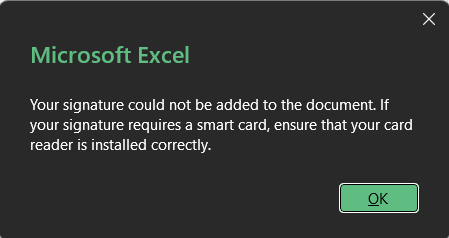
Hello, I work for an IT support section and am having difficulties with resolving an issue with signature lines. The users have recently received new Windows 11 devices with Office 365 enterprise applications installed (Excel, Word etc.). Signing signature lines on Excel workbooks worked when they were on Windows 10 on their older devices. They had generated user certificates on their previous devices that were able to be used to sign signature lines with. I've used our Networks trusted CA to publish new certificates to the Personal > Certificates on the current user certificates. I've done this the same way as I did when on W10. What I've found is that the certificate is able to be used to sign documents in Word but not Excel. Version of Office: Microsoft 365 Apps for enterprise 2605 16.0.20026.20182 I have found the following error in the diagnostic log for Excel relating to the error code -2147418113 which the Microsoft error code tool advised it was a Catastrophic failure referenced as "E_UNEXPECTED". None of the information obtained so far has helped me fix the issue. The only clue I can see is htat it works in Word and not Excel. Can anyone advise?19Views0likes0Comments