
Browser integration
First, what is browser integration with our search and why would you want it?
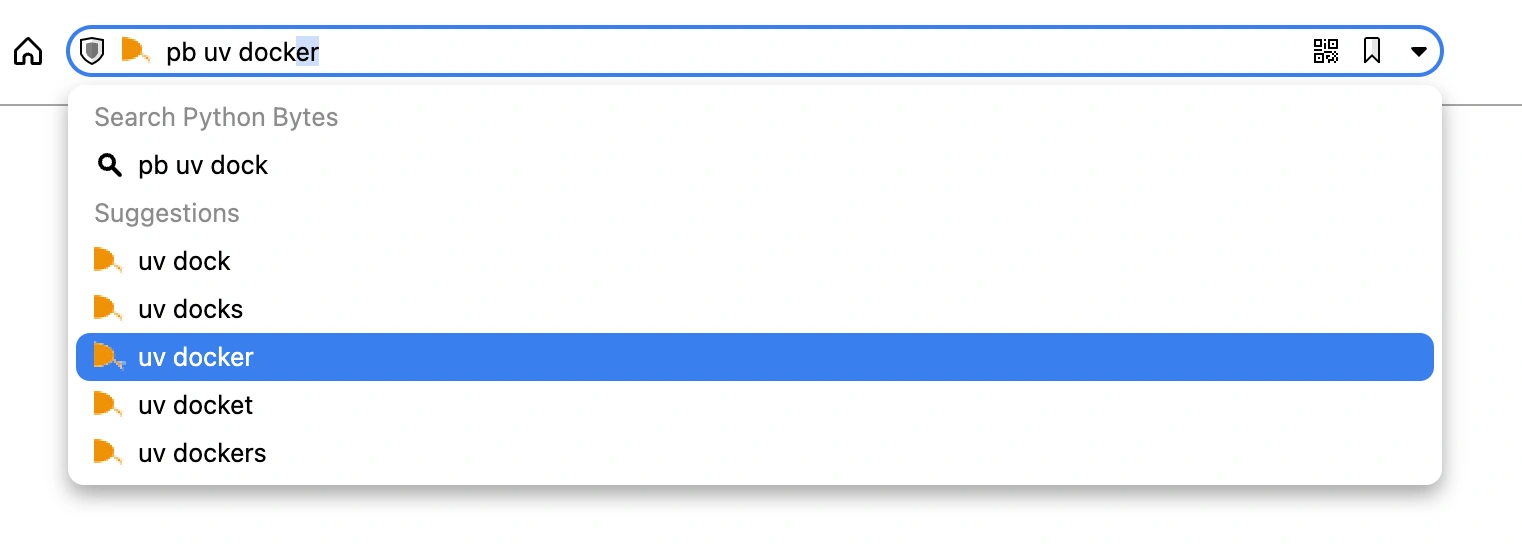
The short answer is that from anywhere on the web you could type
pb+SPACE and
then enter a search term which searches our podcasts and their full transcripts instantly.The longer answer can be found in an essay by Michael called Use Custom Search Engines Way More
Choose your browser
Search URLs
Search: https://search.pythonbytes.fm/web/search?q=%s
Suggest: https://search.pythonbytes.fm/api/suggest?q=%s
Unfortunately, set up for each browser is its own adventure. So pick yours to see the instructions:
Vivaldi
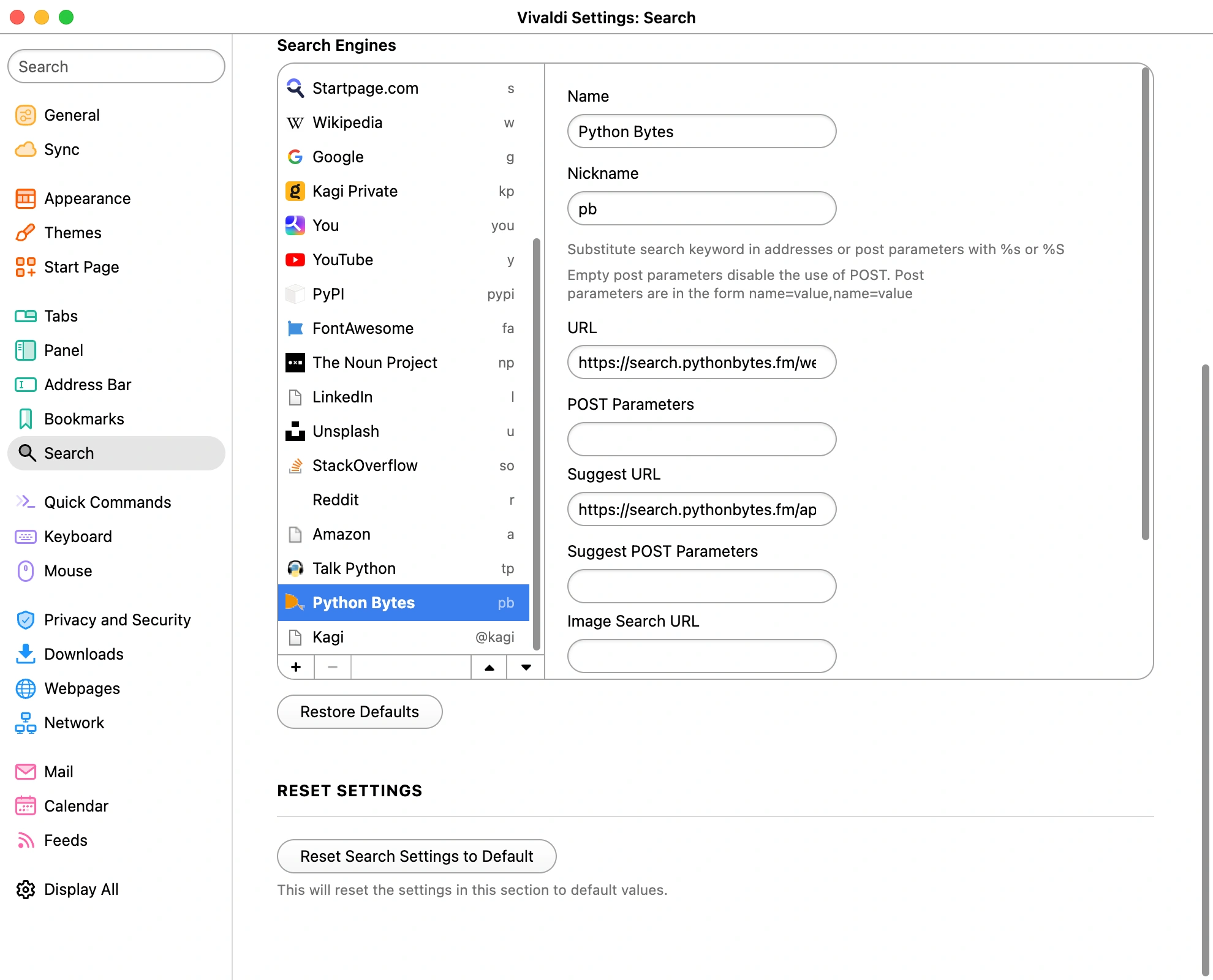
Open settings -> search. Then click the + to enter a new search
engine.
Add the search and suggest URLs from above. Pick a shortcut, we're using pb. This is
what you'll type in the address bar to trigger a search.
Chrome
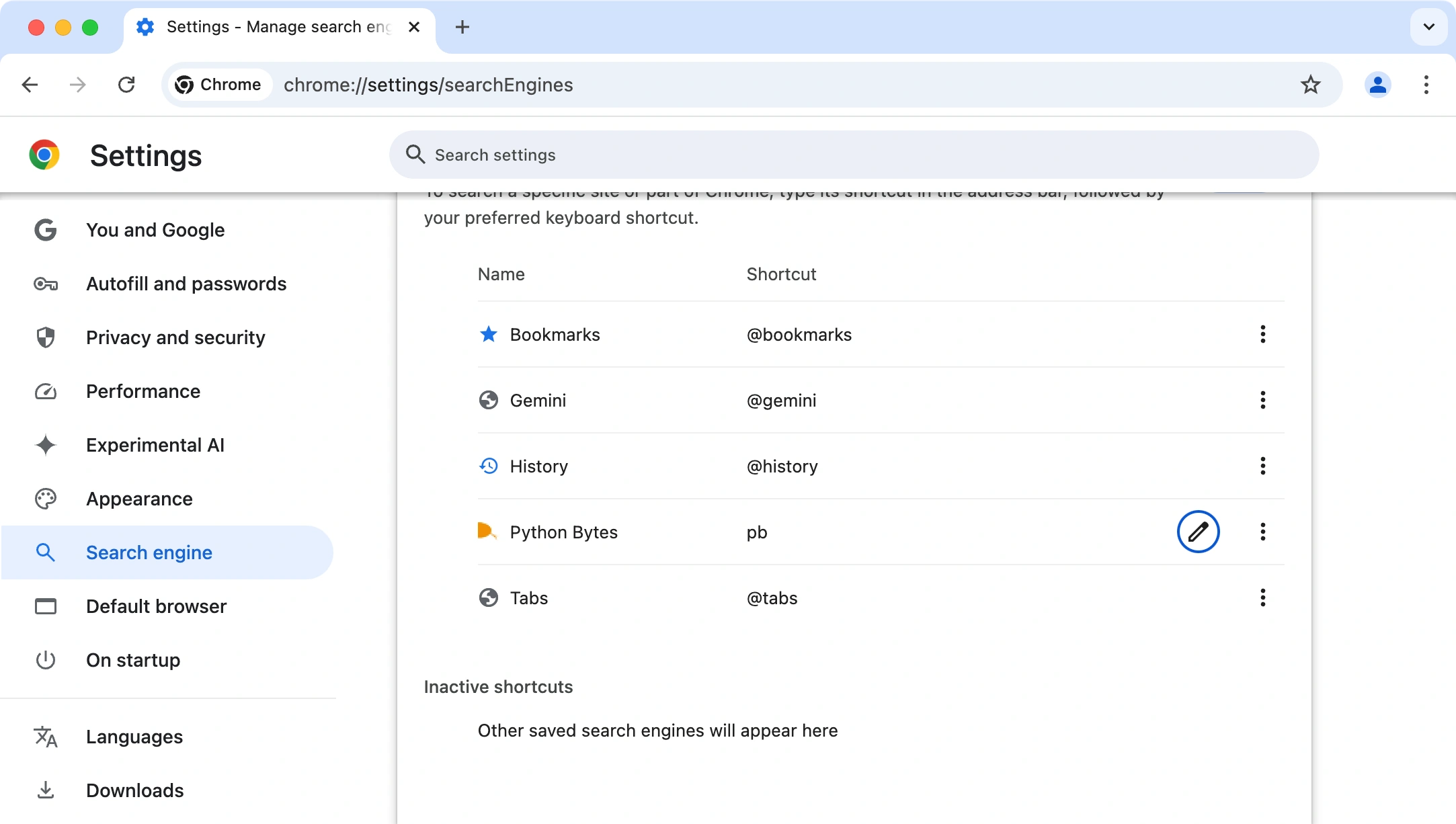
To add our search to Chrome, open Settings -> Search Engine.
Then, choose Manage search engines and site search. Then go to
Site search and enter the search URL (suggestions not an option here).
Brave
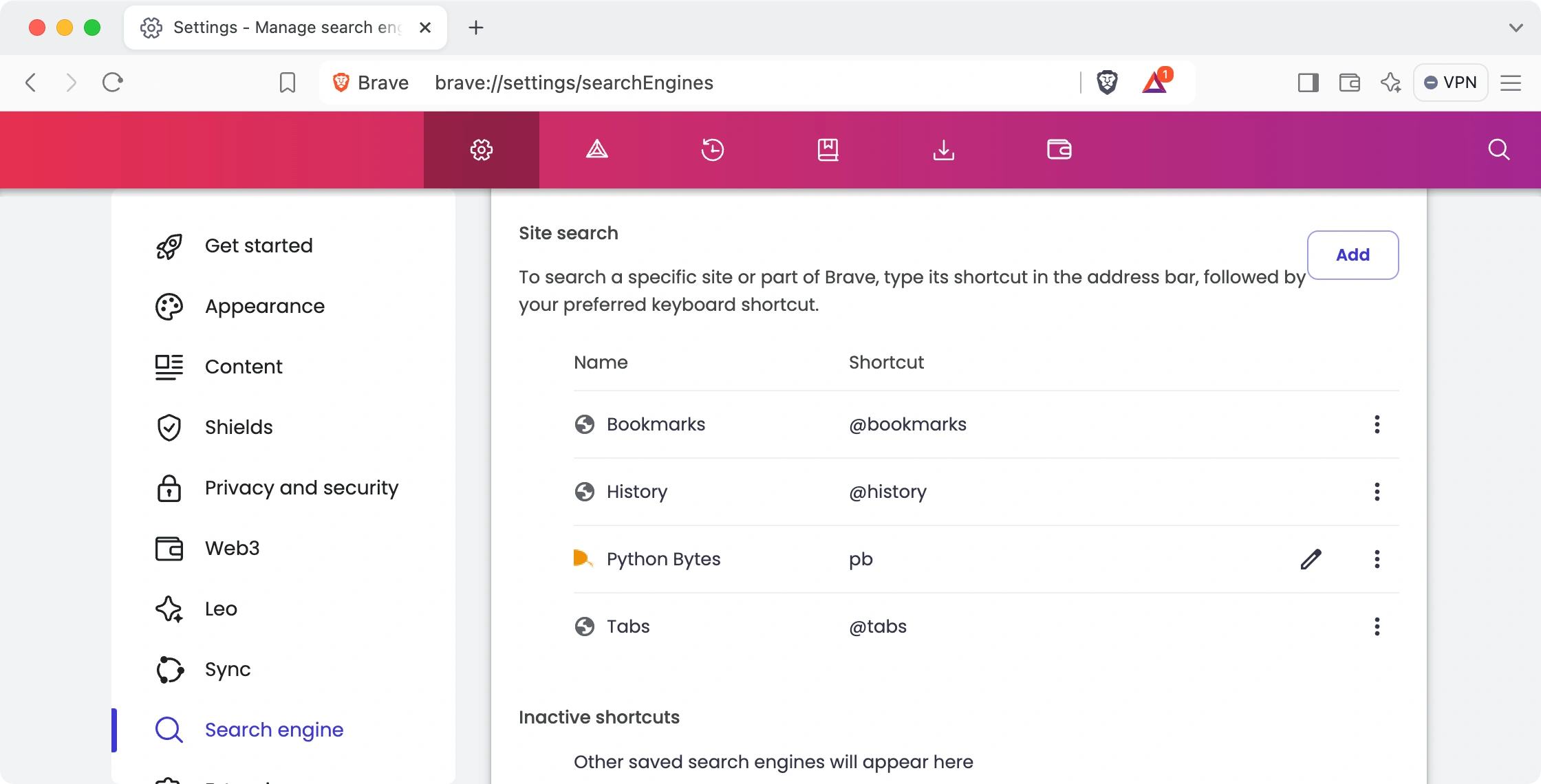
To add our search to Brave, open Settings -> Search Engine.
Then, choose Manage search engines and site search. Then go to
Site search and enter the search URL (suggestions not an option here).
Safari
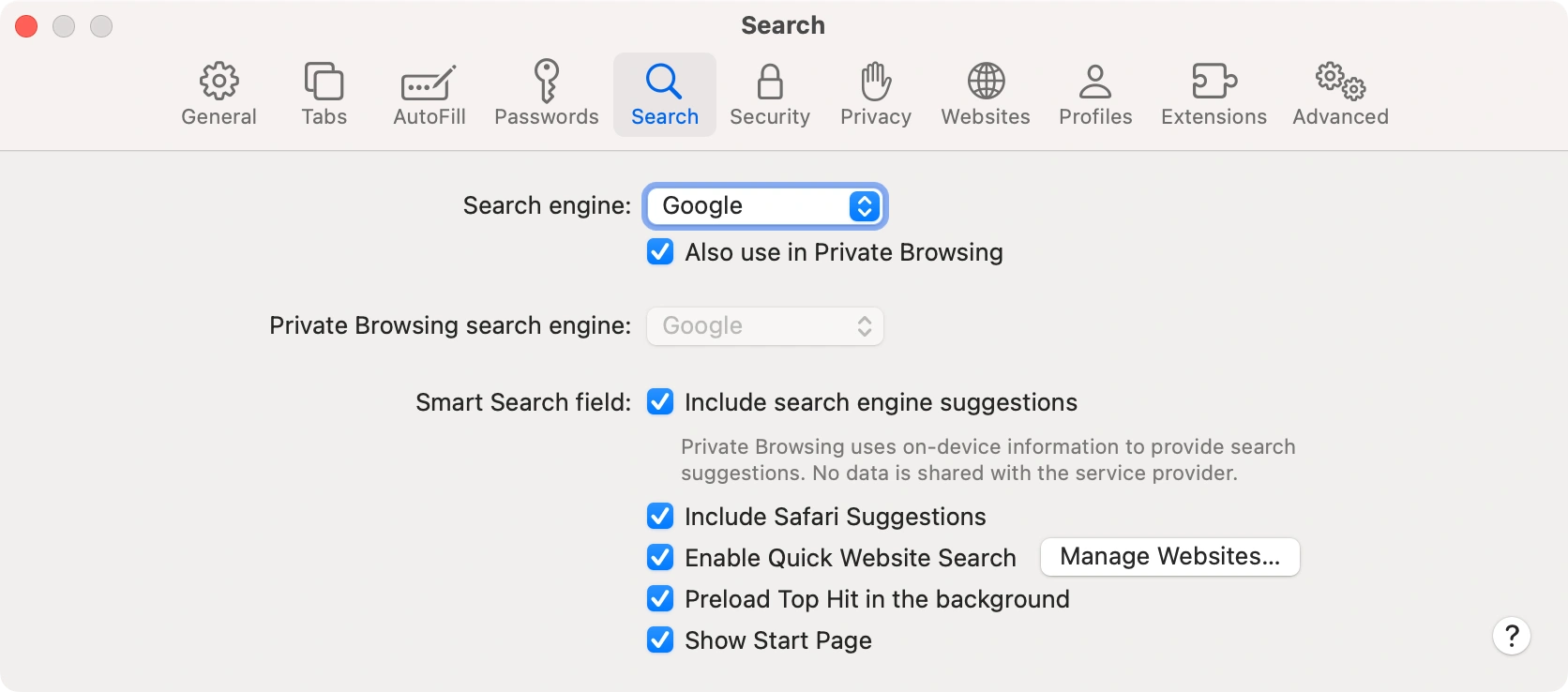
Safari will autodetect the search settings from visiting pythonbytes.fm.
Once you've visited the root of our site, you should see under
Settings -> Search -> Enable Quick Website Search,
there you should see Python Bytes.
Firefox
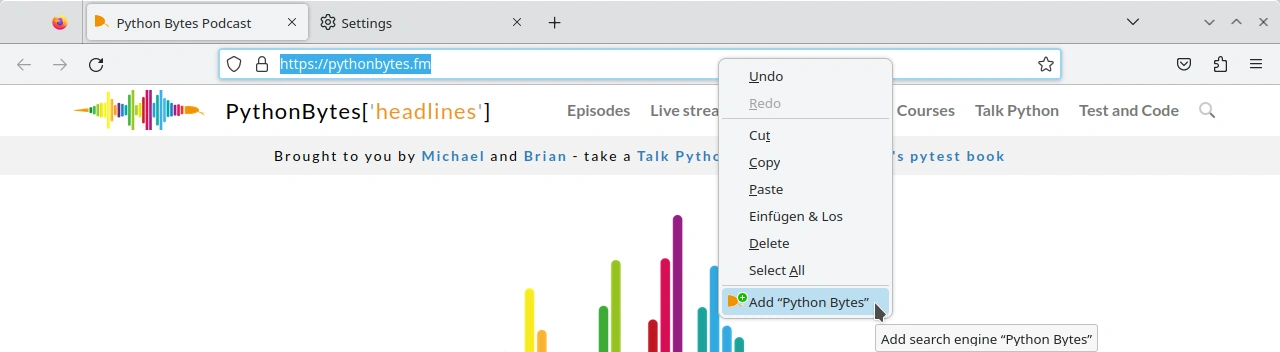
To add "Python Bytes" as a search provider:
- Go to https://pythonbytes.fm
- Right-click on the search- or location-bar
- There click on 'Add "Python Bytes"'
Depending on your preferences (see about:preferences#search) you then either type the
search term into the "search-" or "location bar", where you can select "Python Bytes" at the bottom as
the search engine.
Got questions? Contact us through the Python Bytes contact page.