
Developing an app
To develop a Probot app, you will first need a recent version of Node.js installed. Open a terminal and run node -v to verify that it is installed and is at least 18.0.0 or later. Otherwise, install the latest version.
Contents:
- Generating a new app
- Running the app locally
- Configuring a GitHub App
- Manually Configuring a GitHub App
- Installing the app on a repository
- Debugging
- Run Probot programmatically
Generating a new app
create-probot-app is the best way to start building a new app. It will generate a new app with everything you need to get started and run your app in production.
To get started, run:
npx create-probot-app my-first-app
This will ask you a series of questions about your app, which should look something like this:
Let's create a Probot app!
? App name: my-first-app
? Description of app: A 'Hello World' GitHub App built with Probot.
? Author's full name: Katie Horne
? Author's email address: katie@auth0.com
? GitHub user or org name: khorne3
? Repository name: my-first-app
? Which template would you like to use? (Use arrow keys)
❯ basic-js
  basic-ts (use this one for TypeScript support)
  checks-js
  git-data-js
  deploy-js

Finished scaffolding files!

Installing dependencies. This may take a few minutes...

Successfully created my-first-app.

Begin using your app with:
  cd my-first-app
  npm start

View your app's README for more usage instructions.

Visit the Probot docs:
  https://probot.github.io/docs/

Get help from the community:
  https://probot.github.io/community/

Enjoy building your Probot app!
The most important files created are index.js, which is where the code for your app will go, and package.json, which makes the app a standard npm module.
Running the app locally
Now you're ready to run the app on your local machine. Run npm start to start the server:
Note: If you're building a TypeScript app, be sure to run
npm run buildfirst!
> testerino@1.0.0 dev /Users/hiimbex/Desktop/testerino
> nodemon

[nodemon] 1.18.4
[nodemon] to restart at any time, enter `rs`
[nodemon] watching: .env *.*
[nodemon] starting `npm start`

> testerino@1.0.0 start /Users/hiimbex/Desktop/testerino
> my-first-app@1.0.0 start /private/var/folders/hs/x9qtfmvn1lz1sgml9q21h7k80000gn/T/tmp.bgzYr6j1/my-first-app
> probot run ./index.js

INFO     (probot):
INFO     (probot): Welcome to Probot!
INFO     (probot): Probot is in setup mode, webhooks cannot be received and
INFO     (probot): custom routes will not work until APP_ID and PRIVATE_KEY
INFO     (probot): are configured in .env.
INFO     (probot): Please follow the instructions at http://localhost:3000 to configure .env.
INFO     (probot): Once you are done, restart the server.
INFO     (probot):
INFO     (server): Running Probot v11.0.5 (Node.js: v15.5.1)
INFO     (server): Listening on http://localhost:3000
Configuring a GitHub App
To automatically configure your GitHub App, follow these steps:
- Run the app locally by running
npm startin your terminal. - Next follow instructions to visit http://localhost:3000 (or your app's Webhook URL).
- You should see something like this:
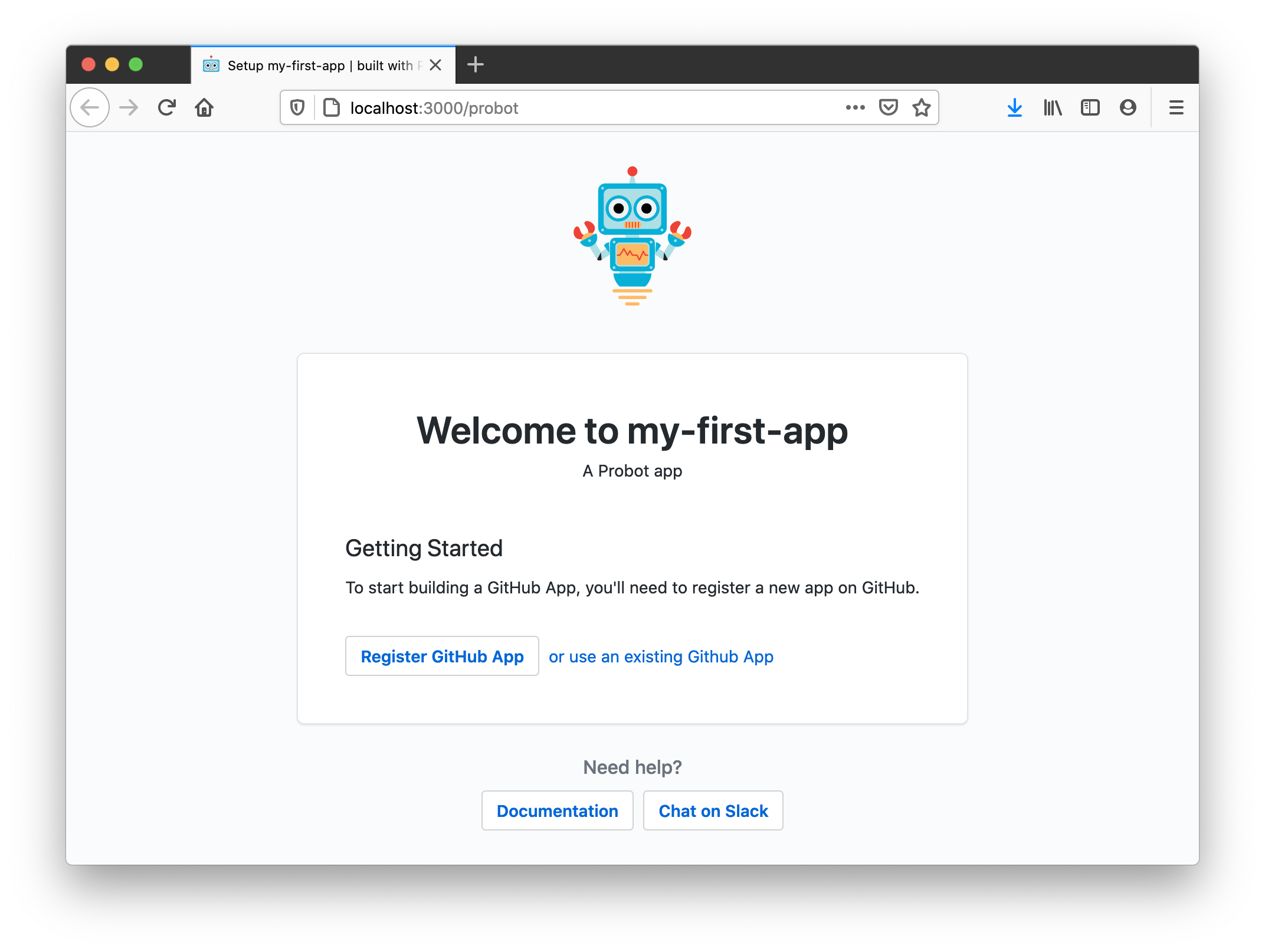
- Go ahead and click the Register a GitHub App button.
- Next, you'll get to decide on an app name that isn't already taken. Note: if you see a message "Name is already in use" although no such app exists, it means that a GitHub organization with that name exists and cannot be used as an app name.
- After registering your GitHub App, you'll be redirected to install the app on any repositories. At the same time, you can check your local
.envand notice it will be populated with values GitHub sends us in the course of that redirect. - Restart the server in your terminal (press ctrl + c to stop the server)
- Install the app on a test repository.
- Try triggering a webhook to activate the bot!
- You're all set! Head down to Debugging to learn more about developing your Probot App.
GitHub App Manifests--otherwise known as easy app creation--make it simple to generate all the settings necessary for a GitHub App. This process abstracts the Configuring a GitHub App section. You can learn more about how GitHub App Manifests work and how to change your settings for one via the GitHub Developer Docs.
Manually Configuring a GitHub App
If you created an App with a manifest, you can skip this section; your app is already configured! If you ever need to edit those settings, you can visit
https://github.com/settings/apps/[your-app-name]
To run your app in development, you will need to configure a GitHub App's APP_ID, PRIVATE_KEY, WEBHOOK_SECRET, and WEBHOOK_PROXY_URL in order to receive webhooks to your local machine.
- On your local machine, copy
.env.exampleto.envin the same directory. We're going to be changing a few things in this new file. - Go to smee.io and click Start a new channel. Set
WEBHOOK_PROXY_URLto the URL that you are redirected to.
E.g.https://smee.io/AbCd1234EfGh5678 - Create a new GitHub App with:
- Webhook URL: Use the same
WEBHOOK_PROXY_URLfrom the previous step. - Webhook Secret:
development, or whatever you set for this in your.envfile. (Note: For optimal security, Probot apps require this secret be set, even though it's optional on GitHub.). - Permissions & events is located lower down the page and will depend on what data you want your app to have access to. Note: if, for example, you only enable issue events, you will not be able to listen on pull request webhooks with your app. However, for development, we recommend enabling everything.
- Webhook URL: Use the same
- You must now set
APP_IDin your.envto the ID of the app you just created. The App ID can be found in on top of your apps settings page. - Finally, generate and download a private key file (using the button seen in the image above), then move it to your project's directory. As long as it's in the root of your project, Probot will find it automatically regardless of the filename.
For more information about these and other available keys, head over to the environmental configuration documentation.
Installing the app on a repository
You'll need to create a test repository and install your app by clicking the "Install" button on the settings page of your app, e.g. https://github.com/apps/your-app
Debugging
- Always run
$ npm installand restart the server ifpackage.jsonhas changed. - To turn on verbose logging, start the server by running:
$ LOG_LEVEL=trace npm start
Run Probot programmatically
Use run
If you take a look to the npm start script, this is what it runs: probot run ./index.js. This is nice, but you sometimes need more control over how your Node.js application is executed. For example, if you want to use custom V8 flags, ts-node, etc. you need more flexibility. In those cases there's a simple way of executing your probot application programmatically:
// main.js
import { run } from "probot";
import app from "./index.js";

// pass a probot app function
run(app);
You can also set your own Octokit constructor with custom plugins and a custom logger while still reading default options from .env:
// main.js
import { run } from "probot";
import app from "./index.js";

// pass a probot app function by overriding Probot options
run(app, {
  Octokit: ProbotOctokit.plugin(myPlugin),
  log: pino(),
});
Now you can run main.js however you want.
Use server
The run function that gets executed when running probot run ./index.js does two main things
- Read configuration from environment variables and local files
- Start a
Serverinstance
If you need more control over the Server instance, you can use the Server class directly:
import { Server, Probot } from "probot";
import app from "./index.js";

async function startServer() {
  const server = new Server({
    Probot: Probot.defaults({
      appId: 123,
      privateKey: "content of your *.pem file here",
      secret: "webhooksecret123",
    }),
  });

  await server.load(app);

  server.start();
}
The server instance gives you access to the Probot instance (server.probotApp).
Use createNodeMiddleware
If you have your own server or deploy to a serverless environment that supports loading Express-style middleware or Node's http middleware ((request, response) => { ... }), you can use createNodeMiddleware.
import { createNodeMiddleware, Probot } from "probot";
import app from "./index.js";

const probot = new Probot({
  appId: 123,
  privateKey: "content of your *.pem file here",
  secret: "webhooksecret123",
});

const middleware = await createNodeMiddleware(app, { probot });

export default (req, res) => {
  middleware(req, res, () => {
    res.writeHead(404);
    res.end();
  });
};
If you want to read probot's configuration from the same environment variables as run, use the createProbot export
import { createNodeMiddleware, createProbot } from "probot";
import app from "./index.js";

export default await createNodeMiddleware(app, { probot: createProbot() });
By default, createNodeMiddleware() uses /api/github/webhooks as the webhook endpoint. To customize this behaviour, you can use the webhooksPath option.
export default await createNodeMiddleware(app, {
  probot: createProbot(),
  webhooksPath: "/path/to/webhook/endpoint",
});
Use probot
If you don't use Probot's http handling in order to receive and verify events from GitHub via webhook requests, you can use the Probot class directly.
import { Probot } from "probot";
import app from "./index.js";

async function example() {
  const probot = new Probot({
    appId: 123,
    privateKey: "content of your *.pem file here",
    secret: "webhooksecret123",
  });

  await probot.load(app);

  // https://github.com/octokit/webhooks.js/#webhooksreceive
  probot.receive({
    id: '123',
    name: 'issues',
    payload: { ... }
  })
}
Using the Probot class directly is great for writing tests for your Probot app function. It permits you to pass a custom logger to test for log output, disable throttling, request retries, and much more.
Use Probot's Octokit
Sometimes you may need to create your own instance of Probot's internally used Octokit class, for example when using the OAuth user authorization flow. You may access the class by importing ProbotOctokit:
import { ProbotOctokit } from "probot";

function myProbotApp(app) {
  const octokit = new ProbotOctokit({
    // any options you'd pass to Octokit
    auth: {
      token: "yourToken",
    },
    // and a logger
    log: app.log.child({ name: "my-octokit" }),
  });
}
Using Typescript
Probot has built-in support for TypeScript, requiring minimal configuration to get started.
If you're using TypeScript in your app, we strongly recommend enabling the strictNullChecks compiler option in your tsconfig.json.
Without this option, TypeScript may incorrectly infer some webhook payload fields as never. For example:
app.on("issues.opened", async (context) => {
  // TS Error: Property 'id' does not exist on type 'never'
  const id = context.payload.issue.id;
});
This happens because the webhook types (from @octokit/webhooks-types) rely on strict null checking for proper type narrowing.
To fix this, add the following to your tsconfig.json:
{
  "compilerOptions": {
    "strictNullChecks": true
  }
}
Or enable full strict mode:
{
  "compilerOptions": {
    "strict": true
  }
}
See issue #1581 for more context.
Found a mistake or want to help improve this documentation? Suggest changes on GitHub
Getting Started
Advanced
- Configuration
- Testing
- Simulate receiving webhooks
- Logging
- Deployment
- HTTP routes
- Pagination
- Extensions
- Persistence
- Best practices