
EduCoach is a Microsoft Copilot Studio agent that acts as a friendly academic advising assistant for undergraduate students. It helps students navigate their academic journey by answering grounded questions from a SharePoint Courses list and a Student Handbook document.
Key capabilities:
| Capability | Description |
|---|---|
| Course Search | Find courses by subject, semester, or degree requirement |
| Prerequisite Check | Verify eligibility before enrolling in a course |
| Enrollment Request | Submit an enrollment request via adaptive card; confirmation sent by email and tracked in Planner |
| Course Recommendations | Get personalised suggestions based on major and career interests |
| Graduation Audit | Check credit progress and remaining degree requirements |
| Waitlist Notification | Automatic notification when a waitlisted course opens (Power Automate trigger) |
| Escalation | Hand off to a human advisor for grade appeals, medical withdrawals, or academic petitions |
The agent is published to Microsoft Teams and Microsoft 365 Copilot and uses generative AI orchestration to route intents to specialised topics without explicit keyword matching.

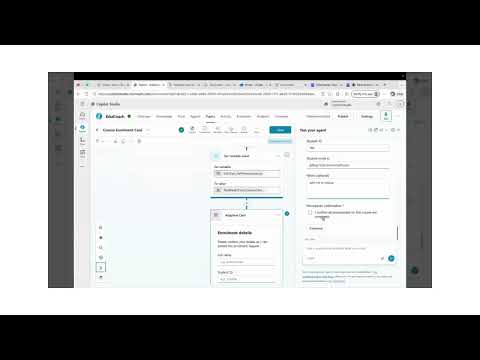
Watch the full walkthrough on YouTube: EduCoach – Academic Advising Agent Demo


- Microsoft 365 tenant with a Microsoft Copilot Studio licence
- Power Platform environment with Dataverse enabled
- Permissions to create connections for:
- SharePoint Online
- Microsoft Planner
- Office 365 Outlook
- Microsoft Copilot Studio (for the Power Automate trigger)
- A SharePoint site containing:
- A
Courseslist with columns:Title(course code),title(course name),credits,prerequisites,degree_requirement,semester_offered - A
Student Handbookdocument (.mdor.docx) in the site's Shared Documents library
- A
- A Microsoft Planner plan with at least one bucket for tracking enrollment requests
- Power Platform CLI (
pac) – required only if importing via solution
mcs-EduCoach | Lovy Jain (@lovyjain)
| Version | Date | Author | Comments |
|---|---|---|---|
| 1.0 | June 15, 2026 | Lovy Jain | Initial release |
THIS CODE IS PROVIDED AS IS WITHOUT WARRANTY OF ANY KIND, EITHER EXPRESS OR IMPLIED, INCLUDING ANY IMPLIED WARRANTIES OF FITNESS FOR A PARTICULAR PURPOSE, MERCHANTABILITY, OR NON-INFRINGEMENT.
Sample data files are included in src/sharepoint-data/ to help you get started quickly:
| File | Purpose |
|---|---|
sample-course-catalog.csv |
50 sample courses — import directly into the SharePoint Courses list |
student-handbook.md |
Student handbook document — upload to Shared Documents as-is |
Steps:
-
Create (or reuse) a SharePoint site, e.g.
https://YOUR_TENANT.sharepoint.com/sites/YOUR_SITE. -
Create a Courses list with the following columns:
Column internal name Type Notes TitleSingle line of text Course code, e.g. CS101titleSingle line of text Course name creditsNumber Credit hours prerequisitesSingle line of text Semicolon-separated course codes, or Nonedegree_requirementSingle line of text e.g. General Education,Major Required,Major Elective,Free Electivesemester_offeredSingle line of text Semicolon-separated semesters, e.g. Fall;Spring -
Import the sample data from
src/sharepoint-data/sample-course-catalog.csvinto the Courses list. You can use the SharePoint Import Spreadsheet app or paste rows manually. -
Upload
src/sharepoint-data/student-handbook.mdto the site's Shared Documents library. The agent uses this file as the grounding document for all policy and graduation questions.
- Create a Planner plan inside the Microsoft 365 group of your choice.
- Add a bucket named
Enrollment Requests(or any name you prefer). - Note the Plan ID and Bucket ID from the Planner URL or via the Microsoft Graph Explorer.
git clone https://github.com/pnp/copilot-pro-dev-samples.git
cd copilot-pro-dev-samples/samples/mcs-EduCoach/srcBefore importing, replace all placeholder strings in the source files:
Tip: You can find the Courses list GUID in the SharePoint list settings URL:
…/_layouts/15/listedit.aspx?List={GUID}.
Option A – Copilot Studio CLI (recommended)
pac auth create --environment <YOUR_ENVIRONMENT_ID>
pac copilot import --path EduCoach
Option B – Copilot Studio portal
- Open Copilot Studio and select your environment.
- Go to Agents → Import and upload the
EduCoachfolder.
After importing, Copilot Studio will prompt you to assign connections for:
- SharePoint Online – connect with an account that has read access to the Courses list and Student Handbook.
- Office 365 Outlook – connect with the account that sends enrollment confirmation emails.
- Microsoft Planner – connect with an account that has write access to the Planner plan.
- Microsoft Copilot Studio – used by the Power Automate trigger workflow.
- In Copilot Studio, open the EduCoach agent → Triggers.
- Enable the New course added in Courses trigger.
- Open the generated Power Automate flow and confirm the SharePoint site and list are pointing to your Courses list.
- In Copilot Studio, select Publish → Publish.
- Once published, open Channels and enable Microsoft Teams and/or Microsoft 365 Copilot.
In Microsoft Teams, start a chat with EduCoach and try the built-in conversation starters:
What courses can I take next semester for computer science?Can I take CS101 if I have not completed MATH100?Help me submit an enrollment request for CS101.I am not sure what to take next, can you recommend courses?
Student (Teams / M365 Copilot)
        │
        ▼
 ┌─────────────────────────────────┐
 │       EduCoach (Copilot Studio) │
 │  Generative AI Orchestration    │
 │                                 │
 │  Topics                         │
 │  ├── CourseSearch               │
 │  ├── CheckPrerequisites         │
 │  ├── CourseEnrolmentCard        │
 │  ├── CourseRecommendation       │
 │  ├── GraduationAudit            │
 │  ├── WaitlistSpotAvailable      │
 │  └── EscalateToHumanAdvisor     │
 │                                 │
 │  Knowledge Sources              │
 │  ├── SharePoint Courses list    │
 │  └── Student Handbook doc       │
 │                                 │
 │  Actions                        │
 │  ├── Create Planner Task        │
 │  └── Send Outlook Email         │
 └────────────┬────────────────────┘
              │ Trigger
              ▼
 ┌─────────────────────────────────┐
 │  Power Automate Flow            │
 │  "New course added in Courses"  │
 │  SharePoint list → Agent prompt │
 └─────────────────────────────────┘
- Generative AI orchestration – no explicit keyword triggers; the agent routes requests using intent understanding.
- Grounded responses – the agent only answers from verified SharePoint sources; it will not hallucinate courses or policies.
- Adaptive card enrollment – students fill out a structured card; data is written to Planner and confirmed by email.
- Automatic waitlist notification – a Power Automate flow fires when a new course is added to the SharePoint list and proactively contacts students who were waiting.
- Human escalation – requests involving grade appeals, medical withdrawals, or academic petitions are routed to a human advisor without asking extra questions.
- Multi-topic design – each capability is an independent topic, making the agent easy to extend or customise.