
Welcome to the UE Reference Application for JSBSim.
This application has initially be created by the Simulation Team at Epic Games in the context of "Antoinette Project" This project was made to illustrate that Unreal Engine 5 with its double precision and graphic capabilities could be used for serious flight simulations. For that purpose, we wrote a plugin for UE5 wrapping around the JSBSim Flight Dynamic model to leverage its capabilities and fly and Aircraft inside an Unreal Engine environment.
We decided to share this sample with the community as an open source project, hosted on JSBSim's Github. This reference application is voluntarily simple to make sure it's easy to understand.
But we are sure that the aviation community will like it and take inspiration from it. We hope that some aviation geeks will fork it and create wonderful flight sims from this starting point!
Enjoy, and Simulation for the win!
Linux and Mac steps found here: README-Unix
Windows users continue below:
The project is compatible with engine versions UE5.5 to UE5.8. For prior engine compatibility please see : Update Note
The procedure to install Unreal Engine is described here : https://www.unrealengine.com/en-US/download
For hobbyists, the standard license applies, and is 100% free!
In order to build C++ plugins for Unreal Engine in Windows, you need Visual Studio Build Tools, MSVC toolchain, Windows SDK, and .NET. Visual Studio Community can be used (It's free). You can setup Visual Studio and the required tools for Unreal using the following procedure: https://dev.epicgames.com/documentation/en-us/unreal-engine/setting-up-visual-studio-development-environment-for-cplusplus-projects-in-unreal-engine/
Please note:
UE5.7 requires toolchain MSVC v14.44, which might not be included in the default tools release of Visual Studio, it can be manually installed.
UE5.5 and UE5.6 require toolchain MSVC v14.38, which is not the default tool in the latest release of Visual Studio, so it must be manually selected for install: MSVC v143 x64/x86 build tools (v14.38-17.X)
Optional extension setup: https://dev.epicgames.com/documentation/en-us/unreal-engine/using-the-unrealvs-extension-for-unreal-engine-cplusplus-projects/
Unreal Engine requires that one plugin contains all its needed files in its sub-folders.
This application contains a Plugins/JSBSimFlightDynamicsModel folder containing the JSBSim files.
In some of these subfolders, one has to place
- The JSBSim libraries, compiled as dynamic libs
- The aircraft/engine/systems definition files.
When the UE application will be packaged, the resources will be copied along with the executable, and the application dynamically linked against the libs transparently.
To make this process easier, there is a new solution named JSBSimForUnreal.sln at the root of JSBSim repo.
- Simply open and build this solution with VS2022, in Release, (and in Debug if you want too, but this is not mandatory)
- It will take care of making a clean build, and copy all needed files at the right location
- All libs and headers in
UnrealEngine\Plugins\JSBSimFlightDynamicsModel\Source\ThirdParty\JSBSim - All resource files (aircrafts/engines/systems) in UnrealEngine\Plugins\JSBSimFlightDynamicsModel\Resources\JSBSim
- All libs and headers in
In order to keep the JSBSim repository lightweight, this application contains low quality resources. If you would like to use better looking content, you can download HQ aircraft model, HD textures and non-flat terrain here: High Definition content pack (330 MB)
Simply extract this archive and copy/paste the content folder into the one of UEReferenceApp, overriding the existing files.
Note that Option 2 is the recommended way to edit the plugin code, and then you can run and debug it like any other VS application.
Option 1 : Simply double click on the UnrealEngine\UEReferenceApp.uproject file.
It will open a popup complaining about missing modules (UEReferenceApp, JSBSimFlightDynamicsModel, JSBSimFlightDynamicsModelEditor).
Answer Yes, and the build will be triggered as a background task.
Once done, the UE Editor will open. If you get an error message, build manually using Option 2 below, but before doing so, double click CleanProject.bat file in the project folder.
Option 2 : Generate a project solution, and build it using Visual Studio.
Right click on the UnrealEngine\UEReferenceApp.uproject
A contextual menu will appear. Select "Generate Visual Studio project files"
After a short time, a new solution file UEReferenceApp.sln will appear beside the uproject file.
Open 'UEReferenceApp.sln', then you can Build the UEReferenceApp or select "Build Startup project" from the UnrealVS Extension bar.
You can find many free learning resources on Unreal Engine Developer Community portal : Getting Started Library of Learning Courses
Still in the context of "Antoinette Project" we wrote a more advanced tutorial to leverage these developments in an even better looking application. You can find a very complete description here: https://dev.epicgames.com/community/learning/tutorials/mmL/a-diy-flight-simulator-tutorial
Gamepad Layout
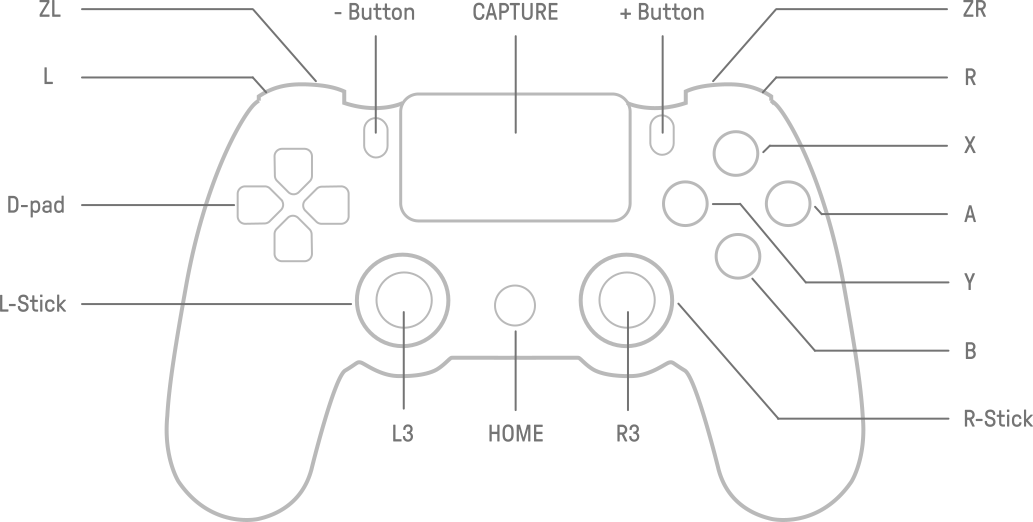
| Command | Key Shortcut | Gamepad |
|---|---|---|
| Toggle Engines Starters On/Off | CTRL-Q | |
| Toggle Engines Mixture On/Off | CTRL-W | |
| Toggle Engines Running On/Off | CTRL-E | |
| Toggle Engines CutOff On/Off | CTRL-R | |
| Throttle - Cut | 1 | |
| Throttle - Decrease | 2 | A |
| Throttle - Increase | 3 | B |
| Throttle - Full | 4 | |
| Flaps - Retract | 5 | |
| Flaps - Decrease | 6 | L |
| Flaps - Increase | 7 | R |
| Flaps - Extend | 8 | |
| Aileron - Left | NUM 4 | L-Stick X |
| Aileron - Right | NUM 6 | L-Stick X |
| Elevator - Up | NUM 2 | L-Stick Y |
| Elevator - Down | NUM 8 | L-Stick Y |
| Rudder - Left | NUM 0 | ZL |
| Rudder - Right | NUM ENTER | ZR |
| Center Aileron & Rudder | NUM 5 | |
| Toggle Auto Recenter | Double press NUM 5 | |
| Aileron Trim - Left | CTRL-LEFT | |
| Aileron Trim - Right | CTRL-RIGHT | |
| Elevator Trim - Up | CTRL-DOWN | |
| Elevator Trim - Down | CTRL-UP | |
| Rudder Trim - Left | CTRL-NUM-7 | |
| Rudder Trim - Right | CTRL-NUM-9 | |
| All Brakes | NUM . | Y |
| Left Brakes | NUM * | |
| Right Brakes | NUM - | |
| Parking Brakes | CTRL-NUM . | |
| Toggle Gear Up/Down | G | L3 |
| Command | Shortcut |
|---|---|
| Toggle Pilot/Orbit/Follow Camera | TAB |
| Toggle FDM Debug Infos | D |
| Toggle Aircraft Trails | T |
| Orbit Camera Up/Dowm | RightMouseButton + Mouse Up/Down |
| Orbit Camera Left/Right | RightMouseButton + Mouse Left/Right |
| Orbit Camera Zoom In/Out | MiddleMouseButton(Wheel) + Up/Down |
Version 1.2
- Project updated to Enhanced Input and based to UE5.5
- For prior engine version compatibility or to use legacy engine inputs, please use the branch which supports versions UE5.0 - UE5.7 UE5.0 Legacy Input
- Added a follow camera
- Added "Auto return to center" keyboard control, for easier flying, quicker reaction towards full deflection, etc. Enabled by double pressing NUM 5
- Added aircraft selection list to the details panel for the BP_Airliner, new aircraft can be add to the list manually or automatically with Right Click-Run tool in AircraftPicker folder.
- Prior updates that didn't make the readme until now: Added Wind Type selection with blueprint node. Added Linux and Mac Support. Various bug fixes.
Version 1.01
- The JSBSim interface is now updated to have a pseudo fixed rate of 120hz, independent of game framerate. This is done by stepping the sim x times per game frame.
- Reduced the project/repo size by lowering aircraft model quality and removed unused assets. (full quality aircraft model in HD download link above)
- Added new functions and blueprint nodes to access any JSBSim property. This is useful for getting and setting commands which are not currently coded in the plugin. See the next section.
- JSBSim has a Property Manager to keep track of all properties, settings, and commands.
- New functions and blueprint nodes were added to the UE plugin to access this Property Manager, as a general command console interface to JSBSim.
- The plugin's main aircraft controls are by default hardcoded directly to JSBSim. Using the new Command Console function, you can get or set additional commands & properties without having to hardcode them.
- Recommend to first use the default controls already setup in the reference project. Then for new additional commands & properties you can use the Command Console, without having to hardcode everything in C++. Please note due to order of operations, the Command Console cannot override some of the main aircraft controls which are hardcoded in the plugin. (This can be changed by editing the plugin.)
- Example of usage: The ah1s helicopter model loads new controls at runtime. These controls cannot be hardcoded in the plugin because they don't exist yet. Using the Command Console we can now set the controls during runtime.


- As you'll see in the aircraft animation blueprint comments, we used an aircraft model from the UE Marketplace which bones were not really well aligned with the rotation axes of moving parts. While it could (had has been) solved by using 1D Blend Space, a better way to do it would have to align the bones correctly, and just drive the locations by angles. But it would have required the aircraft 3D model sources that we did not have.
- The aircraft lights have been made only for illustration purpose. The cone angle logic is approximate and the blinking frequencies/patterns are not the real ones. (We don't want to freak out the purists ;-) )
- The Primary Flight Display is very simple too. A pitch indicator would help too...
- The terrain is a sample terrain. One might use other terrain sources, as long as the georeferencing is correct!
- Gamepad support is limited, but can easily be improved in the Input Settings