

The Workspace
The workspace is where you actually get work done in Codeg. It puts four things on one screen — the agent's conversation, your project's files, its git changes, and a terminal — so the whole loop of prompting, reviewing, and committing happens in one place, with no tab-switching between an editor, a diff tool, and a shell.
This page is the window itself — its layout, the sidebar, tabs and splits, the terminal. The conversation in the middle has a page of its own, Conversations, and so does the panel on the right, The Side Panel.
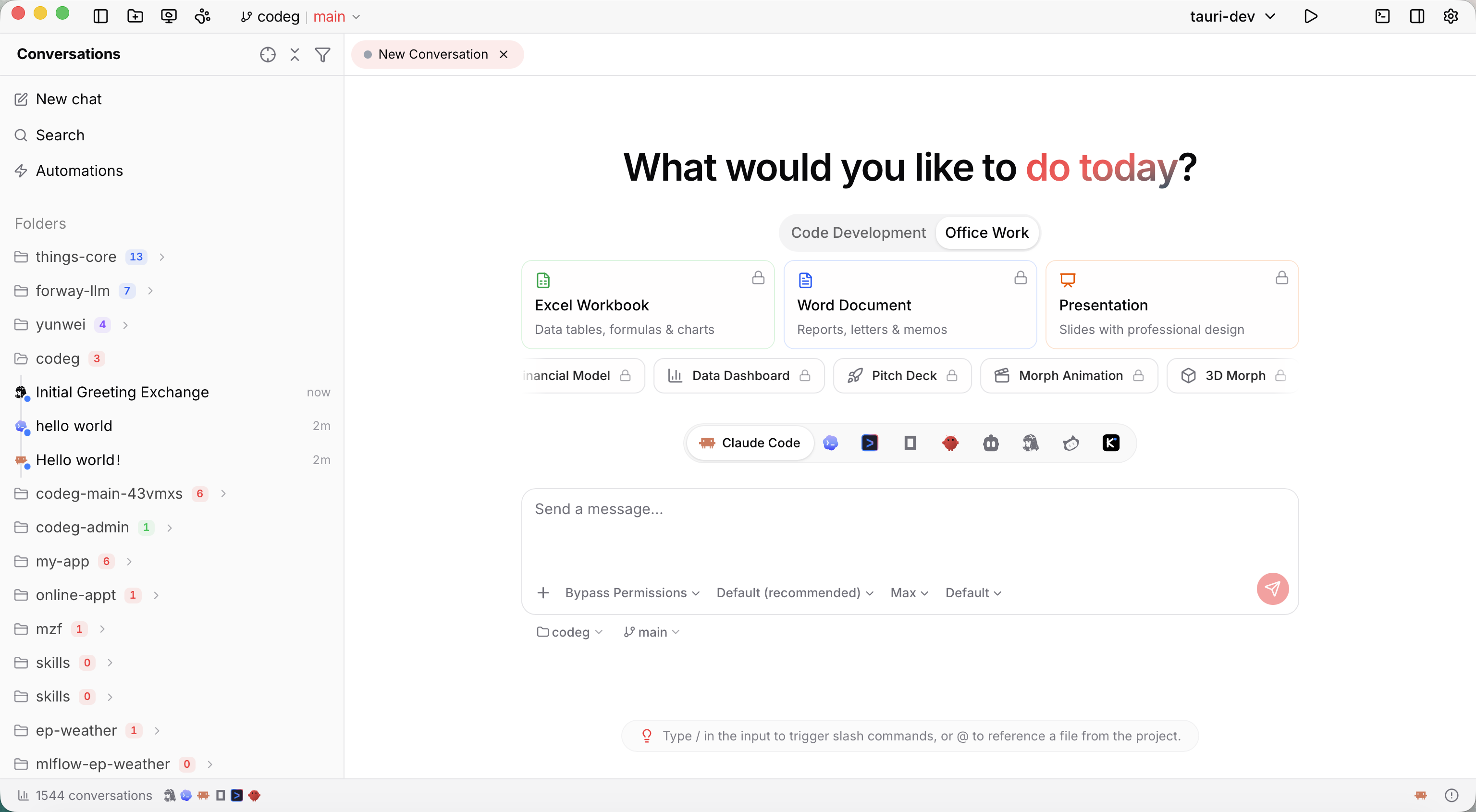
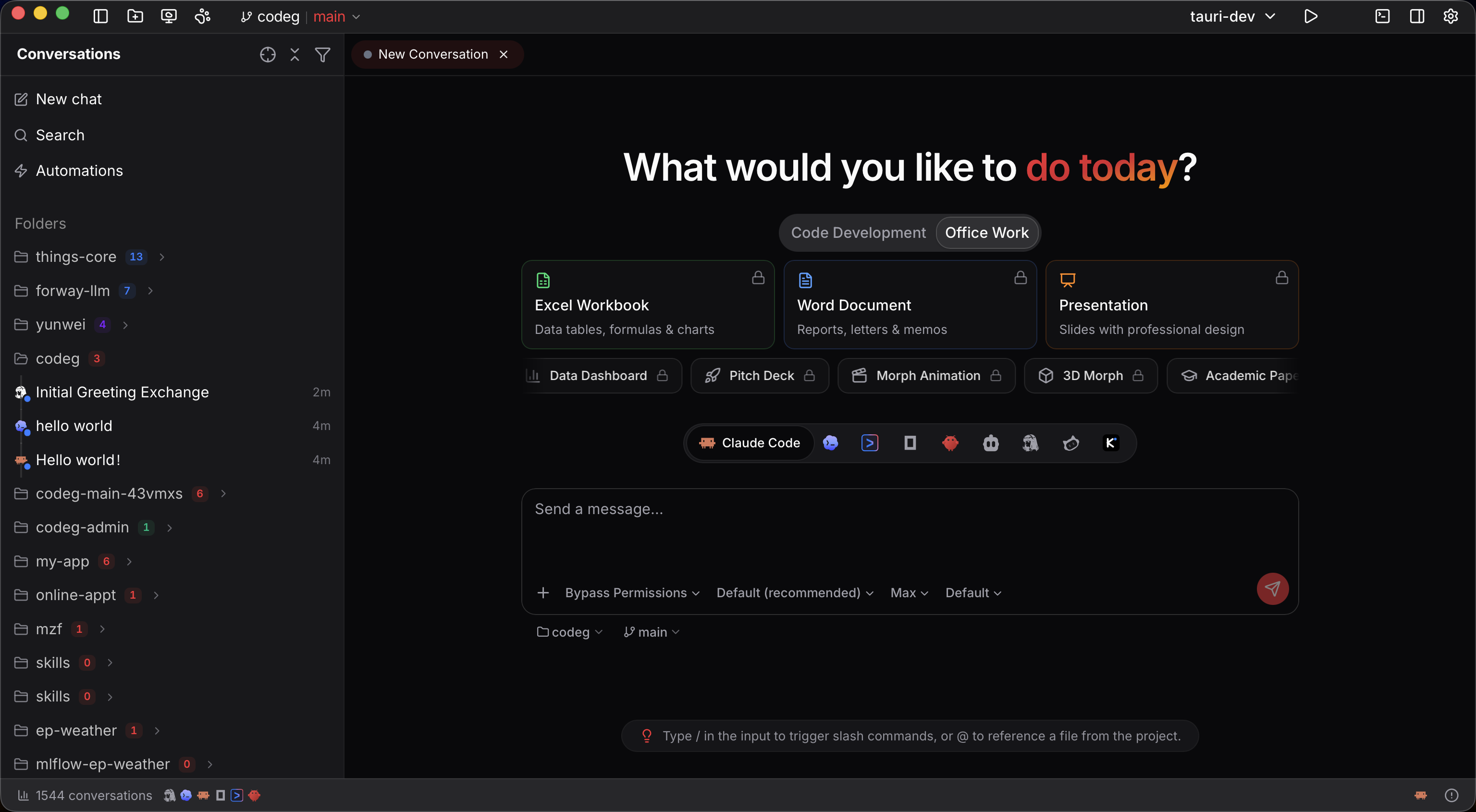
The layout
The desktop workspace is four columns side by side, each with its own header strip and divided by draggable hairlines that run from the top edge to the bottom:
- Conversations (far left). Every session across every folder you've opened — your history, and where you start new ones. They're grouped by project, each with a live status dot: In Progress, Review, Completed. The strip on top holds Locate Active Conversation, expand/collapse-all and View options — where the tag filter lives — and beneath it sit New chat and the navigation rows: automations, To-dos, the Repository panel, and Infinite Canvas. Automations and To-dos each carry their own badge — a failed run for one, a count of tasks waiting on you for the other — so a queue that needs attention says so from wherever you are.
- Conversation (center-left). The agent's transcript, with the composer docked at the bottom. Its tabs sit on top, and a slim detail header below shows the folder breadcrumb and the conversation's title, followed by its tags. → Conversations
- Files (center-right). The editor, diffs, and live previews for the files you open — right next to the conversation, so you can watch changes land as the agent makes them. It has its own tab strip and a file-path detail header.
- Side panel (far right). Eight tabs on a rail of icons down its right edge — Session Details, Files, Changes and Commits, then the project's Automations, To-dos, Issues and Pull requests — holding the session's details, plan and message navigation, the project tree, your working-tree changes and history, and the project's own work. → The Side Panel
The terminal opens beneath the two center columns, and a status bar along the bottom shows your conversation count, update notices, the command launcher, the codeg-mcp companion's state, and, at its right end, Alerts — the warnings and errors your sessions raised, kept for you to find again. Once you've switched it on, Computer use has an icon there too. Attached to a remote workspace, its name shows as well. Click the conversation count and it opens Token Usage — the full report of what your agents have spent, by day, folder, agent and model.
The status bar's leading edge — the window's bottom-left corner — holds Quick actions, a menu of everything that's otherwise reachable only through something that can disappear. Three groups:
There was a Sessions group until 0.30.0. Its two rows acted on a single folder, which is exactly what a launcher in the status bar doesn't have — and both already live in the folder's own context menu and on the Folders header, so the group was removed rather than left to act on a guess.
The point isn't new capability — every entry has a home elsewhere. It's that the status bar never unmounts, so with the sidebar collapsed this is still a way in. Remote workspaces and the pet are desktop-only. Search is deliberately absent, because its own home doesn't disappear either — see below.
When a newer Codeg is out, the status bar says so itself rather than waiting to be found in Settings: a New v… badge appears, and clicking it opens a popover with the version, the full What's new release notes, and the buttons to act on it — the same Download → Install → Restart sequence as the settings panel, plus Later to wave it off. Dismissing a release quiets it in every open window, and leaves a plain grey icon behind so you can still get back to it; the next release lights the badge up again. → Settings → System
There's no full-width title bar — instead, the window chrome lives in two corner clusters that stay put as panels open and close: top-left toggles the sidebar and opens Search, top-right holds Terminal, Auxiliary Panel, and Settings. Search moved up here in 0.27 for exactly the reason quick actions exists: it used to be a row inside the sidebar, which unmounts when you collapse it, leaving ⌘K as the only way in. The chrome never unmounts, and the button is tooltipped with your live ⌘K binding. Since 0.32.3 ⌘K opens it with the cursor already in the search box, and the cursor stays there as you switch between conversations and files or pick an agent filter. (Mobile gets the same button in its title bar, where there's no shortcut at all.) The remote-workspace picker it displaced moved to the sidebar list's right-click menu, in a group of its own — every row above it acts on this machine; that one leaves for another host. Every panel resizes by dragging, and the side panels and terminal collapse away when you want room — ⌘B (conversations), ⌘E (side panel, which also closes when you click its selected tab), ⌘J (terminal). Since 0.35.0 the chat column itself resizes too: drag either of its edges and it widens or narrows on both sides, and double-click an edge to put it back (Chat width has the rest). On a phone or a narrow browser window, the side panels become slide-in sheets.
To-dos, automations, the Repository panel, Token Usage and the canvas take over that whole area, so while one of them is open the top-right cluster hides its terminal and panel toggles — which would have nothing to act on — and the side panel folds away until you're back. The way out is the start of the page's title, which reads like a breadcrumb: a conversations button, tooltipped Back to Conversations, then › and the page's name. It's there even with the sidebar collapsed and no conversation on screen to click, and it changes nothing else: whatever tab you were on comes back exactly as you left it. A page that has controls of its own puts them in the slots the toggles left: To-dos parks its view toggle and settings button there, the Repository panel its refresh and settings.
Panels slide in beside your work
Since 0.28 every sliding panel — the mobile sidebar, the aux panel, the terminal, the settings navigation, a skill's details, a task's details, a repository item's details — is an inset drawer rather than a dialog: it sits slightly in from the window edge with an edge of its own, and nothing behind it is dimmed or frozen. The page underneath stays live, which is the point — these are panels you consult while working, not modals you dismiss to get back to what you were doing. Escape, the close button, and a swipe still close one; the four mobile navigation drawers additionally close when you tap the strip of page they leave showing, because that's how you put a panel away on a phone — and since 0.35.2 so does the phone's back gesture. The side panel's drawer also closes when you tap the tab that's already selected, since 0.37.0.
Session viewers stack. A delegated sub-agent's transcript, a to-do's session, a Grok child run — all three nest into each other, since a sub-agent's transcript carries its own delegation cards with their own view session. They used to be centred dialogs with no stacking relationship, so opening the second simply buried the first. Now each opens inside the one that spawned it, all at the same width so nothing juts out underneath.
Two consequences you'd otherwise notice as bugs are gone with it: a viewer no longer closes when the card that opened it scrolls out of view, and one left open behind a full-page route or a backgrounded tab no longer paints over whatever replaced it — it's hidden and restored, so switching back finds it where you left it.
Folders and the sidebar
The left sidebar is your home base: every folder you've opened — a project directory — with its conversations grouped beneath it. Open a project folder to add one (⌘O). Since 0.35.0 the dialog's New folder button creates a folder where you're browsing and steps into it, so a project can start from an empty directory, on the desktop and in a browser alike. Right-click a folder's header (or click its ⋯) for everything you can do with it:
- Set default agent. Choose the agent a folder should use, and every new conversation you start there opens with it preselected. Pick No default (use global) to fall back to your global choice. It sets the agent only — model and mode still come from that agent once it connects.
- Change color. Give a folder an accent color so its section stands out when you're juggling several projects. The color tints the folder and its conversations in the sidebar; it doesn't carry into the tabs.
- Set alias. Give the folder a friendlier display name without touching anything on disk — it shows as alias [ folder ] in the sidebar and the conversation header. Leave the field empty to clear it and fall back to the plain name.
- Import local sessions. Open the import window with this project's past sessions preselected, to pull your agents' own history into the workspace — Codeg's conversation aggregation in action. → Conversation Aggregation covers what it sweeps and how it matches.
- Manage conversations. Bulk-select conversations to change their status or delete them. It opens from a folder, but it isn't locked to one: a search row runs the full width, and four filters sit beneath it, coarse to fine — folder, branch, agent, status — so you can sweep the whole workspace from wherever you opened it. Branches fold by shared prefix,
task/49andtask/50under onetask/with a count, and every row shows the branch its conversation was started on. - Linked folders. Bring other directories into this workspace as subdirectories, so one agent can work across all of them. → Work across several folders
- Manage tags… Create, edit, reorder and delete the tags this folder offers its conversations, along with the global ones. → Tag conversations
- Open in. Reveal the folder in Finder / Explorer / your file manager, drop into a terminal there, or — since 0.29.0 — open it in VS Code (desktop only). The VS Code entry is on directories and individual files too, not just the folder header.
- Remove from workspace. Take the folder out of Codeg — its tabs and terminals close, but nothing on disk is touched.
The folder's real name is always its on-disk directory name — that never changes — but Set alias gives it a friendlier label, and color and grouping help you tell projects apart at a glance.
Import local sessions isn't only on the folder menu. Right-click the empty space around the list for the same entry, and on a workspace with nothing in it yet the button sits right there on the empty state — next to Open folder and Project boot — since importing what you already have is usually the fastest way to make a fresh Codeg feel populated. That same empty-space menu is where the remote-workspace picker lives, in a group of its own below the local entries.
Right-clicking a conversation row offers Add to session, which drops it into the composer as a mention badge — the same badge the @ panel and the file tree produce. It lands at your cursor, and clicking it twice doesn't add it twice. It's the shortest route to "look at what happened in that session" without going through @ and typing the name. The same menu holds a Tags submenu for tagging the conversation.
The number beside a folder counts what's running in it right now — sessions actively working, worktrees included — and disappears when nothing is. It's a live workload indicator, not a total, so a glance down the sidebar tells you where your agents actually are. The expand/collapse chevron only appears on hover; the folder icon already says whether it's open.
Rest the pointer on a conversation row and a card floats out beside it with what the row itself has no space for: more of the title (up to three lines — the point is to reveal it, not to unfold an essay), the agent and the model where one is recorded, the folder — alias-aware, and badged when it's a worktree — its absolute path, the branch, and every tag it carries. If the session was re-parented out of a worktree that's since been removed, it names the original path too, under Source worktree removed — since 0.37.0 the only place that says so, as the row itself no longer carries a mark. There's deliberately no status on it: the row you're pointing at already badges the two states worth flagging. It costs no request; everything on it is already in memory. Before 0.29.0 the only way to get any of this was the Session Details dialog, which didn't carry the folder or its path at all — and with several worktrees of one repo open, two rows genuinely read identically.
Group your folders
A workspace with a dozen repositories in it is a long flat list. Folder groups are named, optionally coloured bands that hold folders — and they and your loose folders share one order, so the two interleave rather than groups being herded to one end.
Create one with New group among the Folders heading's hover buttons, or from a folder's context menu with Move to group → New group…. Drag a folder onto a group's heading to put it in; drag it to the trailing zone to take it out; drag the group itself to move the whole band. While you're dragging a folder every group opens up, collapsed ones included, so nothing is unreachable. Move to group in a folder's context menu is the same thing without the pointer.
A group can also take a folder straight in. Since 0.37.0 its heading shows Clone Repository and Open Folder beside its ⋯ when you hover or focus it — always, on a touch screen. They open the same dialogs as the Folders heading, but the folder you open or clone lands in that group, which expands to show it. A worktree whose repository is already open stays with its repository instead, and a clone that finishes after you've moved on still goes to the group you started it from.
A group heading carries a running-session badge summed across everything inside it, so a collapsed group still tells you whether one of its projects has an agent working. Members indent exactly the way worktree children do, rails and conversations shifting together, because it's the same machinery underneath.
Three sections, in the order you want
The sidebar has three top-level sections:
- Folders — your projects, conversations nested under each.
- Chat — folderless conversations, the ones you started in Chat mode.
- Recent — one flat list of the conversations you can currently reach, folder-bound and chat alike, ordered by last activity since 0.39.0, regardless of Sort by. Nothing is nested and nothing is grouped; it's the answer to "what was I just doing?" without expanding anything. It follows the same view options as the rest of the sidebar — a closed folder's conversations, a completed one while Show completed is off, and anything already in Pinned stay out of it. It shows 10 rows at a time with a Show more footer that reveals another page per click, while the section's own count badge reports the full total. Since 0.28.2 that footer also folds it back: once you've expanded past the first page, a reset appears on the same row, so a list you opened up to find one thing doesn't stay long for the rest of the session, pushing the sections below it off screen. It's offered only when more than a page is actually showing. Its header carries a new-conversation button, like Chat's, and since 0.32.3 a ⋯ that narrows the list to All, Chat or Folders — only folderless chats, or only conversations that belong to a folder. Since 0.38.0, Command line shows only conversations started by
codeg-cli, also marked by a terminal icon. The choice is remembered on this device, and while the list is narrowed the button stays in view, so a filtered list never passes for a short one.
All three can be reordered from the view-options menu — one row per section with move-up and move-down controls (or Alt+Arrow on the focused row) — and Recent can be switched off entirely if you'd rather not have it.
Tidy the list — view options
Three buttons at the top of the sidebar keep a long history manageable. Locate Active Conversation jumps to the session you're in, expanding whatever it's hidden behind. Expand/collapse all is its own button beside it, because it acts on the list rather than storing a preference — and it folds everything, the flat Chat, Recent and Pinned headers included, not just the folder groups inside them. Collapsed bottoms out at four header rows with nothing under them; expanding again restores the folders underneath exactly as they were, since section collapse and per-folder collapse are remembered separately.
The last, an eye, opens View options:
- Filter by tags (submenu) — narrows the list to the conversations carrying the tags you pick. Since 0.37.0 it's the menu's first entry, in place of the funnel button that used to lead the strip. → Tag conversations
- Conversation list (submenu) — Show completed conversations, off by default, so finished work stays out of the way and the list is what's still live; Show worktree branches, on by default; and Show Recent group, on by default.
- Navigation items (submenu) — see below.
- Sort by — Created time (the default) or Updated time for folder and Chat lists. Recent always uses last activity. Recent and Chat rows show their last activity time; nested sub-sessions keep their creation-time label.
- Section order — the reorder list described above.
The filter and the two inventories sit behind hover-opened submenus so that Sort by and Section order — the two people come back for — aren't buried at the bottom of a long menu. The other two stay inline: a pair of radios and a ranked list read wrong behind another hop, and the order rows need the menu's full width. Flipping a toggle or picking a tag dismisses neither the submenu nor the menu, so changing two settings costs one visit.
About Show worktree branches: with it on, each worktree sits under its repo as its own group, with its own count and color. Its header reads the same alias [ name ] pair a project header does — task/49 [ codeg-task-49 ], the branch checked out there in front and the directory it lives in behind — so several worktrees of one repo are tellable apart at a glance. Since 0.30.0 the repository's own row is labelled the same way — main [ root ], lined up with its worktree siblings — instead of a bare "root" that said nothing about which branch it was on. Existing ones are labeled at startup, and a name you set yourself is never overwritten. Switch it off to merge them into the parent folder as a single list.
Choose which navigation rows you see
The Navigation items submenu switches the sidebar's four full-page rows on and off individually: Automations, To-dos, the Repository panel, and Infinite Canvas. If you don't use the forge integration, that row doesn't have to sit there.
Hiding one costs you nothing permanent — every route stays reachable from the status bar's quick actions, which is why it's safe to hide them at all. The setting is per device, and a row you've never touched is shown, so a route added in a future release arrives visible rather than silently off.
Tag conversations
Since 0.34.0 a conversation can carry tags — each a name and a colour — shown right after its title, and the sidebar can be filtered down to the conversations that have them. A tag is one of two kinds:
- Global — offered on every conversation, chat mode included.
- A folder's own — offered only on that folder's conversations, its worktrees' included. A Chat-mode conversation has no folder, so it gets global tags only.
Names are unique within each set — the global one, or one folder's — regardless of case, so a global bug and one folder's own bug can both exist, but not Bug beside bug in the same set.
To tag a conversation, use either of two places:
- The conversation header. The tags sit right after the title — or a tag icon, Add tags, when there are none — and clicking them opens a picker. Search it, and click a tag to put it on or take it off; the picker stays open, so tagging three times is one visit. Type a name that doesn't exist yet and it offers to create one: Create global tag "…", and, for a tag of the folder's own, Create "…" in followed by the folder's name — which chat mode doesn't offer. A created tag goes straight onto the conversation, coloured with the first of the nine strong presets that no tag beside it — a global one, or one of the folder's own — is using; once all nine are in use, they repeat.
- The sidebar. Right-click a conversation for a Tags submenu. Ticking a tag there doesn't close the menu either, and New tag… opens the full form, where Available in chooses between Every conversation and the folder only.
A tag from a different folder that the conversation still carries is listed apart, under Other folders. It's there so you can take it off; once off, it can't be put back. Sub-agent sessions — the ones a delegation spawned — can't be tagged.
Manage tags… — at the foot of the picker, in the Tags submenu, on a folder's right-click menu and at the foot of the tag filter — opens one dialog for all of it, starting on the folder you opened it from:
- Branch tag at the top — see below.
- Global tags, then Folder tags with a folder picker beside the heading.
- Each tag can be dragged to a new place, edited and deleted. The order you drag them into is the order chips appear in everywhere — global tags first, then the folder's own. Editing changes the name and colour, never the kind. Deleting asks first, because the tag comes off every conversation that has it and there's no undo.
- A new tag takes a name of up to 64 characters and a colour — eighteen presets in a strong and a soft row, or Custom color for any other. Added from the dialog, its kind is the section you added it in.
Where tags show. A sidebar row has room for two chips after the title, then a +N whose tooltip names the rest; a long title gives way first, but always keeps a few characters. The conversation header shows up to three — one on a narrow screen — and the card that floats out when you rest the pointer on a row shows them all. One stored colour serves both themes: a solid chip in light mode, a tint with brighter text in dark. Tagging isn't activity, so it doesn't move a conversation when the list is sorted by Updated time. Tags don't appear in search, on the canvas, in tab titles or in Session Details.
Filter by tags. View options → Filter by tags opens a panel of the tags to filter by — global ones first, then each folder's — each with a count of the conversations carrying it, and a search box above them. Match decides how several combine — Any, the default, for conversations with at least one of them, or All for those with every one. While a filter is on, a strip above the list shows the chosen tags, each removable, with Clear filter beside them, and the Filter by tags row in the menu counts how many tags you've picked. The eye button itself isn't highlighted, so the strip is the cue. It narrows every section — Pinned, Folders, Chat and Recent — and takes out any folder, worktree group or folder group left with nothing to show; Show completed conversations still hides finished work in Folders, Chat and Recent — Pinned keeps it either way, as it always has — and a folder's running count is left alone. The filter is remembered on this device, while the tags themselves live in Codeg's database.
The branch tag puts the git branch a conversation started on — the same one Manage conversations lists, not the branch checked out now — as a chip in front of its tags, in a colour you choose. It's off by default: tick Show under Branch tag in the dialog. It counts toward each surface's chip limit and is never folded into +N. Conversations outside git, in chat mode, or started on a detached HEAD have no branch to show, and sub-agent sessions show none.
Tags and the branch tag setting are stored in Codeg's database, not in the window, so every window shows the same ones and keeps up as they change, a browser session gets the whole feature, and a backup carries them. A forked conversation keeps the original's tags; an imported one arrives untagged.
Work across several folders
A workspace doesn't have to be one directory. Since 0.23.1 you can link other folders in as subdirectories of it — a sibling service, a shared library, the docs repo — and the agent reads and edits across all of them from the one conversation. The file tree shows them, workspace search covers them, and @-mentions reach into them.
It takes one gesture: right-click the folder in the sidebar → Linked folders, then Add folders and pick as many as you like. (Opening a brand-new folder offers the same step right after you choose the root, so you can assemble a workspace as you create it.)
What it's for
The point isn't really "more directories." It's that the root stops having to be the project and becomes the place you assemble one — for as long as the work needs it, and no longer.
- A frontend and a backend that live in separate repos. Link
apinext toweband one turn can change an endpoint and the code that calls it, with both sides of the contract in front of the agent instead of one side and a guess. - Whichever microservices this week's change actually spans. Link the two or three involved, do the work, unlink them, link a different set next week. The workspace becomes a view over your services rather than a checkout you have to maintain.
- An empty root that owns no code at all. Make a directory purely to compose things —
~/work/current-task— and link whatever the job needs into it. Nothing to tidy up afterwards, because there was never anything there. - Code beside its documentation. Link the docs repo into the code repo and a change plus the page describing it land in the same session, in the same review. (This is how these docs are kept in step with Codeg itself.)
- A library you'd rather fix at the source. Link the shared package into the app that depends on it, and the agent can fix the bug where it actually lives instead of papering over it in the caller.
- Reference you have no intention of changing. A design-system repo, an API spec, another team's service. The agent works from the real interface rather than from what it can infer about it.
- An old repo and its replacement, side by side, while you port code across — the one case where having both trees open is the entire job.
- Sample data you deliberately keep out of the repo. Link a directory of fixtures or real-world input files so the agent can run against them without any of it being committed.
How it works underneath
The links are real filesystem links on disk, and that's a deliberate choice: agent CLIs run with their working directory set to the workspace root, so a merge that existed only in Codeg's UI would be invisible to them. Because it's a real directory entry, everything else follows — ls finds it, the agent's own file tools find it, your terminal finds it.
On macOS and Linux that's a symlink. On Windows it's a symlink too where Windows allows one, but creating one needs a privilege an ordinary process only has with Developer Mode on — so Codeg falls back to a directory junction, which needs no privilege and behaves the same for the local absolute paths it links. If both fail you'll be told to turn on Developer Mode or run Codeg as administrator.
Each linked folder appears under the name of its own directory, marked in the file tree as a linked folder. If that name is already taken in the root, Codeg disambiguates to api-2 rather than overwriting anything — case-insensitively, since macOS and Windows treat API and api as the same entry.
Manage them later
Reopen Linked folders on the same menu and each link shows its current state:
| State | What happened | What to do |
|---|---|---|
| Linked | Working normally | — |
| The link is gone from this folder | Something deleted the symlink | Recreate link |
| Another entry now uses this name | A real file or folder took the name | Rename, then recreate |
| The linked folder no longer exists | The target moved or was deleted | Re-link it at its new path |
Rename changes only how it appears inside the workspace — the directory it points at keeps its own name. Remove link deletes the symlink and nothing else; the linked folder itself is never touched.
A switch on that screen — on by default — keeps links out of git status by writing the link name into the repository's .git/info/exclude. That file is local to your clone and never committed, so nobody else's checkout learns about your linking habits.
It applies when the workspace folder is a git repository, and it's best-effort: if the rule can't be written, the only consequence is a noisier git status, never a failed link. Two gaps worth knowing — a workspace that isn't a repository has nowhere to put the rule, and renaming a link doesn't carry its rule across, so the new name will show up as untracked until you exclude it yourself.
Some picks it simply refuses, telling you which: the workspace folder itself, a folder that contains the workspace, something already inside it (no link needed — it's already reachable), and something already linked.
Only the links you made are followed
Codeg confines every file operation to the workspace root, and that guard doesn't just wave symlinks through — it consults the list of links you created. So a repository you cloned that happens to ship secrets -> ~/.ssh stays exactly as unreadable as it was before you linked anything. → Privacy & Security
What a link doesn't extend
Two things still follow the workspace root only. Live file watching — edits an agent makes inside a linked folder won't refresh the tree on their own; reopen or refresh it. And the Changes and Commits panels track the root's repository, so a linked repo's own working-tree changes and history aren't shown there. Open that repo as its own folder when you want to review and commit its changes.
The conversation, and the panel beside it
The middle of the window belongs to the conversation — the agent's transcript, with the composer docked beneath it — and it has a page of its own, Conversations: starting a session and setting the agent's model, mode and options, following a reply as it streams, forking from a finished reply, talking to an agent while it's still working, and what happens when a turn fails or the connection drops.
The panel along the right edge — the session's details, plan and message navigation, the project's files and diffs, your git changes, and its automations, to-dos, issues and pull requests — is The Side Panel.
Run a saved command
The status bar carries a launcher for the commands you run over and over — a dev server, a test watcher. Codeg seeds the list from your project's package.json scripts, so it usually has something the first time you look; until then it reads Add Command. Pick one from the menu and the ▶ button runs it in a terminal, turning into ■ to stop it — and since 0.35.0 stopping keeps that terminal and what it printed rather than closing it. Manage Commands… lets you add, edit, reorder, and delete them, and your selection is remembered per folder.
Since 0.39.0, the command editor also has two switches:
- Run on this computer runs the command on the computer with the desktop app, even when the active folder lives on a remote server. It launches without an integrated terminal, so use it for local tools such as opening a remote project in your editor. This switch is unavailable in a browser.
- Show in all folders makes the command available across folders, worktrees and remote connections. It is saved on this computer; leaving it off keeps the command with the current folder.
A command that runs on this computer receives CODEG_FOLDER_PATH, the active folder's absolute path on its own host, and CODEG_REMOTE_HOST, the remote server's hostname, empty for a local workspace. For example, with Zed and SSH already configured, a macOS/Linux command can open the remote folder:
zed "ssh://user@$CODEG_REMOTE_HOST$CODEG_FOLDER_PATH"Replace user with your SSH username. Windows uses cmd.exe by default, where the variables are %CODEG_REMOTE_HOST% and %CODEG_FOLDER_PATH%. If SHELL or COMSPEC selects a different shell, use that shell's environment-variable syntax, such as $env:CODEG_FOLDER_PATH in PowerShell. Keep substituted values inside double quotes. To save Run on this computer on a remote folder's own command, that server must also run 0.39.0 or later; on an older server, use Show in all folders to keep it locally instead.
The terminal
Press ⌘J for an integrated terminal in your working folder — a real shell, not a sandbox. Open as many as you need in tabs. It's there for the commands you'd rather run yourself: starting a dev server, inspecting output, running a one-off script alongside the agent.
Ctrl+Shift+C copies the selection, Git Bash on Windows included, and the terminal keeps focus afterwards — the plain Ctrl+C stays what it has always been, the interrupt.
A reload doesn't cost you the terminals. Since 0.35.0, reloading the page or reconnecting brings the panel back as it was: the same tabs, their commands still running, and the last 128K characters of output replayed at the terminal's own size. A command that has finished keeps its output until you close its tab, where it used to be dropped after ten minutes. What doesn't come back is a restart of Codeg itself — that ends the shells, and a tab restored afterwards says Terminal session unavailable. A new or duplicated browser tab starts with terminals of its own rather than taking over another tab's.
In a narrow window — a phone, or anything under 768 px — a virtual key bar sits above the soft keyboard, since a touch keyboard has none of the keys a shell needs: ESC, TAB, /, -, the four arrows, HOME, END, PGUP and PGDN. CTRL and ALT are latches rather than held keys, and mutually exclusive — tap one and it lights up, then the next thing you type is wrapped and the latch releases, so Ctrl+C is two taps and works with letters from the soft keyboard as well as with the bar's own keys. The latch is spent either way: press it before something it has no encoding for and that character goes through unchanged. The bar collapses from the terminal's tab bar, and the collapsed state is remembered for that browser or app.
Tabs and multitasking
The center area is tabbed, so several sessions stay open at once:
- Conversation tabs reorder by dragging and pin with a double-click. ⌘T opens a new conversation, ⌘W closes a tab, ⌘Tab cycles between them.
- File tabs track the files, diffs, and previews you've opened in the file pane. The + at the end of that strip opens a blank browser tab — and lists the local servers running right now, so a dev server an agent started is one click away.
- Maximize the conversation. With files open beside it, the Maximize button at the right end of the conversation tab strip gives the conversation the whole center — since 0.35.0 — and Restore brings the files back just as you left them. Opening or switching to a file brings them back too. Split into groups, only the top-right group's strip carries the button, and a phone has none.
- Unsent drafts survive a restart. A conversation you started but never sent comes back where it was — with whatever you'd typed in the composer still in it. Each draft keeps its own text, so two of them side by side no longer overwrite each other.
Split the conversation view into groups
One tab strip isn't always enough. Right-click any conversation tab and you can split the conversation area into tab groups — the same idea as an editor's split panes, with no fixed limit on how many:
- Split Right / Split Down — divide the current group in two. The new group opens on a fresh draft, because a conversation can't be open in two groups at once.
- Split and Move Right / Split and Move Down — same split, except this tab moves into the new group.
Every group is a complete workspace of its own: its own tab strip, its own conversation header underneath, and its own new-conversation button that inherits that group's folder. Only one conversation is active at a time — the one the composer and shortcuts act on — so splitting never leaves you guessing where a keystroke landed.
Once you're split, the same right-click menu manages the layout:
- Move to Opposite Group, or Move to Group n when there are several (each listed with the conversation it's showing).
- Change Splitter Orientation — flip a side-by-side pair into a stacked one, or back.
- Unsplit dissolves the current group into its neighbour; Unsplit All collapses everything back to one.
You can also just drag a tab across — onto another group's strip, or anywhere in its pane — and a floating chip follows the cursor while a drop indicator shows where it will land. Drag the divider between two groups to change how the space is shared. Splits mix freely: split right, then split one of those halves downward, and you get a grid.
Your layout is remembered per workspace, drafts included — reopen Codeg and the split comes back, with the same conversations in the same groups.
Two small rules keep this predictable. A draft stays in the group that spawned it (it has nothing on the server to move yet), so its move items and cross-group drag are withheld — reordering it inside its own group still works. And moving a tab between groups doesn't interrupt it: the session keeps its connection and keeps streaming while it changes home.
Tile several sessions side by side
Splitting shows one conversation per group. Tile Display does the opposite — it shows all of a group's tabs at once. Right-click a conversation tab and choose it to lay that group's conversations out next to each other: not a fixed two-up split, but one pane per open tab, side by side, scrolling horizontally when they don't all fit. This is how you run a fleet of agents at once: start a task in one, a different task in another, and watch every transcript stream in parallel without switching tabs.
- Panes are your tabs. Open another conversation (⌘T or the sidebar) to add a pane; close a tab to remove one. You need at least two conversations in the group for tiling to take effect.
- Mix projects freely. Tiled panes aren't tied to one folder — put sessions from different projects side by side.
- One pane is active. The active pane — the one the composer and shortcuts act on — is outlined with a flowing gradient border. Click any other pane to focus it.
- It's per group. Tiling and splitting compose: tile one group into a wall of transcripts and leave the group beside it on a single conversation.
- Leave anytime. Right-click → Exit Tile returns that group to the single-tab view.
Tiling is a great companion to multi-agent collaboration: tile the lead session beside the sub-agent sessions it spawns and watch the whole team work.
Desktop and browser
The workspace is the same whether you run the desktop app or open codeg-server in a browser. A few things differ:
- Files. The desktop app uses native file dialogs and can Open in Finder / Explorer / terminal; in the browser you upload files or pick a file on the server instead.
- Window & extras. Custom window controls and the desktop pet are desktop-only; the browser adds a login (your access token) and a reconnect prompt if the connection drops.
- Remote workspaces. A desktop app can attach to a remote server, at which point its file operations behave like the browser's — while its built-in browser opens the remote host's own addresses, since 0.32.2.
- A remote workspace rides out an outage. Since 0.35.0 a window attached to a remote server keeps reconnecting for as long as it takes, with a Connection lost notice at the bottom while it does, instead of giving up after three tries and calling the connection expired. Expired now means one thing — the server refused the token — and an address, token or header you edit while it's failing is used on the next try. Since 0.35.2 a Windows window attached to a
codeg-serverrunning in WSL connects too, by trying IPv4 when IPv6 never answers. - Back to the local workspace. A remote workspace window offers Open local workspace since 0.35.0 — in the status bar's quick actions, in the macOS Window menu, and on the page a failed or expired connection shows.
- Your windows come back. Since 0.33.0 the desktop app reopens the workspace windows you had open when you quit — the local one and each remote workspace, with the one you were using back in front. Since 0.35.0 a remote one reopens even while its server is offline and picks up in place once it's back; only a window that can't be rebuilt at all is reported in the local window. Clicking the Dock icon on macOS — or launching Codeg again on Windows and Linux — brings up the workspace you used last, a minimized remote one included, rather than always the local window.
- Quitting stops what Codeg started. Since 0.33.0 agents, terminals and the web service are shut down whichever way you quit — ⌘Q, the Dock, logging out, or logging off on Windows — as they always were from the tray's Quit. Since 0.36.0 the same happens before a Windows in-app update hands over to its installer, and the windows you had open are remembered for when it reopens.
- A browser keeps a copy of the app. Since 0.35.2 the web version caches its own files — over HTTPS or on
localhost— so a tab the browser put to sleep reopens without downloading Codeg again, and a reload while the server is down shows Codeg's connection screen rather than the browser's error page. → Install it as an app - Touch screens. On a phone or tablet, switching to another conversation no longer pops the on-screen keyboard up over it; tap the composer when you want to type. With a mouse or trackpad nothing changes. And on a phone, since 0.35.2, the back gesture closes what you opened — a file, a drawer, a viewer — one layer at a time, instead of leaving Codeg.
Keyboard shortcuts
These are the defaults; several can be changed in Settings → Shortcuts. Tab and Alt ↑/↓ are fixed.
Next steps
- Conversations — the composer and the transcript in the middle of the window.
- The Side Panel — the session's details, files, changes and the project's work, on the right.
- Working with Agents — enable an agent and run your first session in the workspace.
- Conversation Aggregation — how past sessions from every agent land in the Conversations list.
- Git & Worktrees — the full version-control workflow, including parallel development.
- Token Usage — what the conversation counter in the status bar opens.
- Multi-Agent Collaboration — delegate parts of a task to other agents.