
Skip to main content


Sign in
Use the 1Password desktop app to sign in to 1Password CLI
You can use the 1Password desktop app integration to quickly and securely sign in to 1Password CLI. The app integration allows you to:
After you’ve turned on the app integration, enter any command and you’ll be prompted to authenticate. For example, run this command to see all the vaults in your account:
If you’re signed in to multiple accounts in the app but only want to use a specific account with 1Password CLI, you can set the
To turn off the integration:
If
If you see a
- Seamlessly sign to the 1Password accounts you’ve added to the app in your terminal.
- Authenticate 1Password CLI the same way you unlock your device, like with your fingerprint, face, Apple Watch, Windows Hello PIN, or device user password.
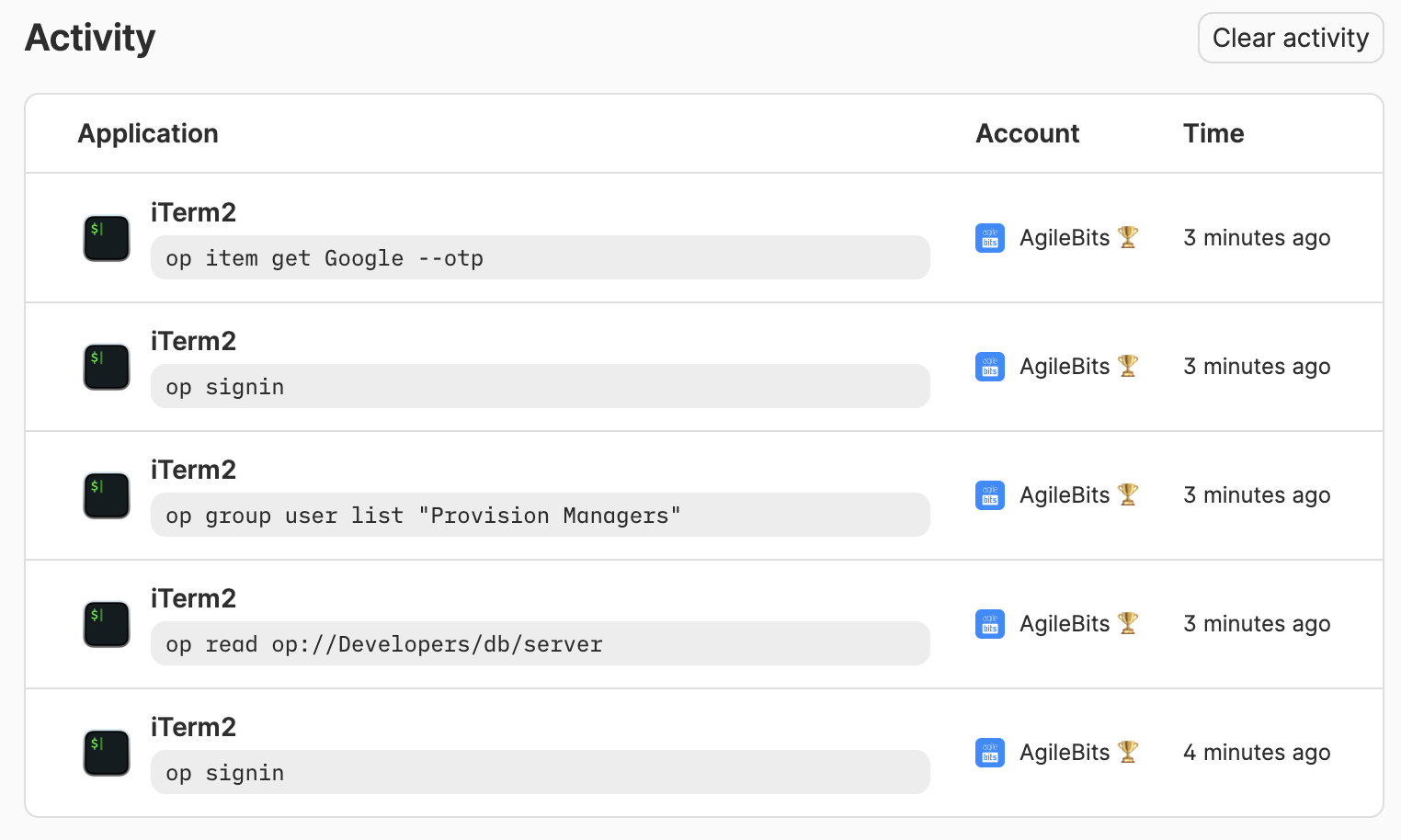
- Track recent 1Password CLI activity from your 1Password app.
Requirements
- Mac
- Windows
- Linux
Set up the app integration
Step 1: Turn on the app integration
- Mac
- Windows
- Linux
- Open and unlock the 1Password app.
- Select your account or collection at the top of the sidebar.
- Navigate to Settings > Developer.
- Select Integrate with 1Password CLI.
- If you want to authenticate 1Password CLI with your fingerprint, turn on Touch ID in the app.
Step 2: Enter any command to sign in
If you have multiple accounts
If you’ve added multiple 1Password accounts to your desktop app, you can useop signin to select an account to sign in to with 1Password CLI. Use the arrow keys to choose from the list of all accounts added to your 1Password app.
You can also select an account on a per-command basis using the --account flag with your account’s sign-in address or ID.
OP_ACCOUNT environment variable to your account’s sign-in address or ID.
Optional: Remove previously added account details
If you previously added an account to 1Password CLI manually and now want to exclusively use the 1Password app to sign in, you can remove your account details from your configuration file. Your configuration file is in one of the following locations:~/.op/config~/.config/op/config~/.config/.op/config
Optional: Set the biometric unlock environment variable
You can use theOP_BIOMETRIC_UNLOCK_ENABLED environment variable to temporarily toggle the app integration on or off.
To turn on the integration:
Track 1Password CLI activity
You can track 1Password CLI activity authenticated with the 1Password app, including the command, when it was run, the application where it was run, and the name of the account accessed.To see your 1Password CLI activity log:
- Open and unlock the 1Password desktop app.
- Select Developer in the sidebar.
- Select View CLI.
Troubleshooting
If op signin doesn’t list your account
op signin returns a list of all accounts you’ve added to the 1Password desktop app. To sign in to 1Password CLI with a new 1Password account, you’ll need to add the account to the app.
If you see “No accounts configured” on macOS 27 Golden Gate
If you updated to macOS 27 Golden Gate and 1Password CLI commands returnNo accounts configured for use with 1Password CLI, even though you’ve turned on the app integration, macOS may be blocking your terminal from accessing data from the 1Password app. To allow access:
- Open System Settings > Privacy & Security > Files & Folders.
- Select the app you use to run commands, like Terminal, iTerm, or Ghostty. If you use a terminal built into an editor, like Visual Studio Code or Cursor, select the editor.
- Turn on the setting that starts with “Data shared by 1Password”. The rest of the name depends on which 1Password apps you’ve installed.
- Quit and reopen your terminal, then try your command again.
If you see a lost connection, no accounts configured, or connection reset error
If you see aLostConnectionToApp, connectionreset or No accounts configured for use with 1Password CLI error when you run a 1Password CLI command:
- Mac
- Windows
- Linux
Make sure the app integration is turned on:
- Open and unlock the 1Password desktop app.
- Select your account or collection at the top of the sidebar.
- Select Settings > Developer and make sure Integrate with 1Password CLI is selected.
- Select Settings > General.
- Make sure “Keep 1Password in the menu bar” is selected.
connectionreset error, also try the following:
- Mac
- Windows
- Linux
Open System Settings > General > Login Items and make sure Allow in background is turned on for 1Password.
If you still see an error, try the following:- Make sure you’re using the latest version of the 1Password desktop app.
- Restart the app.
/usr/local/bin/ directory.If you aren’t prompted to authenticate with your preferred method
If you’ve turned on the app integration, but aren’t prompted to sign in to 1Password CLI with your expected authentication method:- Mac
- Windows
- Linux
Make sure you’ve set up Touch ID or an Apple Watch to unlock 1Password on your Mac.